Share Cart
Extension Installation
For Magento Marketplace Customers
-
Find the Composer name and version of the extension in the extension's composer.json file.
-
Login to your SSH and run:
- composer require mavenbird/magento-2-share-cart
- Wait for Composer to finish updating your project dependencies and make sure there aren't any errors.
-
To verify that the extension installed properly, run the command:
- php bin/magento module:status Mavenbird_ShareCart
- By default, the extension is probably disabled.
- Enable the extension and clear static view files:
- php bin/magento module:enable Mavenbird_ShareCart --clear-static-content
- php bin/magento setup:upgrade
- For Magento version 2.0.x to 2.1.x - php bin/magento setup:static-content:deploy
- For Magento version 2.2.x & above - php bin/magento setup:static-content:deploy --f
- php bin/magento cache:flush
For Mavenbird Customers
- Extract the zip folder and upload our extension to the root of your Magento 2 directory via FTP.
- Login to your SSH and run below commands step by step:
- php bin/magento setup:upgrade
- For Magento version 2.0.x to 2.1.x - php bin/magento setup:static-content:deploy
- For Magento version 2.2.x & above - php bin/magento setup:static-content:deploy --force
- php bin/magento cache:flush
Configuration
- To configure the Disable Compare extension:
- Log in to the Magento Backend.
- Go to Stores > Configuration.
- Under the General tab, select Share Cart.
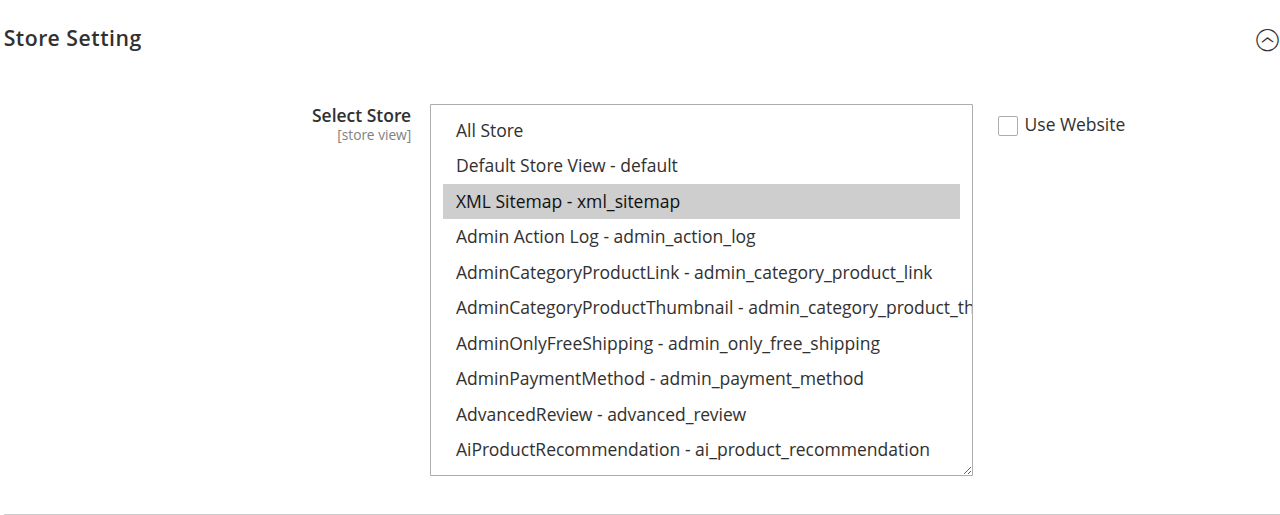
Store Setting – Store View Selection
The Store Setting section allows administrators to configure settings at different store view levels within the system.
Select Store
The Select Store dropdown provides a list of available store scopes. This allows configuration values to be applied at a specific level instead of globally.
Available Options
-
All Store
Applies configuration to all store views. -
Default Store View – default
Applies configuration only to the default frontend store view. -
XML Sitemap – xml_sitemap
Applies configuration specifically to the XML Sitemap store view. -
Additional Store Views
Other store views may be available depending on installed modules (e.g.,admin_action_log,admin_category_product_link,advanced_review, etc.).
Scope Control
- Use Website (checkbox)
When enabled, the setting inherits its value from the website level instead of overriding it at the selected store view level.
Purpose
This section ensures that configurations can be managed with proper scope control, allowing administrators to:
- Apply global settings across all stores
- Customize configurations per website
- Override settings for individual store views
- Maintain flexible multi-store management
General Settings
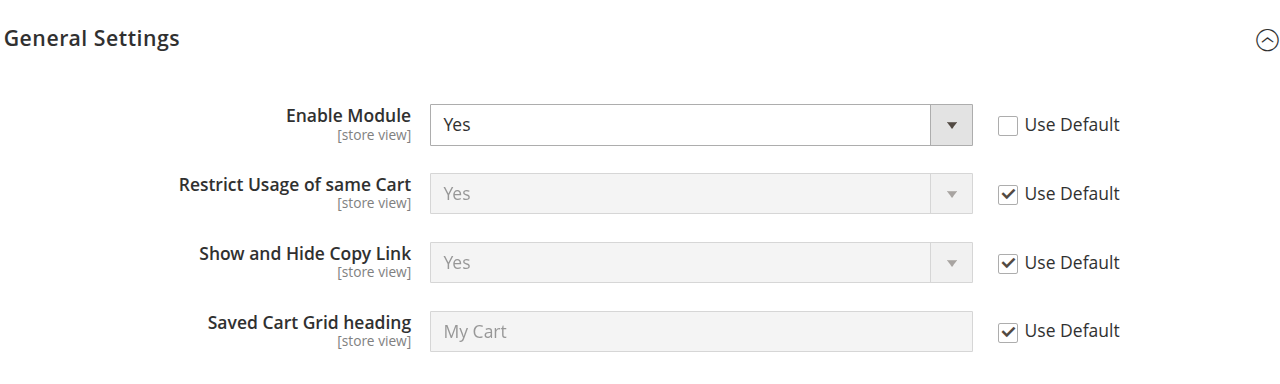
The General Settings section allows administrators to configure the core behavior of the module at the selected scope (Global, Website, or Store View).
Configuration Options
Enable Module
-
Type: Dropdown (Yes / No)
-
Scope: Store View
-
Description:
Enables or disables the module functionality.- Yes – The module is active and fully functional.
- No – The module is disabled and its features will not be available on the storefront or admin panel.
-
Use Default:
When checked, the value is inherited from the default (higher-level) configuration.
Restrict Usage of Same Cart
-
Type: Dropdown (Yes / No)
-
Scope: Store View
-
Description:
Controls whether the same cart can be reused multiple times.- Yes – Restricts repeated usage of the same cart.
- No – Allows the cart to be reused without restriction.
-
Use Default:
When enabled, the configuration value is inherited from the default scope.
Show and Hide Copy Link
-
Type: Dropdown (Yes / No)
-
Scope: Store View
-
Description:
Determines whether the copy link option is displayed to users.- Yes – Displays the copy link option.
- No – Hides the copy link option.
-
Use Default:
When checked, the setting inherits the default configuration.
Saved Cart Grid Heading
-
Type: Text Field
-
Scope: Store View
-
Default Value:
My Cart -
Description:
Defines the heading displayed for the saved cart grid section on the frontend. -
Use Default:
When enabled, the heading value is inherited from the default configuration.
Scope Behavior
All settings support scope-based configuration. This allows administrators to:
- Apply settings globally
- Customize per website
- Override per store view
- Maintain flexible multi-store control
Email Options
The Email Options section allows administrators to configure the email settings used by the module for sending notifications or shared cart emails.
Configuration Options
Email Sender
-
Type: Dropdown (Email Identity)
-
Scope: Store View
-
Default Value: General Contact
-
Description:
Specifies the email identity that will be used as the sender of outgoing emails.Available sender identities are typically configured under:
Stores > Configuration > General > Store Email AddressesExamples may include:
- General Contact
- Sales Representative
- Customer Support
- Custom Email Identity (if configured)
-
Use Website:
When checked, the sender configuration is inherited from the website-level settings instead of being overridden at the store view level.
Email Subject
-
Type: Text Field
-
Scope: Store View
-
Default Value:
Share Cart -
Description:
Defines the subject line of the email sent to recipients.This field supports custom text and can be modified to match branding or communication tone.
-
Use Default:
When enabled, the subject line is inherited from the default configuration scope.
Scope Behavior
Email settings support scope-based configuration, allowing administrators to:
- Set global email configurations
- Customize sender and subject per website
- Override email settings per store view
- Maintain consistent branding across multiple stores

Share/Save Cart Button Options
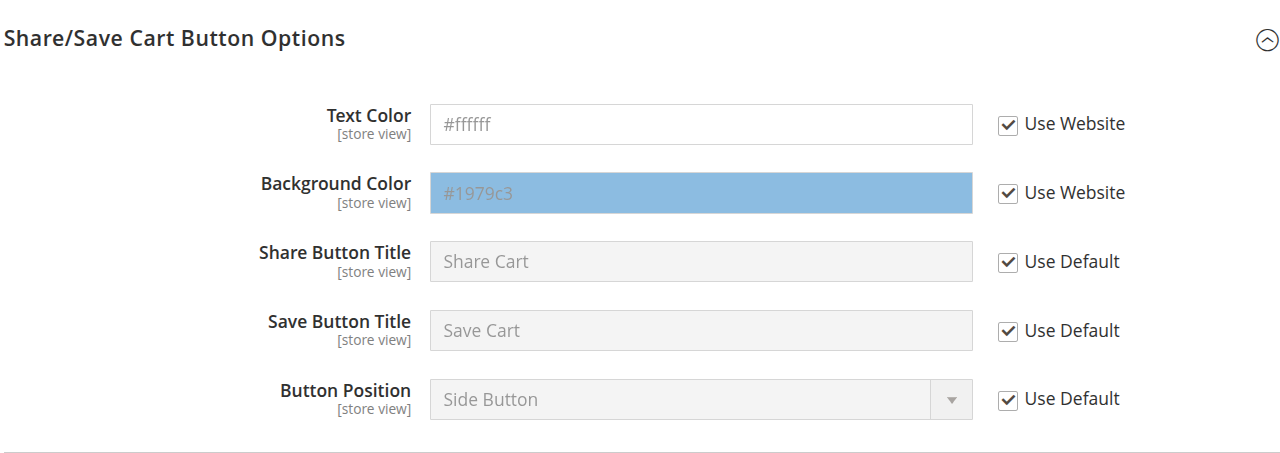
The Share/Save Cart Button Options section allows administrators to customize the appearance, labels, and position of the Share and Save Cart buttons on the storefront.
Configuration Options
Text Color
-
Type: Color Field (Hex Code)
-
Scope: Store View
-
Default Value:
#ffffff -
Description:
Defines the text color of the Share and Save Cart buttons.The value must be a valid HEX color code (e.g.,
#000000for black,#fffffffor white). -
Use Website:
When checked, the value is inherited from the website-level configuration.
Background Color
-
Type: Color Field (Hex Code)
-
Scope: Store View
-
Default Value:
#1979c3 -
Description:
Sets the background color of the Share and Save Cart buttons.Accepts a valid HEX color code to match store branding.
-
Use Website:
When enabled, the setting inherits the website-level value.
Share Button Title
-
Type: Text Field
-
Scope: Store View
-
Default Value:
Share Cart -
Description:
Specifies the label displayed on the Share Cart button. -
Use Default:
When checked, the title is inherited from the default configuration scope.
Save Button Title
-
Type: Text Field
-
Scope: Store View
-
Default Value:
Save Cart -
Description:
Defines the label displayed on the Save Cart button. -
Use Default:
When enabled, the value is inherited from the default configuration.
Button Position
-
Type: Dropdown
-
Scope: Store View
-
Default Value:
Side Button -
Description:
Determines the placement of the Share/Save Cart buttons on the storefront.Available positions may include:
- Side Button
- Inline with Cart Actions
- Custom Position (if supported)
-
Use Default:
When checked, the button position follows the default configuration setting.
Scope Behavior
All button settings support scope-based configuration, allowing administrators to:
- Maintain consistent branding across stores
- Customize button appearance per website
- Override button labels or position per store view
- Ensure flexible multi-store design control
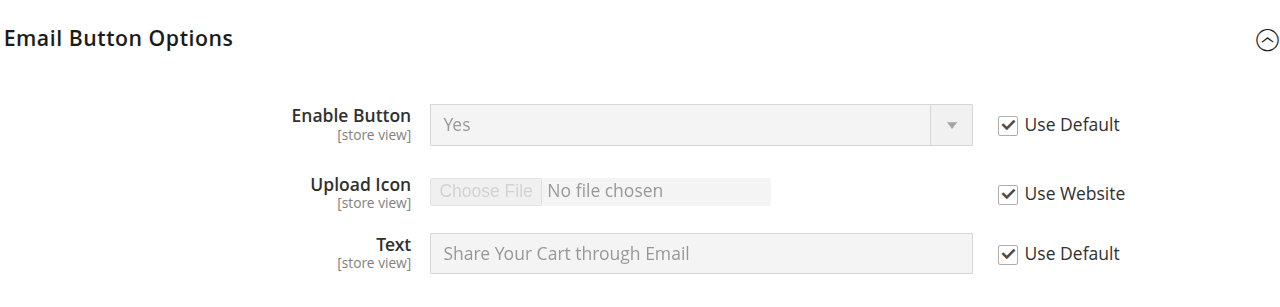
Email Button Options
The Email Button Options section allows administrators to configure the visibility, icon, and label of the Email Share button displayed on the storefront.
Configuration Options
Enable Button
-
Type: Dropdown (Yes / No)
-
Scope: Store View
-
Default Value: Yes
-
Description:
Enables or disables the Email Share button on the storefront.- Yes – The Email button is visible to customers.
- No – The Email button is hidden.
-
Use Default:
When checked, the value is inherited from the default configuration scope.
Upload Icon
-
Type: File Upload
-
Scope: Store View
-
Description:
Allows administrators to upload a custom icon for the Email button.- Supported formats typically include:
.png,.jpg,.svg - If no icon is uploaded, the system default icon (if available) will be used.
- Supported formats typically include:
-
Use Website:
When enabled, the icon configuration is inherited from the website-level settings.
Text
-
Type: Text Field
-
Scope: Store View
-
Default Value:
Share Your Cart through Email -
Description:
Defines the label displayed alongside or inside the Email button.This text can be customized to match store branding or communication style.
-
Use Default:
When checked, the label text is inherited from the default configuration scope.
Scope Behavior
All Email Button settings support scope-based configuration, allowing administrators to:
- Enable or disable the button per store view
- Customize icons per website
- Override button text per store
- Maintain consistent branding across multiple stores
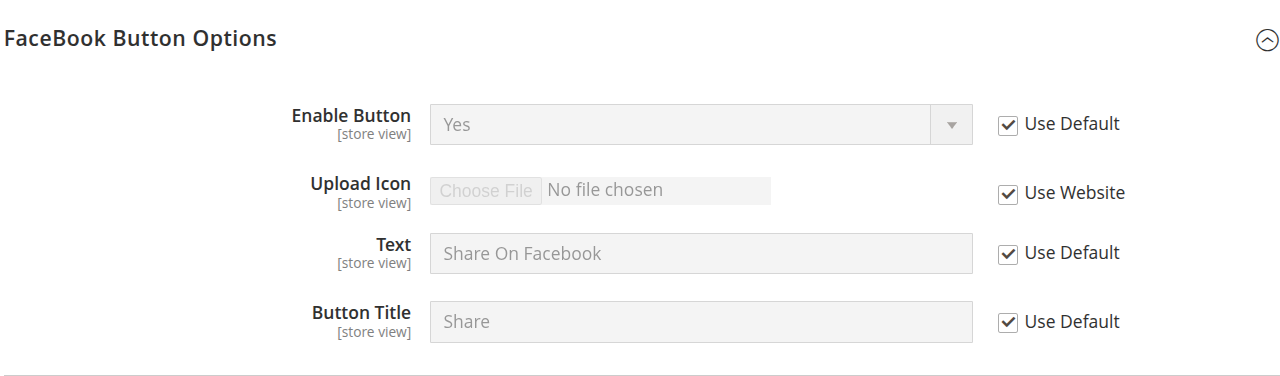
Facebook Button Options
The Facebook Button Options section allows administrators to configure the Facebook share button displayed on the storefront.
Configuration Options
Enable Button
-
Type: Dropdown (Yes / No)
-
Scope: Store View
-
Default Value: Yes
-
Description:
Enables or disables the Facebook Share button.- Yes – The Facebook button is visible to customers.
- No – The Facebook button is hidden.
-
Use Default:
When checked, the value is inherited from the default configuration scope.
Upload Icon
-
Type: File Upload
-
Scope: Store View
-
Description:
Allows administrators to upload a custom icon for the Facebook button.- Supported formats typically include:
.png,.jpg,.svg - If no icon is uploaded, the default system icon (if available) will be used.
- Supported formats typically include:
-
Use Website:
When enabled, the icon configuration is inherited from the website-level settings.
Text
-
Type: Text Field
-
Scope: Store View
-
Default Value:
Share On Facebook -
Description:
Defines the text displayed alongside or inside the Facebook button.This text can be customized to match store branding or tone.
-
Use Default:
When checked, the text value is inherited from the default configuration scope.
Button Title
-
Type: Text Field
-
Scope: Store View
-
Default Value:
Share -
Description:
Specifies the button title attribute (tooltip text displayed on hover). -
Use Default:
When enabled, the button title inherits the default configuration value.
Scope Behavior
All Facebook Button settings support scope-based configuration, allowing administrators to:
- Enable or disable the button per store view
- Customize the icon per website
- Override text and title per store
- Maintain consistent social sharing behavior across multiple stores
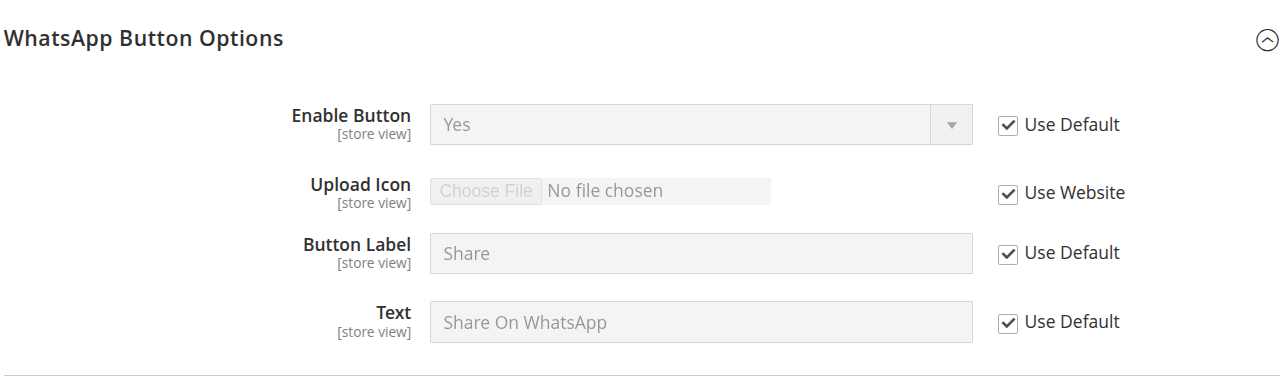
WhatsApp Button Options
The WhatsApp Button Options section allows administrators to configure the WhatsApp share button displayed on the storefront.
Configuration Options
Enable Button
-
Type: Dropdown (Yes / No)
-
Scope: Store View
-
Default Value: Yes
-
Description:
Enables or disables the WhatsApp Share button.- Yes – The WhatsApp button is visible to customers.
- No – The WhatsApp button is hidden.
-
Use Default:
When checked, the value is inherited from the default configuration scope.
Upload Icon
-
Type: File Upload
-
Scope: Store View
-
Description:
Allows administrators to upload a custom icon for the WhatsApp button.- Supported formats typically include:
.png,.jpg,.svg - If no icon is uploaded, the default system icon (if available) will be used.
- Supported formats typically include:
-
Use Website:
When enabled, the icon configuration is inherited from the website-level settings.
Button Label
-
Type: Text Field
-
Scope: Store View
-
Default Value:
Share -
Description:
Defines the main button label displayed on the WhatsApp share button. -
Use Default:
When checked, the label value is inherited from the default configuration scope.
Text
-
Type: Text Field
-
Scope: Store View
-
Default Value:
Share On WhatsApp -
Description:
Specifies the descriptive text shown alongside or within the WhatsApp button.This text can be customized to match branding or communication style.
-
Use Default:
When enabled, the text value is inherited from the default configuration scope.
Scope Behavior
All WhatsApp Button settings support scope-based configuration, allowing administrators to:
- Enable or disable the button per store view
- Customize the icon per website
- Override button label and text per store
- Maintain consistent social sharing functionality across multiple stores
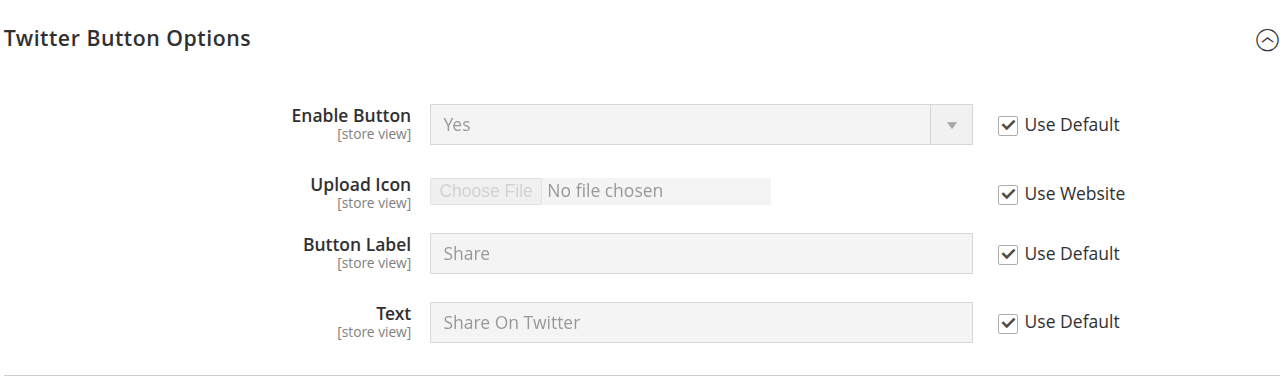
Twitter Button Options
The Twitter Button Options section allows administrators to configure the Twitter share button displayed on the storefront.
Configuration Options
Enable Button
-
Type: Dropdown (Yes / No)
-
Scope: Store View
-
Default Value: Yes
-
Description:
Enables or disables the Twitter Share button.- Yes – The Twitter button is visible to customers.
- No – The Twitter button is hidden.
-
Use Default:
When checked, the value is inherited from the default configuration scope.
Upload Icon
-
Type: File Upload
-
Scope: Store View
-
Description:
Allows administrators to upload a custom icon for the Twitter button.- Supported formats typically include:
.png,.jpg,.svg - If no icon is uploaded, the default system icon (if available) will be used.
- Supported formats typically include:
-
Use Website:
When enabled, the icon configuration is inherited from the website-level settings.
Button Label
-
Type: Text Field
-
Scope: Store View
-
Default Value:
Share -
Description:
Defines the main label displayed on the Twitter share button. -
Use Default:
When checked, the label value is inherited from the default configuration scope.
Text
-
Type: Text Field
-
Scope: Store View
-
Default Value:
Share On Twitter -
Description:
Specifies the descriptive text displayed alongside or within the Twitter button.This text can be customized to match store branding or messaging.
-
Use Default:
When enabled, the text value is inherited from the default configuration scope.
Scope Behavior
All Twitter Button settings support scope-based configuration, allowing administrators to:
- Enable or disable the button per store view
- Customize the icon per website
- Override button label and text per store
- Maintain consistent social sharing functionality across multiple stores
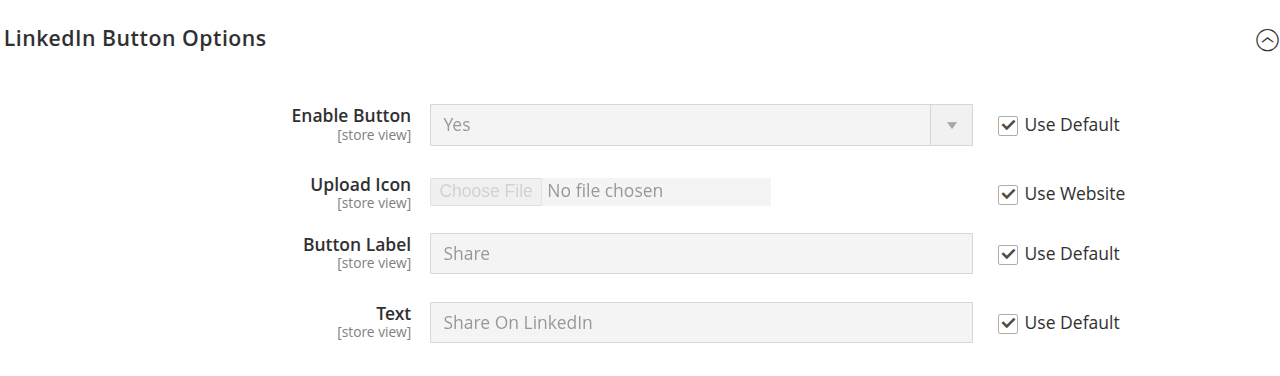
LinkedIn Button Options
The LinkedIn Button Options section allows administrators to configure the LinkedIn share button displayed on the storefront.
Configuration Options
Enable Button
-
Type: Dropdown (Yes / No)
-
Scope: Store View
-
Default Value: Yes
-
Description:
Enables or disables the LinkedIn Share button.- Yes – The LinkedIn button is visible to customers.
- No – The LinkedIn button is hidden.
-
Use Default:
When checked, the value is inherited from the default configuration scope.
Upload Icon
-
Type: File Upload
-
Scope: Store View
-
Description:
Allows administrators to upload a custom icon for the LinkedIn button.- Supported formats typically include:
.png,.jpg,.svg - If no icon is uploaded, the default system icon (if available) will be used.
- Supported formats typically include:
-
Use Website:
When enabled, the icon configuration is inherited from the website-level settings.
Button Label
-
Type: Text Field
-
Scope: Store View
-
Default Value:
Share -
Description:
Defines the primary label displayed on the LinkedIn share button. -
Use Default:
When checked, the label value is inherited from the default configuration scope.
Text
-
Type: Text Field
-
Scope: Store View
-
Default Value:
Share On LinkedIn -
Description:
Specifies the descriptive text displayed alongside or within the LinkedIn button.This text can be customized to align with store branding or messaging.
-
Use Default:
When enabled, the text value is inherited from the default configuration scope.
Scope Behavior
All LinkedIn Button settings support scope-based configuration, allowing administrators to:
- Enable or disable the button per store view
- Customize the icon per website
- Override button label and text per store
- Maintain consistent social sharing functionality across multiple stores
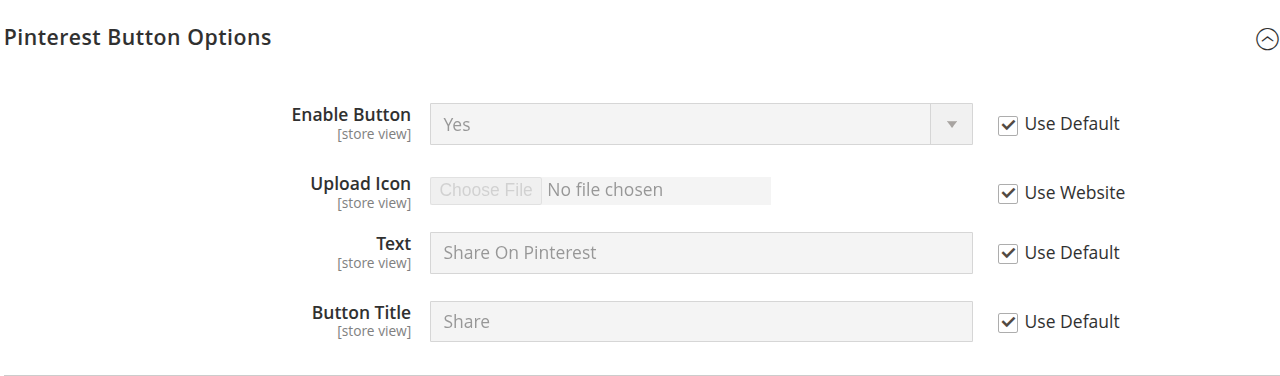
Pinterest Button Options
The Pinterest Button Options section allows administrators to configure the Pinterest share button displayed on the storefront.
Configuration Options
Enable Button
-
Type: Dropdown (Yes / No)
-
Scope: Store View
-
Default Value: Yes
-
Description:
Enables or disables the Pinterest Share button.- Yes – The Pinterest button is visible to customers.
- No – The Pinterest button is hidden.
-
Use Default:
When checked, the value is inherited from the default configuration scope.
Upload Icon
-
Type: File Upload
-
Scope: Store View
-
Description:
Allows administrators to upload a custom icon for the Pinterest button.- Supported formats typically include:
.png,.jpg,.svg - If no icon is uploaded, the default system icon (if available) will be used.
- Supported formats typically include:
-
Use Website:
When enabled, the icon configuration is inherited from the website-level settings.
Text
-
Type: Text Field
-
Scope: Store View
-
Default Value:
Share On Pinterest -
Description:
Defines the descriptive text displayed alongside or within the Pinterest button.This text can be customized to match store branding or communication style.
-
Use Default:
When checked, the text value is inherited from the default configuration scope.
Button Title
-
Type: Text Field
-
Scope: Store View
-
Default Value:
Share -
Description:
Specifies the button title attribute (tooltip text displayed on hover). -
Use Default:
When enabled, the button title inherits the default configuration value.
Scope Behavior
All Pinterest Button settings support scope-based configuration, allowing administrators to:
- Enable or disable the button per store view
- Customize the icon per website
- Override button text and title per store
- Maintain consistent social sharing functionality across multiple stores
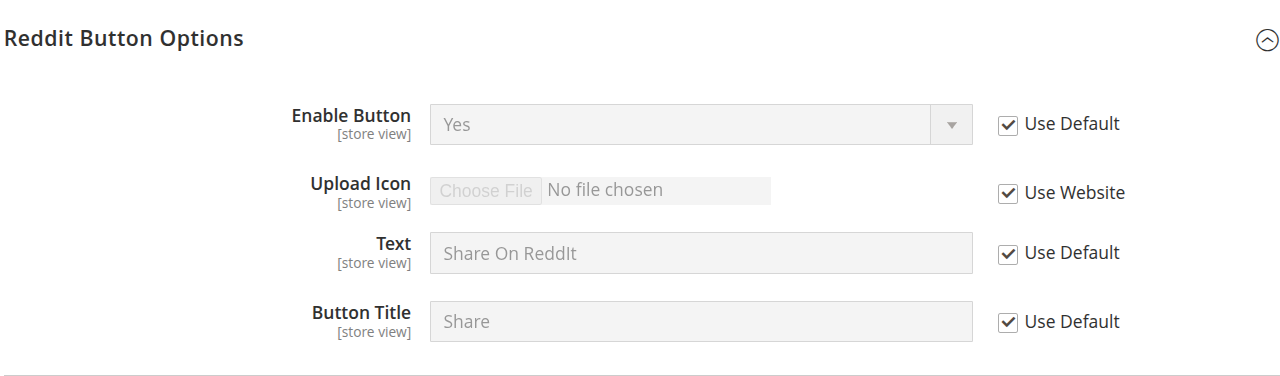
Reddit Button Options
The Reddit Button Options section allows administrators to configure the Reddit share button displayed on the storefront.
Configuration Options
Enable Button
-
Type: Dropdown (Yes / No)
-
Scope: Store View
-
Default Value: Yes
-
Description:
Enables or disables the Reddit Share button.- Yes – The Reddit button is visible to customers.
- No – The Reddit button is hidden.
-
Use Default:
When checked, the value is inherited from the default configuration scope.
Upload Icon
-
Type: File Upload
-
Scope: Store View
-
Description:
Allows administrators to upload a custom icon for the Reddit button.- Supported formats typically include:
.png,.jpg,.svg - If no icon is uploaded, the default system icon (if available) will be used.
- Supported formats typically include:
-
Use Website:
When enabled, the icon configuration is inherited from the website-level settings.
Text
-
Type: Text Field
-
Scope: Store View
-
Default Value:
Share On Reddit -
Description:
Defines the descriptive text displayed alongside or within the Reddit button.This text can be customized to match store branding or communication style.
-
Use Default:
When checked, the text value is inherited from the default configuration scope.
Button Title
-
Type: Text Field
-
Scope: Store View
-
Default Value:
Share -
Description:
Specifies the button title attribute (tooltip text displayed on hover). -
Use Default:
When enabled, the button title inherits the default configuration value.
Scope Behavior
All Reddit Button settings support scope-based configuration, allowing administrators to:
- Enable or disable the button per store view
- Customize the icon per website
- Override button text and title per store
- Maintain consistent social sharing functionality across multiple stores
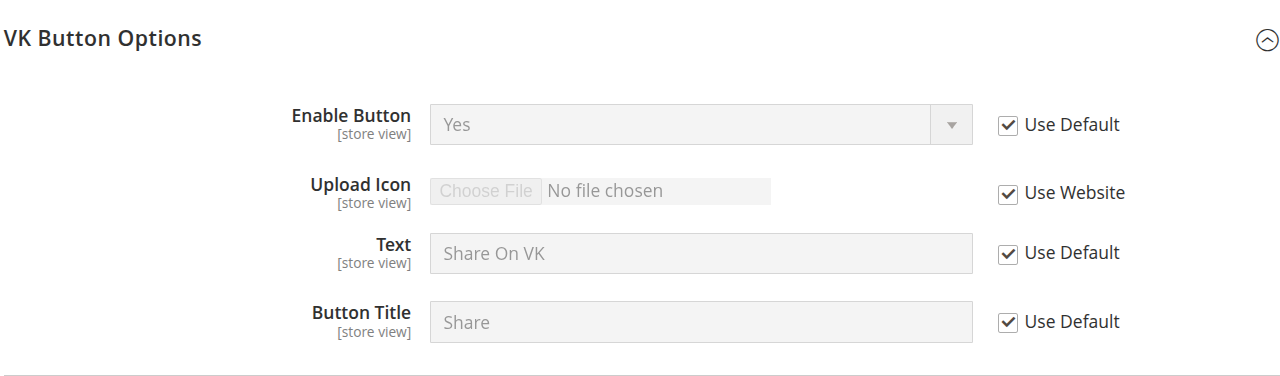
VK Button Options
The VK Button Options section allows administrators to configure the VK (VKontakte) share button displayed on the storefront.
Configuration Options
Enable Button
-
Type: Dropdown (Yes / No)
-
Scope: Store View
-
Default Value: Yes
-
Description:
Enables or disables the VK Share button.- Yes – The VK button is visible to customers.
- No – The VK button is hidden.
-
Use Default:
When checked, the value is inherited from the default configuration scope.
Upload Icon
-
Type: File Upload
-
Scope: Store View
-
Description:
Allows administrators to upload a custom icon for the VK button.- Supported formats typically include:
.png,.jpg,.svg - If no icon is uploaded, the default system icon (if available) will be used.
- Supported formats typically include:
-
Use Website:
When enabled, the icon configuration is inherited from the website-level settings.
Text
-
Type: Text Field
-
Scope: Store View
-
Default Value:
Share On VK -
Description:
Defines the descriptive text displayed alongside or within the VK button.This text can be customized to match store branding or communication style.
-
Use Default:
When checked, the text value is inherited from the default configuration scope.
Button Title
-
Type: Text Field
-
Scope: Store View
-
Default Value:
Share -
Description:
Specifies the button title attribute (tooltip text displayed on hover). -
Use Default:
When enabled, the button title inherits the default configuration value.
Scope Behavior
All VK Button settings support scope-based configuration, allowing administrators to:
- Enable or disable the button per store view
- Customize the icon per website
- Override button text and title per store
- Maintain consistent social sharing functionality across multiple stores
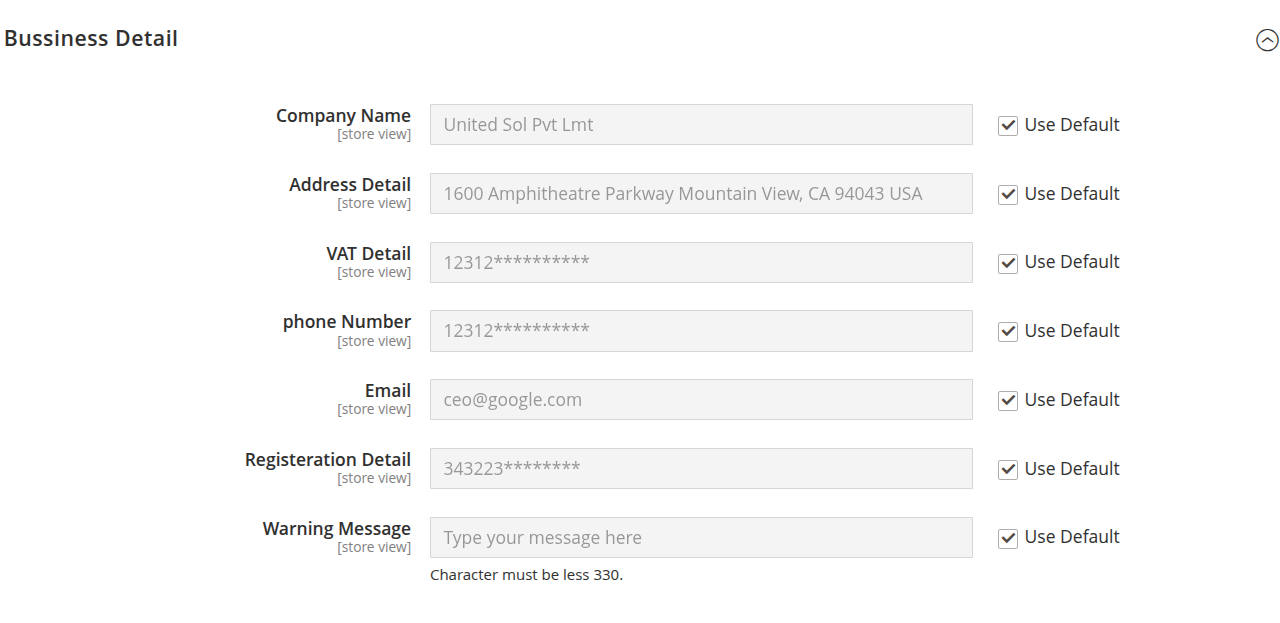
Business Detail
The Business Detail section allows administrators to configure company information that may be displayed in shared cart pages, emails, invoices, or other related communications.
All fields support scope-based configuration and can inherit values from the default settings.
Configuration Options
Company Name
-
Type: Text Field
-
Scope: Store View
-
Description:
Specifies the official company name.This name may appear in shared cart pages, emails, or other customer-facing content.
-
Use Default:
When checked, the value is inherited from the default configuration scope.
Address Detail
-
Type: Text Field
-
Scope: Store View
-
Description:
Defines the full company address, including street, city, state, postal code, and country. -
Use Default:
When enabled, the address is inherited from the default configuration.
VAT Detail
-
Type: Text Field
-
Scope: Store View
-
Description:
Specifies the company VAT (Value Added Tax) number.This may be displayed for legal, tax, or compliance purposes.
-
Use Default:
When checked, the VAT number is inherited from the default configuration scope.
Phone Number
-
Type: Text Field
-
Scope: Store View
-
Description:
Defines the official company contact number. -
Use Default:
When enabled, the phone number is inherited from the default configuration.
Email
-
Type: Text Field
-
Scope: Store View
-
Description:
Specifies the official company email address used for customer communication or display purposes. -
Use Default:
When checked, the email address is inherited from the default configuration scope.
Registration Detail
-
Type: Text Field
-
Scope: Store View
-
Description:
Defines the company registration number or business identification number.This may be required for legal or compliance documentation.
-
Use Default:
When enabled, the registration detail is inherited from the default configuration.
Warning Message
-
Type: Text Area
-
Scope: Store View
-
Character Limit: 330 characters
-
Description:
Allows administrators to define a custom warning or informational message.This message may be displayed on shared cart pages or related communications.
-
Use Default:
When checked, the warning message is inherited from the default configuration scope.
Scope Behavior
All Business Detail settings support scope-based configuration, allowing administrators to:
- Set global company information
- Customize details per website
- Override business information per store view
- Maintain compliance and consistent branding across multiple stores
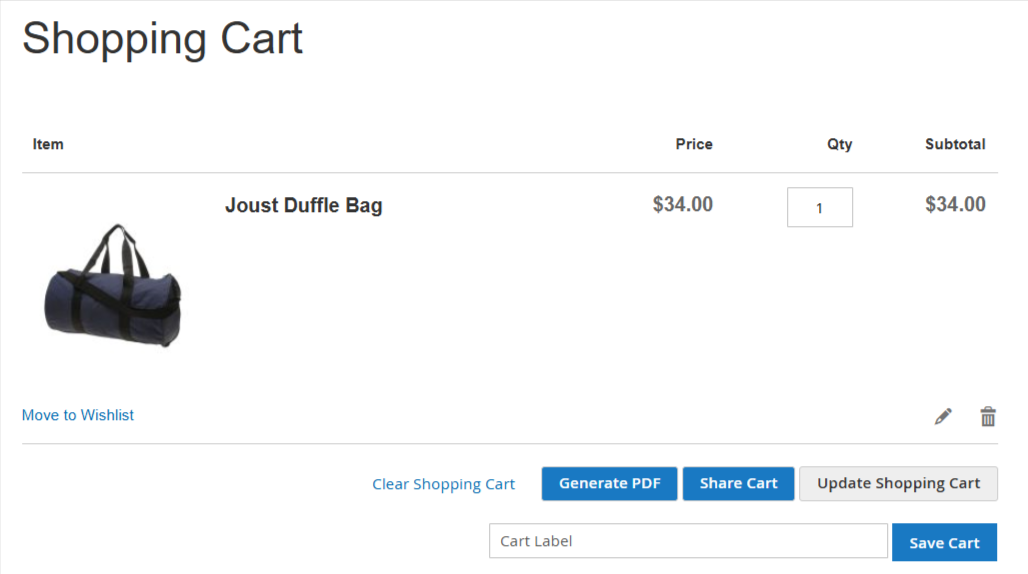
Seamless Cart Saving & Sharing for Customers
Enhance the customer shopping experience by allowing users to easily save and share their shopping carts. This feature improves convenience, encourages return visits, and increases engagement through social and direct sharing options.
Save Cart Functionality
Customers can:
- Save their shopping cart to My Account for future purchases
- Create and manage multiple saved carts
- Restore any saved cart with a single click
- Edit cart items before checkout
- Delete saved carts when no longer needed
- Assign custom labels to identify saved carts easily
This functionality is ideal for:
- Planned or recurring purchases
- Corporate or bulk buyers
- Customers comparing different product combinations
- Returning customers who shop over multiple sessions
Cart Sharing Options
Customers can conveniently share their cart using multiple channels, including:
- Direct shareable link
- SMS
Shared carts allow recipients to:
- View the exact product selection
- Restore the cart instantly
- Proceed directly to checkout
Benefits
- Improves customer convenience
- Encourages repeat purchases
- Increases social engagement
- Simplifies group or collaborative buying
- Boosts conversion rates
Button Placement
The Share/Save Cart buttons can be positioned within the cart page layout (e.g., middle position near action buttons), ensuring easy visibility and access without disrupting the shopping flow.
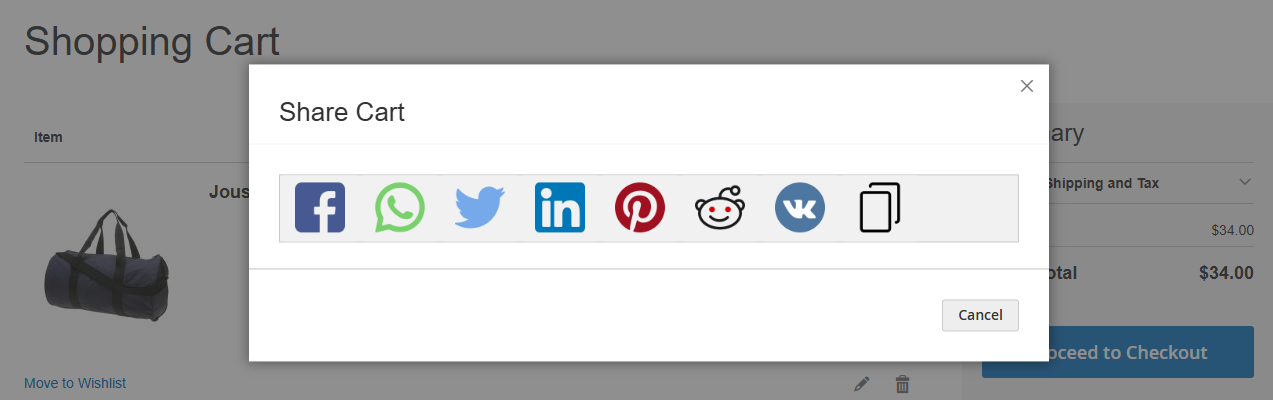
Easily Share and Manage Saved Carts
The Magento 2 Save Cart feature allows customers to efficiently manage and share their shopping carts, enhancing convenience and encouraging repeat purchases.
Save & Manage Multiple Carts
Customers can:
- Save multiple shopping carts within My Account
- Restore saved carts instantly with a single click
- Edit cart contents before checkout
- Duplicate carts for repeated purchases
- Delete carts that are no longer needed
This functionality is especially useful for returning customers, bulk buyers, and users comparing different product combinations.
Share Saved Carts Instantly
From the Share Cart popup, customers can easily share their saved cart using:
- Direct Link
- SMS
- VK
Recipients can open the shared cart, review the selected products, and proceed directly to checkout.
Key Benefits
- Simplifies future purchases
- Encourages collaborative shopping
- Boosts social engagement
- Improves user experience
- Increases conversion opportunities
The Share Cart popup provides a clean and user-friendly interface, making cart sharing fast, seamless, and accessible across multiple platforms.
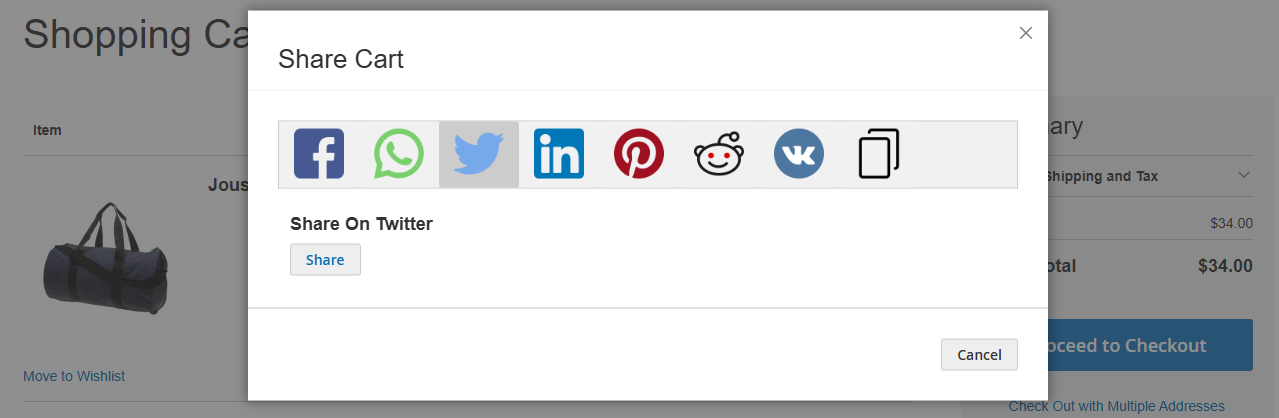
Effortless Cart Sharing Across Social Media & More
The Magento 2 Save Cart feature empowers customers to save their shopping carts directly within My Account for future purchases — making repeat shopping faster and more convenient.
Save Multiple Carts with Ease
Customers can:
- Save multiple shopping carts for different needs
- Instantly restore any saved cart with one click
- Edit products, quantities, or configurations
- Delete carts that are no longer needed
- Duplicate carts for recurring purchases
This is especially useful for bulk buyers, B2B customers, and shoppers comparing different product selections.
Share Carts in Just One Click
The intuitive Share Cart popup allows customers to select their preferred sharing platform and send their cart instantly.
Supported sharing options include:
- Direct Link
- SMS
- VK
Once shared, recipients can open the cart, review selected products, and proceed directly to checkout — simplifying collaboration and purchase decisions.
Why It Matters
- Enhances customer convenience
- Encourages social engagement
- Supports collaborative shopping
- Increases repeat purchases
- Improves overall user experience
With seamless cart saving and flexible sharing options, this feature transforms the shopping journey into a more connected and user-friendly experience.
Share and Save Cart in PDF Format for Easy Reference and Download
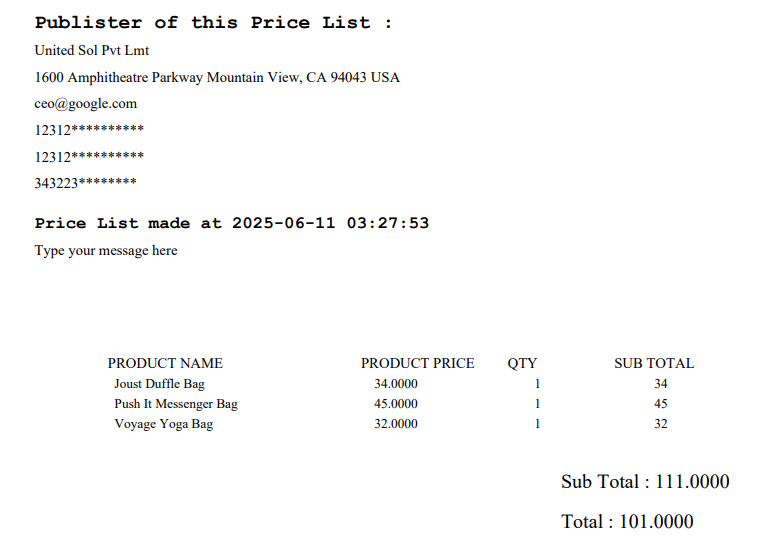
The Magento 2 Save Cart extension allows customers to generate and download a detailed PDF version of their cart for easy reference, sharing, and offline access.
This feature is ideal for quotations, internal approvals, bulk purchases, and record-keeping.
Generate Cart as PDF
With a single click, customers can download a professionally formatted PDF containing complete cart information.
The PDF includes:
Store Information
- Store Name
- Store Address
- VAT Number
- Phone Number
- Email Address
- Registered Company Number
- Custom Warning / Disclaimer Message
This ensures the document is suitable for official communication or business use.
Order Summary Details
The generated PDF provides a clear breakdown of:
- Product Name
- Stock ID / SKU
- Quantity
- Product Description
- Unit Price
- Sub-Total per Product
- Cart Sub-Total
- Grand Total
All pricing details are neatly structured for easy readability.
Purchase Information
- Date of PDF Generation
- Time Stamp of Cart Creation
This helps customers maintain accurate purchase records and references.
Key Benefits
- Easy cart sharing in a professional format
- Useful for quotations and approvals
- Convenient offline access
- Improves customer experience
- Enhances B2B purchasing workflows
By enabling cart export in PDF format, the extension provides customers with a practical and business-ready way to manage and share their shopping carts.
Effortless Saved Cart Management & Sharing in Your Account
The Magento 2 Save Cart feature allows customers to conveniently save their shopping carts directly within My Account for future purchases. This functionality improves shopping flexibility and makes repeat purchases faster and more efficient.
Manage Multiple Saved Carts
Customers can:
- Save multiple carts for different shopping needs
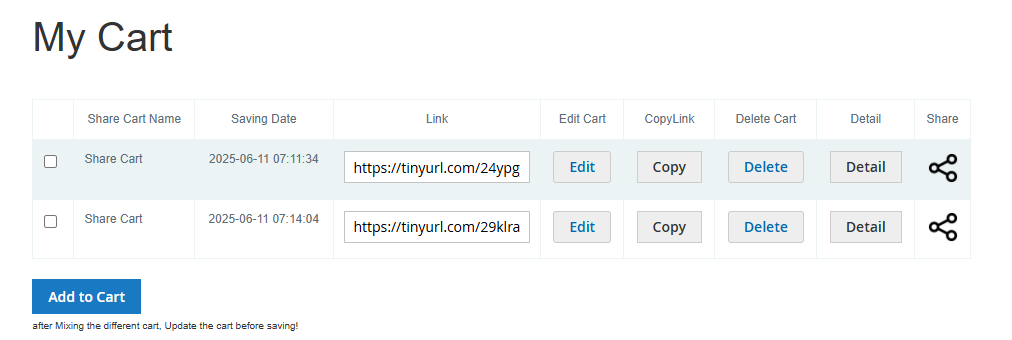
- View saved cart names and saving dates
- Restore any cart instantly with one click
- Edit cart contents before checkout
- Delete carts that are no longer required
- Copy the generated cart link for quick sharing
This makes it easy for customers to organize their purchases and revisit them anytime.
Quick Access & Easy Actions
Within the My Cart section in My Account, users can:
- View generated shareable links
- Edit saved carts
- Copy cart links instantly
- Delete unwanted carts
- View detailed cart information
- Share carts directly using the share icon
Everything is accessible from a clean and user-friendly dashboard.
Seamless Cart Sharing
Customers can share their saved carts via:
- Direct Link
- SMS
- Other popular social platforms
Recipients can open the shared cart, review the products, and proceed directly to checkout.
Key Benefits
- Simplifies repeat purchases
- Improves cart organization
- Encourages social sharing
- Enhances user experience
- Increases customer engagement
By enabling easy saved cart management and flexible sharing options, this feature delivers a smoother and more powerful shopping experience.