Extension Installation
For Magento Marketplace Customers
-
Find the Composer name and version of the extension in the extension's composer.json file.
-
Login to your SSH and run:
- composer require mavenbird/whatsapp
- Wait for Composer to finish updating your project dependencies and make sure there aren't any errors.
-
To verify that the extension installed properly, run the command:
- php bin/magento module:status Mavenbird_WhatsApp
- By default, the extension is probably disabled.
- Enable the extension and clear static view files:
- php bin/magento module:enable Mavenbird_WhatsApp --clear-static-content
- php bin/magento setup:upgrade
- For Magento version 2.0.x to 2.1.x - php bin/magento setup:static-content:deploy
- For Magento version 2.2.x & above - php bin/magento setup:static-content:deploy --f
- php bin/magento cache:flush
For Mavenbird Customers
- Extract the zip folder and upload our extension to the root of your Magento 2 directory via FTP.
- Login to your SSH and run below commands step by step:
- php bin/magento setup:upgrade
- For Magento version 2.0.x to 2.1.x - php bin/magento setup:static-content:deploy
- For Magento version 2.2.x & above - php bin/magento setup:static-content:deploy --force
- php bin/magento cache:flush
Enable your customers to effortlessly share and promote your products on WhatsApp with just one touch using our Share on WhatsApp Extension for Magento 2. This powerful extension enhances your marketing efforts by leveraging the reach of WhatsApp, ensuring your products get maximum visibility.
- Customers can share products with their WhatsApp contacts with a single click.
- Admins can customize the default message that accompanies the shared link.
- Easily integrates with your existing Magento 2 store without any hassle.
- Fully responsive and works seamlessly across all devices.
- Flexible options to place the WhatsApp share button on product pages.
- Track the number of shares and analyze the reach and impact of your products.
Configuration
Store→ Configuration→ MAVENBIRD EXTENSIONS->Whatsapp Share
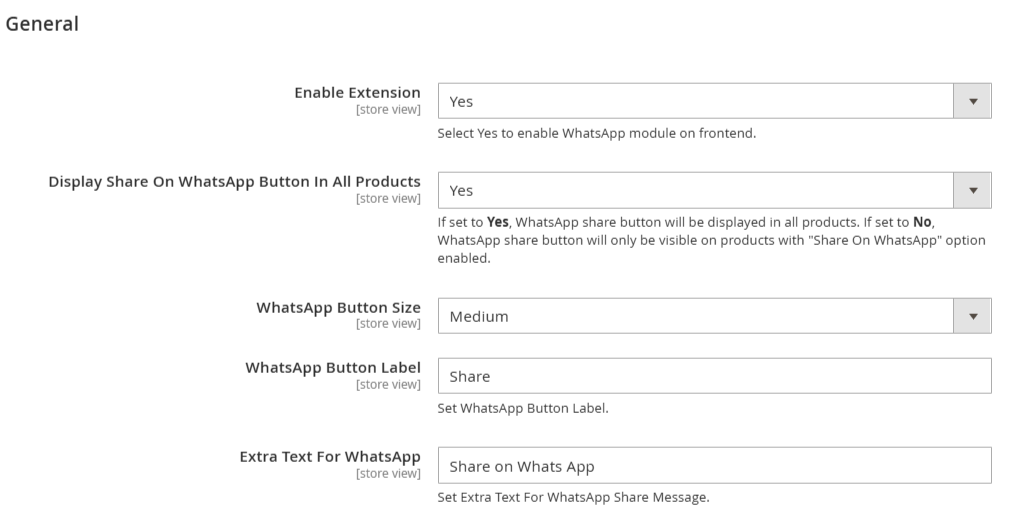
**Enable Extension:**A dropdown option to enable or disable the WhatsApp module on the frontend. Selecting "Yes" activates the feature.
**Display Share On WhatsApp Button In All Products:**This setting determines whether the WhatsApp share button appears on all product pages. If set to "Yes," the button will be visible on all products; if "No," it will only show on products with the "Share On WhatsApp" option enabled.
**WhatsApp Button Size:**A dropdown to select the size of the WhatsApp button, with "Medium" as one of the options.
**WhatsApp Button Label:**This field allows you to set the label for the WhatsApp button, with "Share" as the default option.
**Extra Text For WhatsApp:**This field is for adding extra text that will accompany the WhatsApp share message, with "Share on Whats App" as a suggested text.
Frontend View
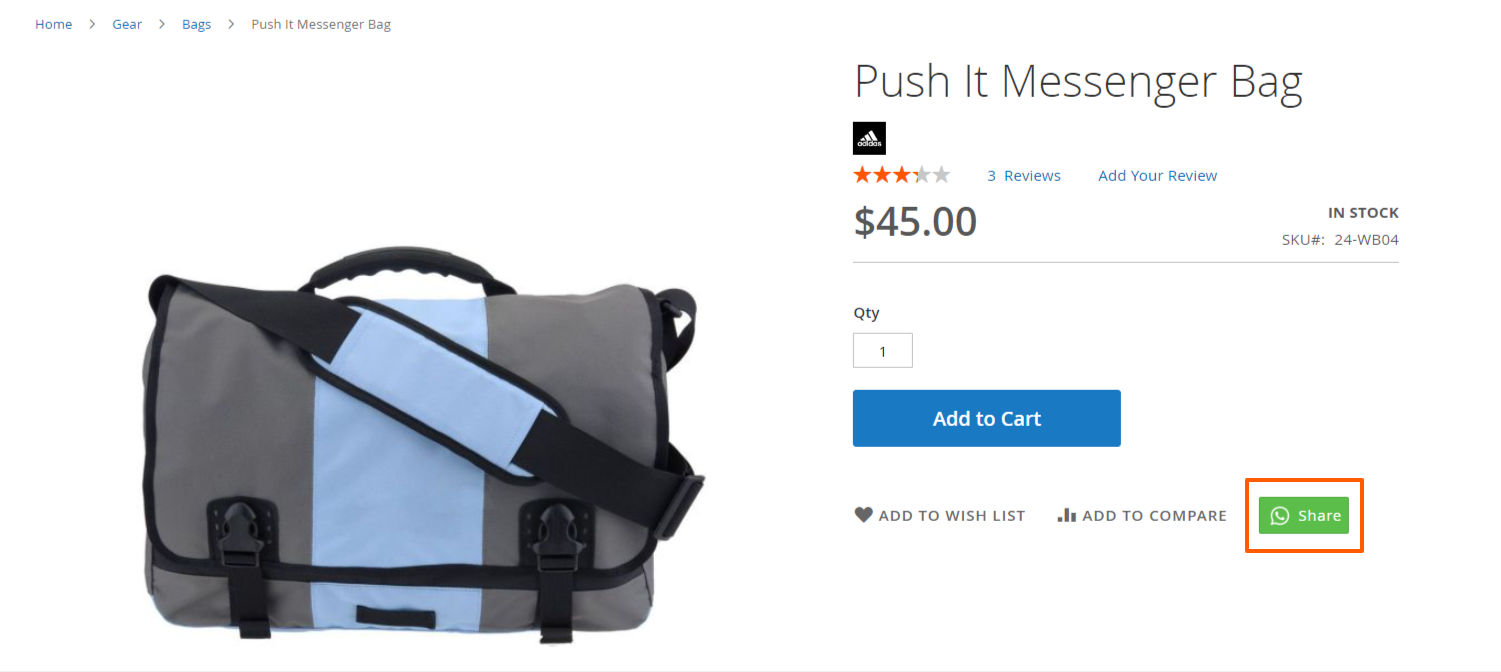
- Navigate to any product page on your Magento store frontend.
- Click on the WhatsApp share icon or button integrated with the product details.
- Choose a contact or group from your WhatsApp contacts list to share the product link with.
- Optionally, personalize the message accompanying the shared product link before sending.