Login As Customer
Extension Installation
For Magento Marketplace Customers
-
Find the Composer name and version of the extension in the extension's composer.json file.
-
Login to your SSH and run:
- composer require mavenbird/magento-2-login-as-customer
- Wait for Composer to finish updating your project dependencies and make sure there aren't any errors.
-
To verify that the extension installed properly, run the command:
- php bin/magento module:status Mavenbird_LoginAsCustomer
- By default, the extension is probably disabled.
- Enable the extension and clear static view files:
- php bin/magento module:enable Mavenbird_LoginAsCustomer --clear-static-content
- php bin/magento setup:upgrade
- For Magento version 2.0.x to 2.1.x - php bin/magento setup:static-content:deploy
- For Magento version 2.2.x & above - php bin/magento setup:static-content:deploy --f
- php bin/magento cache:flush
For Mavenbird Customers
- Extract the zip folder and upload our extension to the root of your Magento 2 directory via FTP.
- Login to your SSH and run below commands step by step:
- php bin/magento setup:upgrade
- For Magento version 2.0.x to 2.1.x - php bin/magento setup:static-content:deploy
- For Magento version 2.2.x & above - php bin/magento setup:static-content:deploy --force
- php bin/magento cache:flush
Configuration
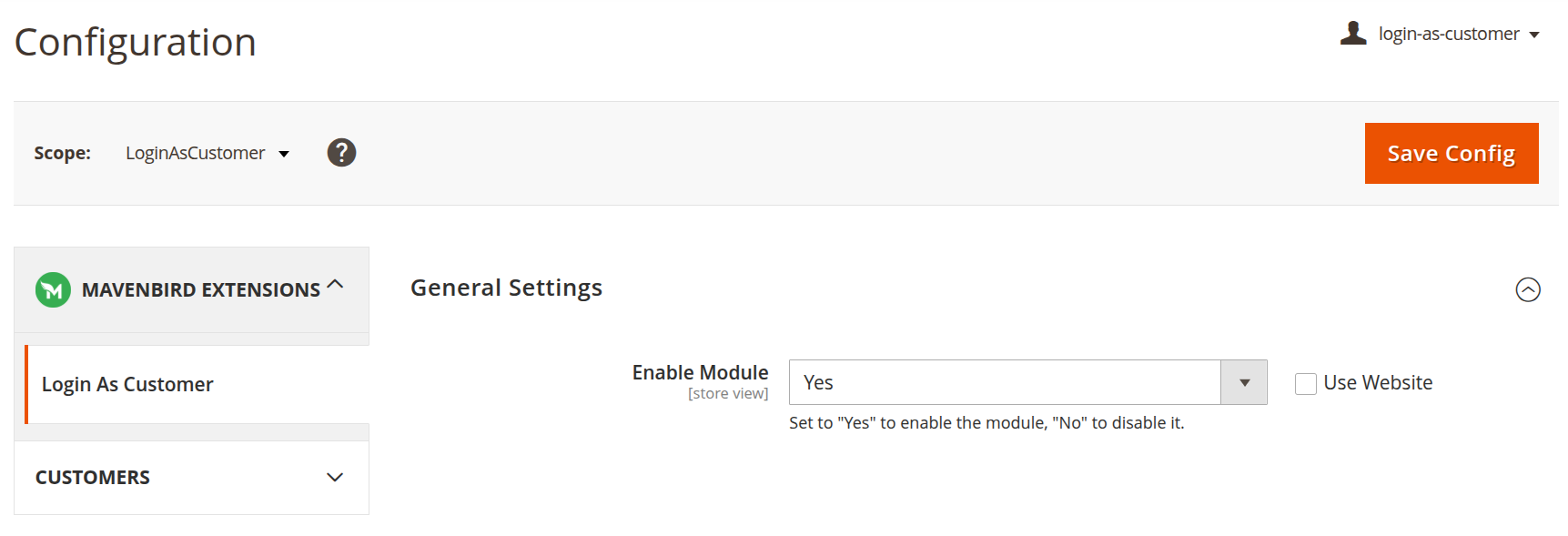
- To configure the Login As Customer extension:
- Log in to the Magento Backend.
- Go to Stores > Configuration.
- Under the General tab, select Login As Customer.
- Here, you can configure the following settings:
- Enable Login As Customer: Enable and Disable the Login As Customer extension.
Login As Customer (Admin Feature)
The Login As Customer feature allows administrators to securely log in to a customer's account from the admin panel. This helps in troubleshooting issues, verifying account details, and providing better customer support.
Overview
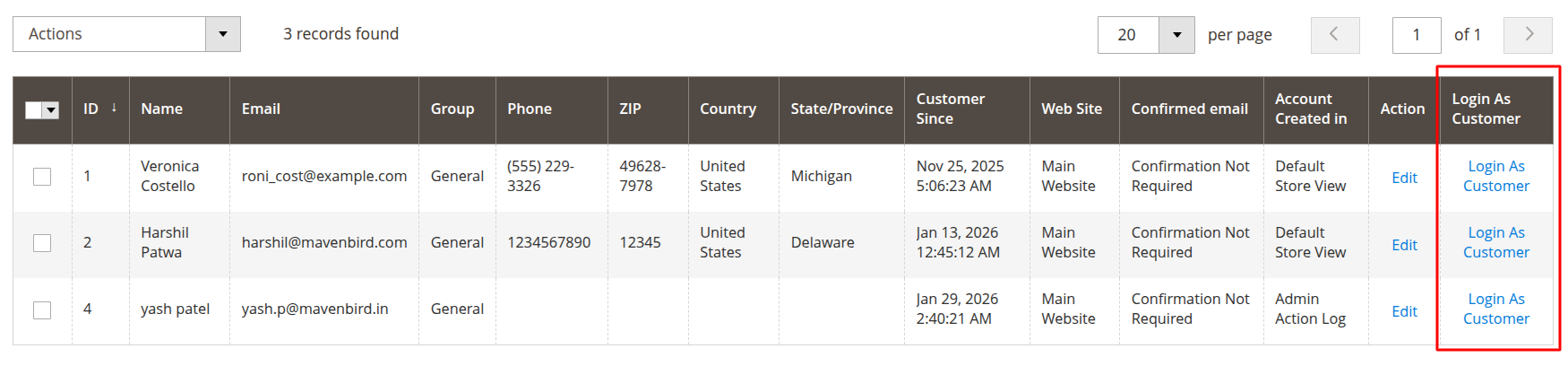
From the customer grid in the admin panel, administrators can directly access a customer's storefront account without requiring the customer's password.
Admin Path:
Admin Panel → Customers → All Customers
Customer Grid – Login As Customer Column
A dedicated Login As Customer column is available in the customer listing grid.
Available Action
- Login As Customer – Logs the admin into the selected customer's account on the frontend.
How to Login as a Customer
- Navigate to:
Admin Panel → Customers → All Customers - Locate the desired customer in the grid.
- Click Login As Customer in the respective row.
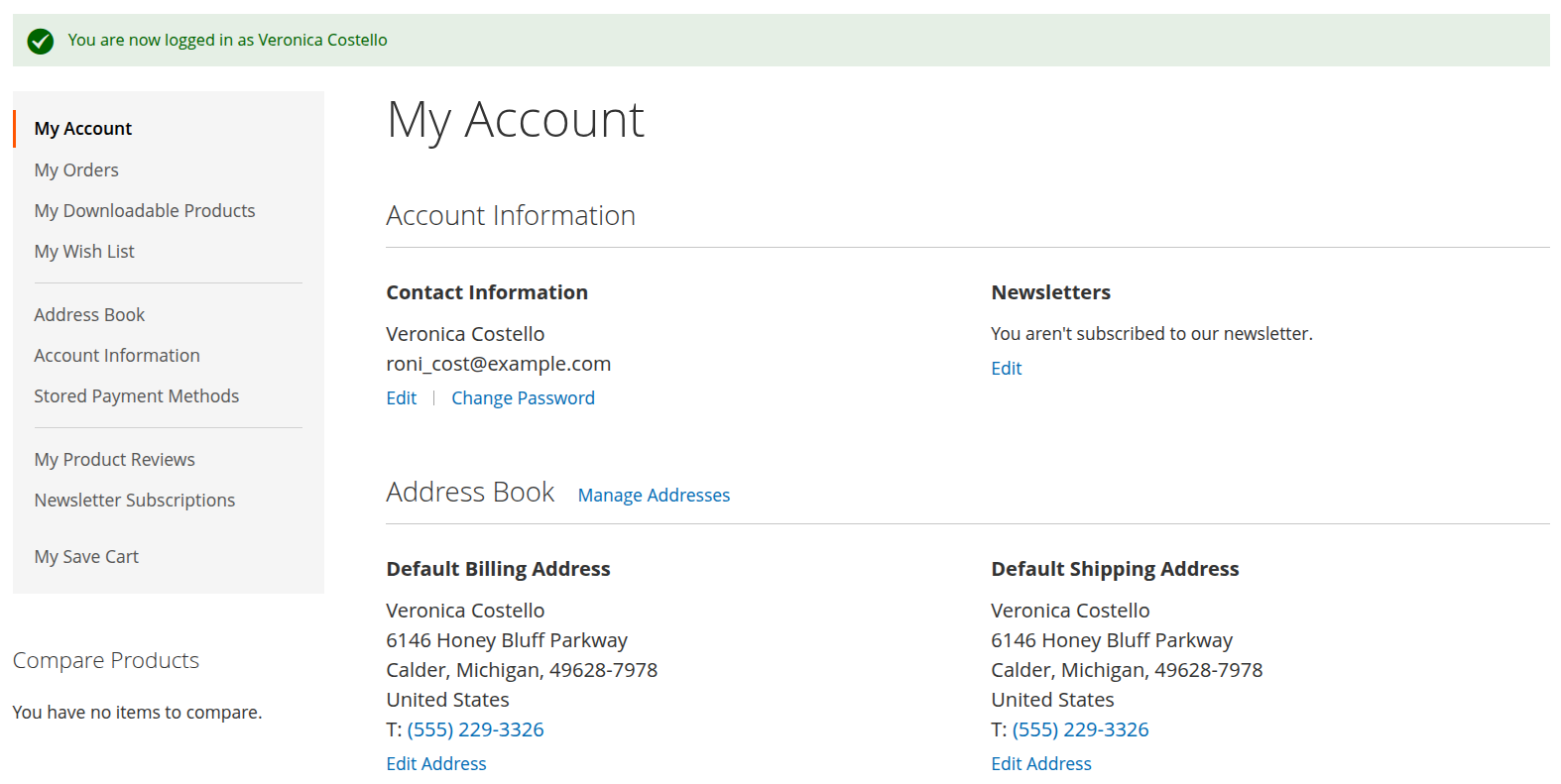
- The system redirects to the storefront.
- The admin is logged in as that customer.
Use Cases
- Troubleshooting checkout issues
- Verifying customer account settings
- Testing store features from a customer perspective
- Assisting customers with order placement
- Reviewing account-specific pricing or configurations
Security Notes
- Only authorized admin users can access this feature.
- The login session is securely generated.
- The customer password is not exposed.
- Admin activity may be logged depending on system configuration.
Ending the Session
After completing the review:
- Log out from the storefront account.
- Return to the admin panel.
Frontend Login As Customer