Payment Restrictions
Extension Installation
For Magento Marketplace Customers
-
Find the Composer name and version of the extension in the extension's composer.json file.
-
Login to your SSH and run:
- composer require mavenbird/module-paymentrestriction
- Wait for Composer to finish updating your project dependencies and make sure there aren't any errors.
-
To verify that the extension installed properly, run the command:
- php bin/magento module:status Mavenbird_PaymentRestriction
- By default, the extension is probably disabled.
- Enable the extension and clear static view files:
- php bin/magento module:enable Mavenbird_PaymentRestriction --clear-static-content
- php bin/magento setup:upgrade
- For Magento version 2.0.x to 2.1.x - php bin/magento setup:static-content:deploy
- For Magento version 2.2.x & above - php bin/magento setup:static-content:deploy --f
- php bin/magento cache:flush
For Mavenbird Customers
- Extract the zip folder and upload our extension to the root of your Magento 2 directory via FTP.
- Login to your SSH and run below commands step by step:
- php bin/magento setup:upgrade
- For Magento version 2.0.x to 2.1.x - php bin/magento setup:static-content:deploy
- For Magento version 2.2.x & above - php bin/magento setup:static-content:deploy --force
- php bin/magento cache:flush
- Establish cart content restrictions
- Display different methods of payment for the order according to Subtotal or client attributes
- Implement customer shipping restrictions.
- To decide on payment methods, use the customer purchase history
Troubleshooting checklist
Make sure other rules are not active simultaneously
Restrictions from various rules can work at the same time. This means, for example, that if you have two methods of payment, one method and the other method two, and you wish to block the other with a rule A of limitation and the second method with a rule B of restriction and simultaneously activate both rules then both the first and the second method are limited.
Ensure that conditions are set properly
Please attempt to remove conditions you have set up if a rule is set with conditions but does not work. If this helped, the configuration of the conditions would be a good idea. Check this article for the most frequent errors Conditions setup and learn how to fix them.
Examples for use
Disable COD if shipping method is fixed
The Cash on Delivery (COD) payment method in Magento 2 allows customers to pay for their orders in cash upon delivery. It's a convenient option for those who prefer not to use online payment methods. Magento 2 provides built-in support for COD, making it easy to configure and manage, including setting fees, applicable countries, and customer groups.
The setup of the rule is very easy. Here are the example of payment restriction extension.
If we select shipping method as flat rate fixed the COD payment method is disabled.
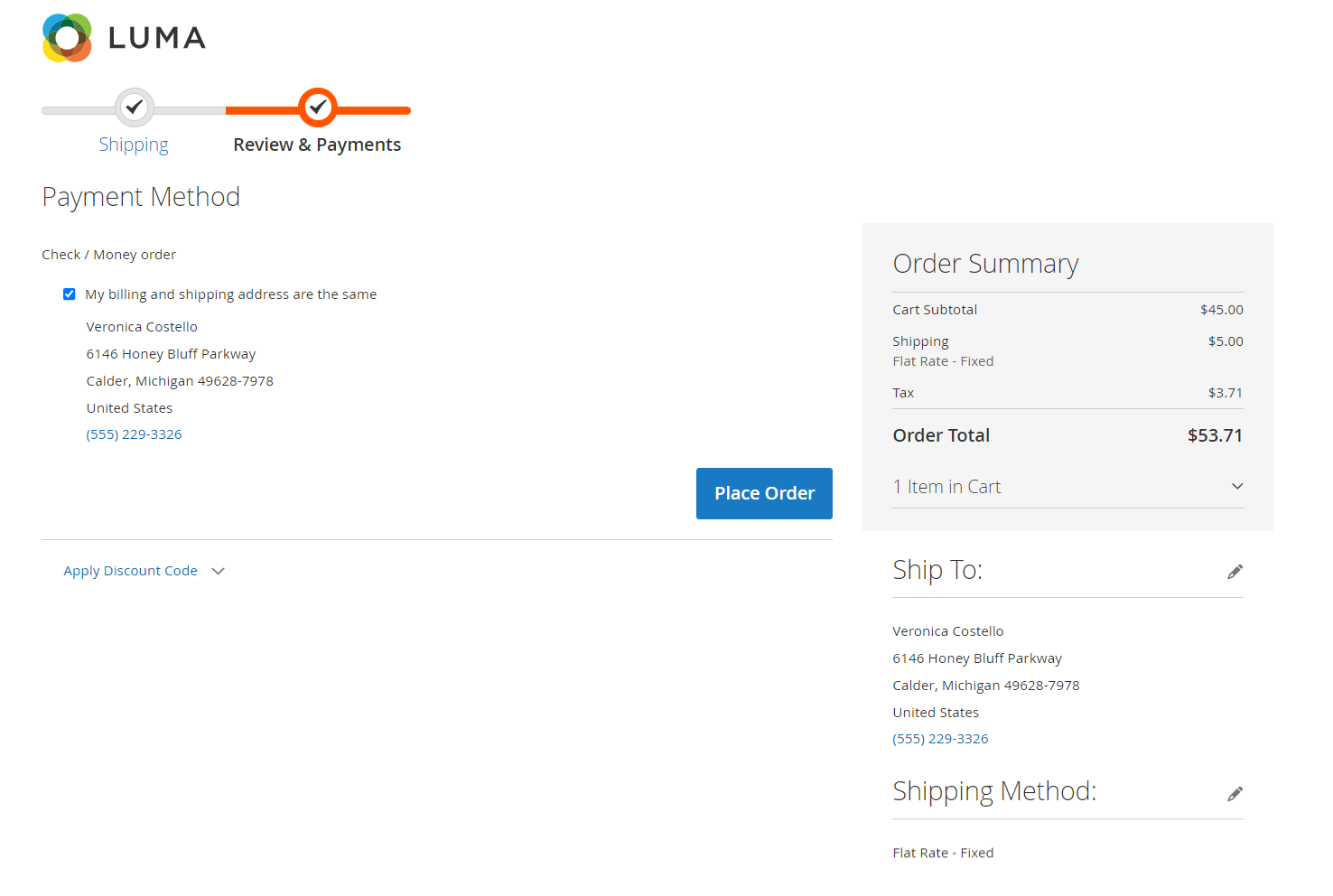
Extension settings overview
Extension configurations are in Stores > Configuration > MAVENBIRD EXTENSIONS > Payment Restrictions

**Enable:**There is a label "Module Enable" with a dropdown menu next to it. The dropdown currently shows "Yes," indicating that the payment restriction module is enabled for the store view. This setting allows administrators to activate or deactivate the module as needed.
Restriction rule settings
You can create rules in Mavenbird> Payment Restrictions
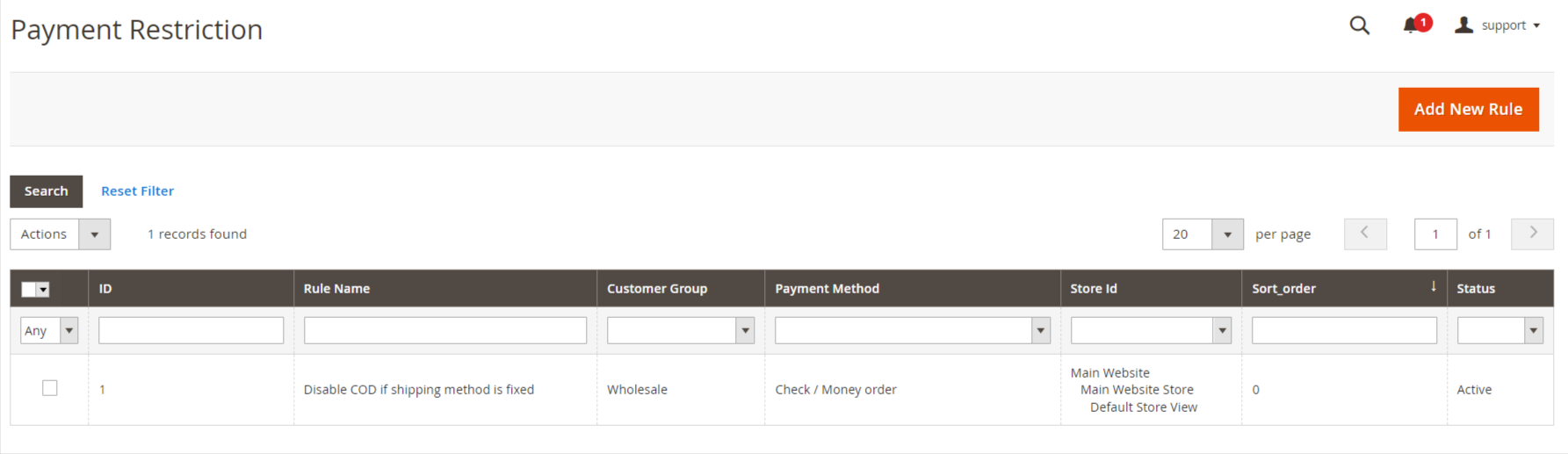
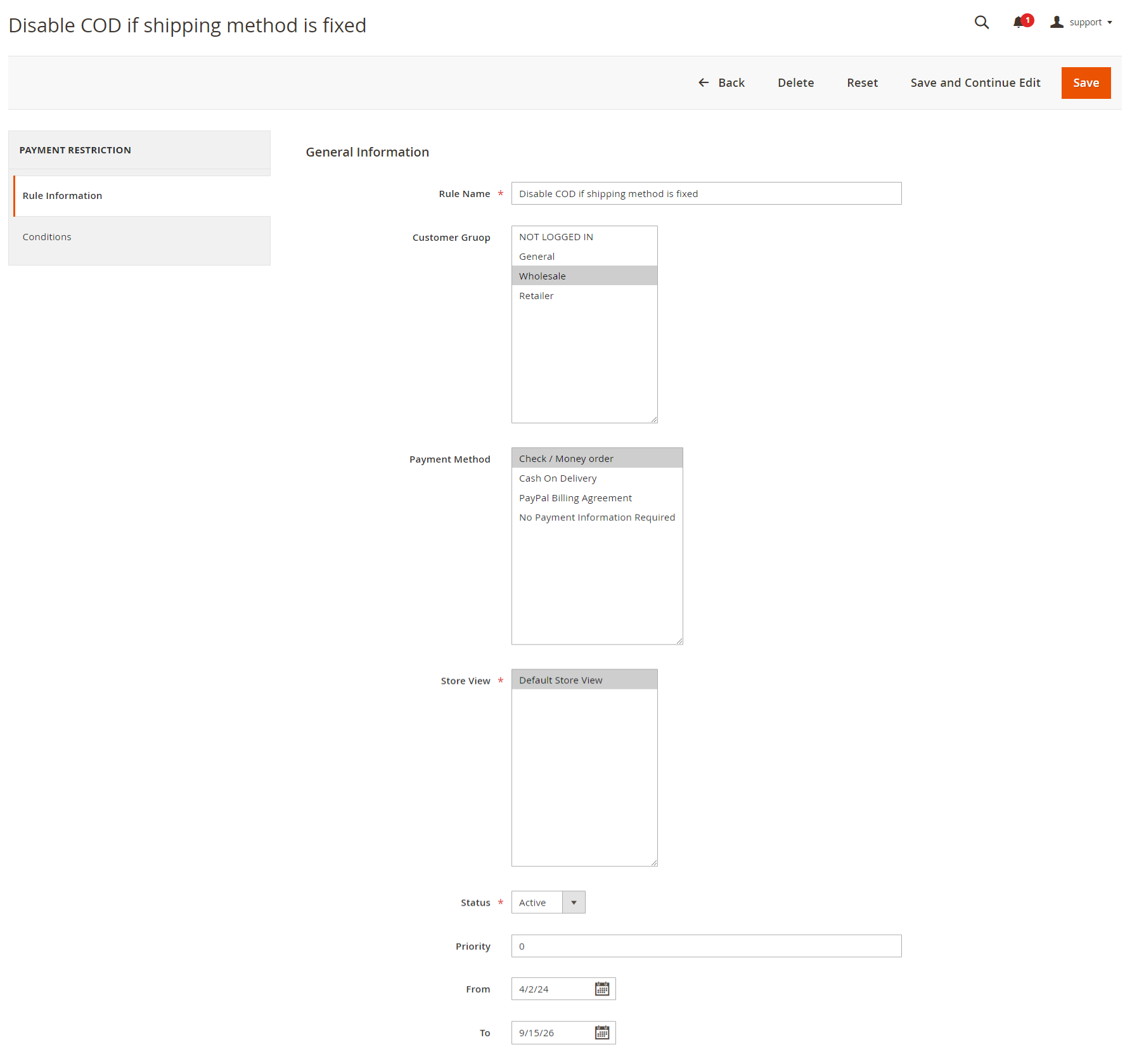
Restrictions
- Name - the restriction rule's name. The menu will only be shown in the admin area with the exception of Payment Restrictions.
- Customer Groups - the option controls that the rule will apply to those customer groups. The rule will apply to all groups if nothing is selected.
- Status - here the rule may be enabled or disabled.
- Methods-here, if the rule is applied, you can choose which payment methods are blocked.
- Stores - this feature limits stores to apply the rule. The rule will be applied in all stores if nothing is selected.
- Days of the Week - enter the days of the week when the rule is to be enabled.
- Time From - Time To - specify some time period for the rule to be enabled.
Conditions
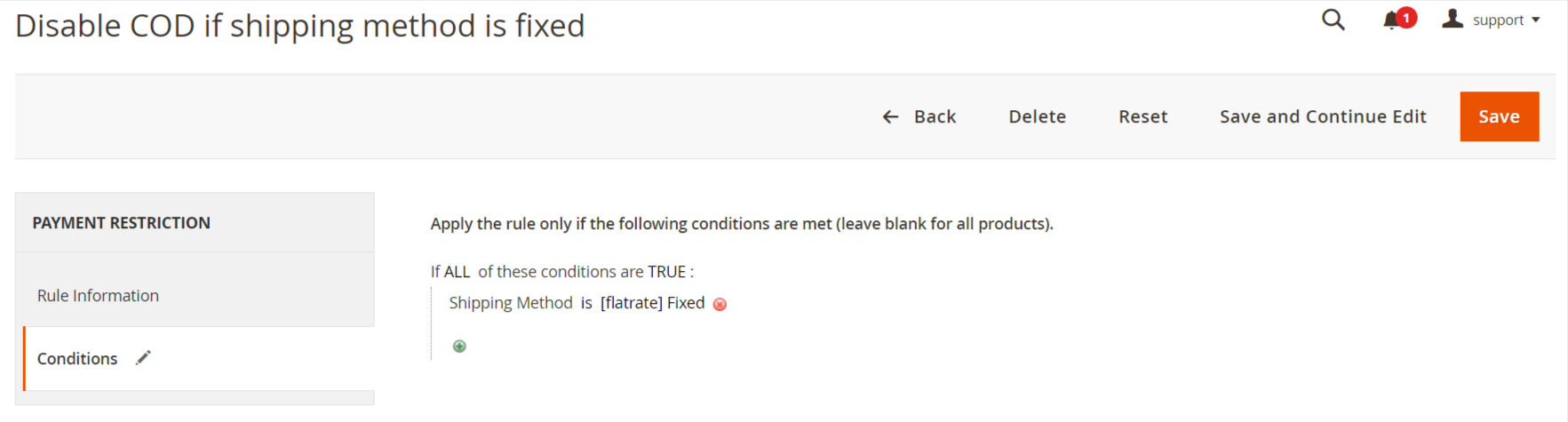
- Condition tree- the rule is only applicable if certain conditions exist when the conditions have been fulfilled. If no conditions are established, the rule is always active.
- Backorders- this option checks if the Backorder items are available in the cart, how the rule will work. Only the rule works if it is set to Backorders if only Backorder items are in your cart. The rule is applied if there are no Backorder items with the Nonbackorders. Whether there are Backorder items in the cart or not all orders will work.
Select the terms to be fulfilled, based on cart attributes, customer attributes or, if necessary, use advanced conditions.