Quick View
Extension Installation
For Magento Marketplace Customers
-
Find the Composer name and version of the extension in the extension's composer.json file.
-
Login to your SSH and run:
- composer require mavenbird/module-quickview
- Wait for Composer to finish updating your project dependencies and make sure there aren't any errors.
-
To verify that the extension installed properly, run the command:
- php bin/magento module:status Mavenbird_Quickview
- By default, the extension is probably disabled.
- Enable the extension and clear static view files:
- php bin/magento module:enable Mavenbird_Quickview --clear-static-content
- php bin/magento setup:upgrade
- For Magento version 2.0.x to 2.1.x - php bin/magento setup:static-content:deploy
- For Magento version 2.2.x & above - php bin/magento setup:static-content:deploy --f
- php bin/magento cache:flush
For Mavenbird Customers
- Extract the zip folder and upload our extension to the root of your Magento 2 directory via FTP.
- Login to your SSH and run below commands step by step:
- php bin/magento setup:upgrade
- For Magento version 2.0.x to 2.1.x - php bin/magento setup:static-content:deploy
- For Magento version 2.2.x & above - php bin/magento setup:static-content:deploy --force
- php bin/magento cache:flush
Quick View Extension for Magento 2 enables customers to check product preview without visiting the product page, and add products to the cart. Besides, consumers can also conduct other activities such as: adding products, wish lists, sending e-mails, writing reviews, and reviewing related/up-selling products. The Quick View Popup admin can easily set and design.
General Configuration
Please go to Stores ⇒ Configuration ⇒ MAVENBIRD EXTENSIONS⇒ Quick View.
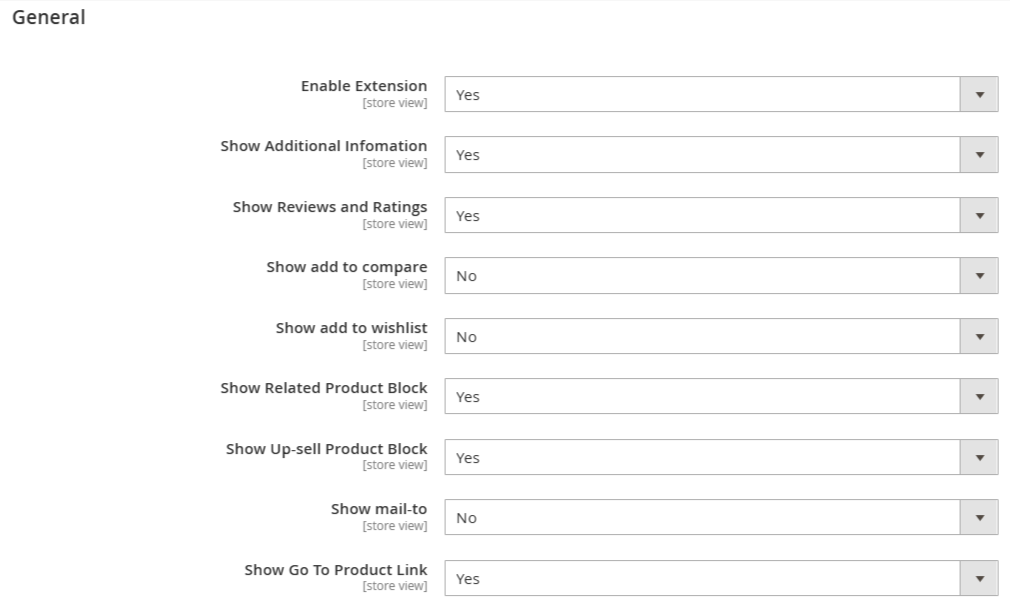
Enable Extension- Select Yes to disable the extension or No.
Show Related Product Block- Choose either Yes to include the related product block or No to remove the detail in the Quick View pop-up.
Show Up-sell Product Block- Choose either YES to include in the Quick View pop-up the up-sell product block or No to exclude the results.
Show Mail-to- Choose Yes to allow Quick View or No to leave the Quick View option.
Show Add to Wishlist- In the Quick View popup, select Enable add to wish list option, or No, to leave it down.
Show Add to Compare- In the Quick View popup, select Enable to add to compare option, or No, to leave it down.
Show Review and Ratings - In the Quick View popup, select Yes to include review and ratings, or No, to exclude.
Show Additional Information- Choose Yes to add additional details to the Quick View pop-up (Product Detail Block) or No to remove this information.
Show Go To Product Link - Choose either Yes in Quick View Popup to allow Show To Product Link or No to leave it in Quick View.
Popup Design Quick View
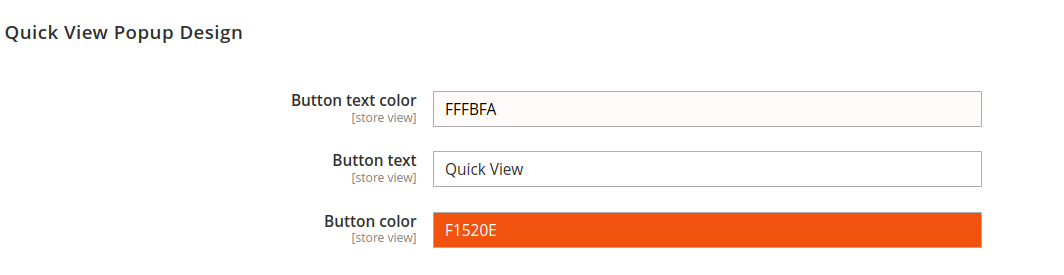
** Button Text Color**- On the Quick View button, set text color.
Button Text- Please enter text for the button Quick View. Eg: Quick View, Product View...
Button Color - Set Quick View button color
Frontend View
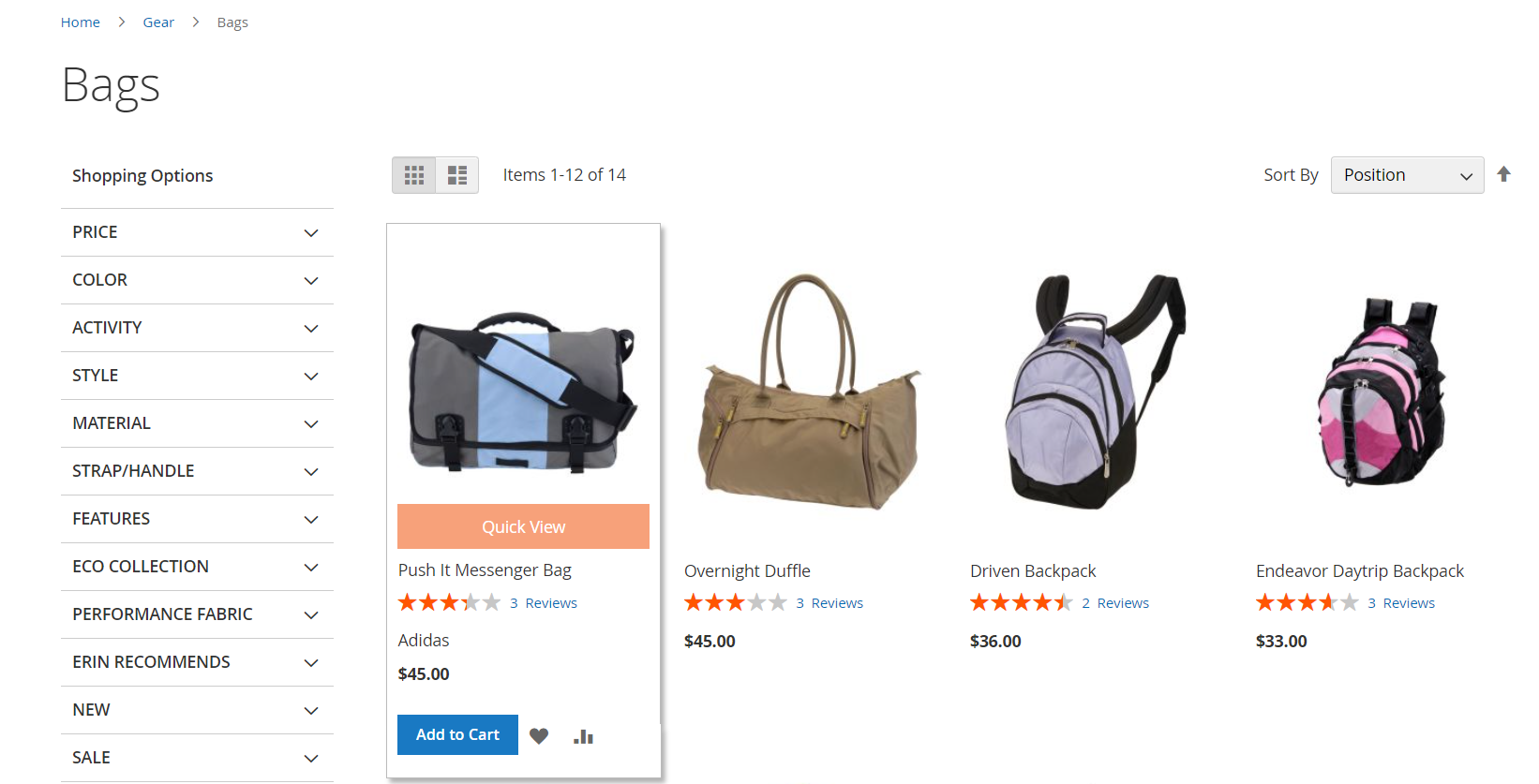
- Here Looking lots of Products and at which we are visualizing the button effect of Quick View that we added through store/configuration.
- Embeds a centrally positioned Quick View button within each product image thumbnail in category listings.
- Ensures uniform placement of the Quick View button for streamlined browsing and intuitive user experience.
- Facilitates easy access to product details without navigating away from the category page, enhancing user engagement and conversion rates.
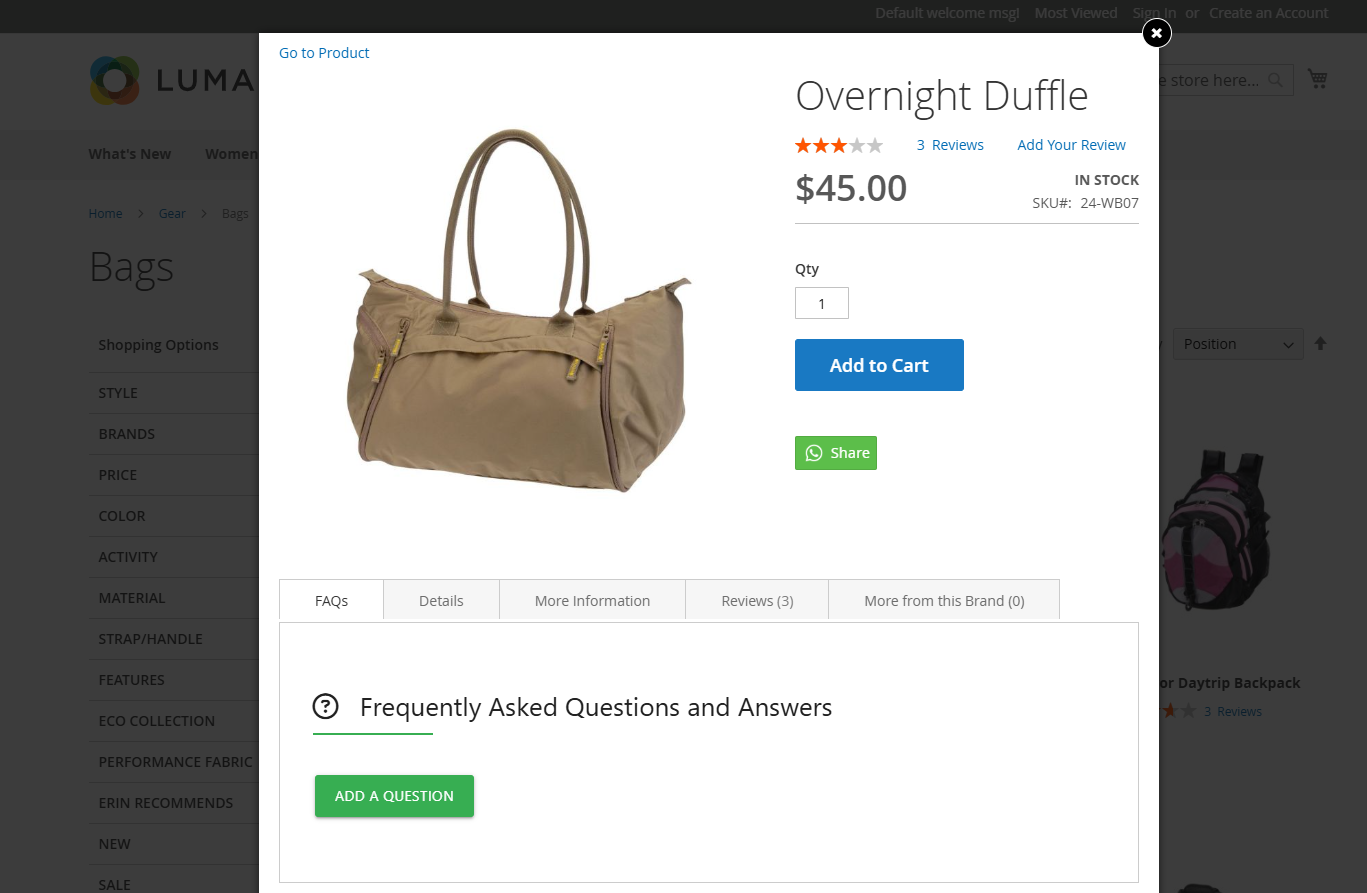
- Go To Products typically refers to a feature or setting in Magento or another e-commerce platform that allows administrators or users to directly access and manage product listings.
- Provides quick navigation to the list of all products available in the store's inventory.
- Enables administrators to efficiently view, edit, and organize product details such as names, descriptions, prices, and inventory levels.
- Facilitates bulk actions like updating product attributes, assigning categories, and managing product images for streamlined maintenance.