Order Archive
Extension Installation
For Magento Marketplace Customers
-
Find the Composer name and version of the extension in the extension's composer.json file.
-
Login to your SSH and run:
- composer require mavenbird/module-order-archive
- Wait for Composer to finish updating your project dependencies and make sure there aren't any errors.
-
To verify that the extension installed properly, run the command:
- php bin/magento module:status Mavenbird_OrderArchive
- By default, the extension is probably disabled.
- Enable the extension and clear static view files:
- php bin/magento module:enable Mavenbird_OrderArchive --clear-static-content
- php bin/magento setup:upgrade
- For Magento version 2.0.x to 2.1.x - php bin/magento setup:static-content:deploy
- For Magento version 2.2.x & above - php bin/magento setup:static-content:deploy --f
- php bin/magento cache:flush
For Mavenbird Customers
- Extract the zip folder and upload our extension to the root of your Magento 2 directory via FTP.
- Login to your SSH and run below commands step by step:
- php bin/magento setup:upgrade
- For Magento version 2.0.x to 2.1.x - php bin/magento setup:static-content:deploy
- For Magento version 2.2.x & above - php bin/magento setup:static-content:deploy --force
- php bin/magento cache:flush
Effortlessly manage your store’s order history with the Order Archive Extension for Magento 2. Automatically or manually archive old orders, delete unnecessary order data, and boost admin panel performance. Access archived orders in a separate grid, schedule archiving tasks, and manage everything via API. This extension helps you keep your store organized and running smoothly.
- Archive orders automatically based on rules or manually from the order grid.
- View and manage archived orders separately for a clutter-free order list.
- Safely delete old orders and related data to optimize your database.
- Set custom schedules to archive orders at regular intervals.
- Easily restore archived orders back to the main order grid when needed.
- Speed up your admin panel by reducing the number of active orders.
- Speed up your admin panel by reducing the number of active orders.
- Archive, delete, or restore multiple orders at once for faster management.
Configuration
Configure the Order Archive extension in Magento 2 under Stores > Configuration > Mavenbird Extensions > Order Archive.
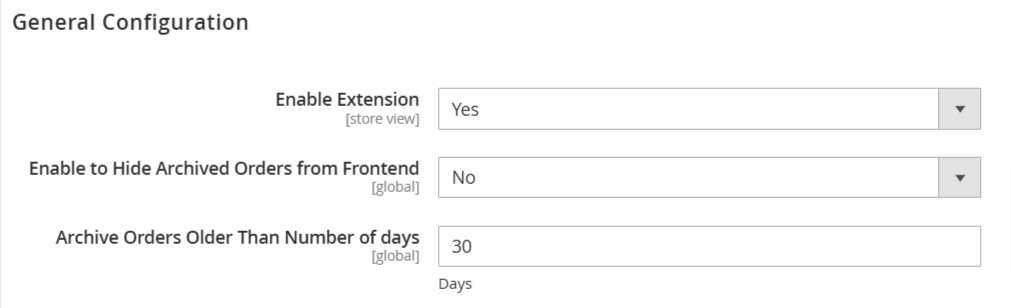
Enable Extension: This is a simple "Yes/No" setting to turn the Order Archive extension on or off.
Enable to Hide Archived Orders from Frontend: This option allows you to hide archived orders from the customer's order history on the frontend of the website.
Archive Orders Older Than Number of days: This sets the age threshold (in days) for orders to be considered for archiving. For example, setting it to 30 means orders older than 30 days will be archived.
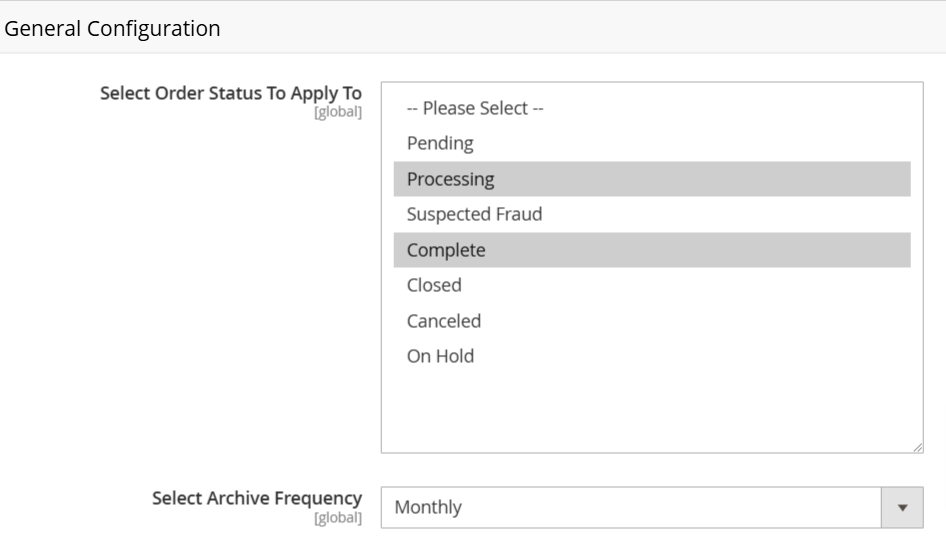
Select Order Status To Apply To: This setting lets you choose which order statuses will be considered for archiving. You can select multiple statuses, such as "Complete," "Canceled," or "Closed."
Select Archive Frequency: This determines how often the archiving process will run. Options typically include Daily, Weekly, or Monthly.
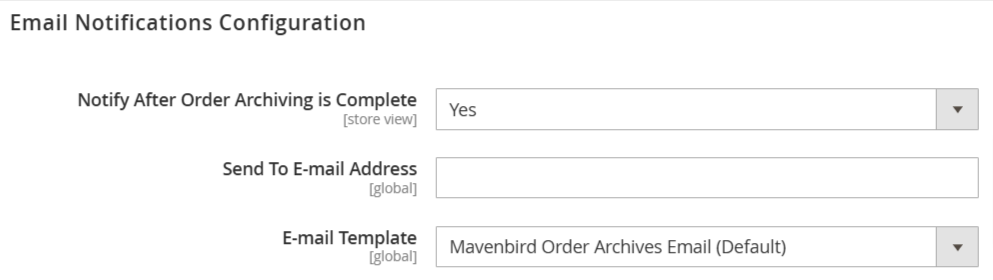
Notify After Order Archiving is Complete: This enables or disables email notifications that are sent after the archiving process finishes.
Send To E-mail Address: The email address where the notification will be sent.
E-mail Template: Selects the email template used for the notification. In this case, it's using "Mavenbird Order Archives Email (Default)".

Start Archiving: This button allows you to manually trigger the order archiving process. Normally, it runs automatically based on the cron schedule, but this lets you run it on demand. The button displays "Archiving" while the process is running.
Manual Order Archiving
To archive specific orders, navigate to Sales > Orders and select the orders to archive. Archived orders can be restored to the Orders Grid at any time.
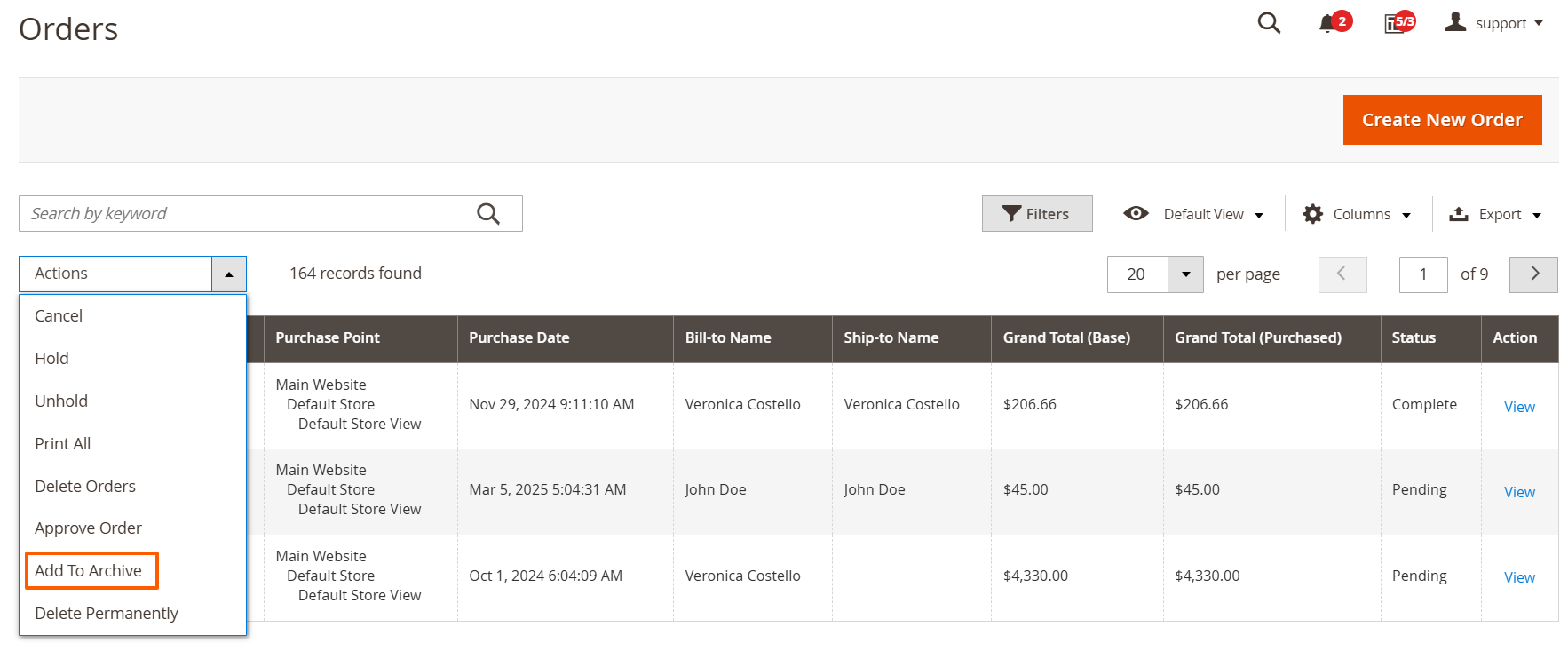
Choose the orders you want to archive, then select the 'Add To Archive' action. The archived orders will then be moved to the dedicated Archived Orders grid.
Permanently Delete Orders
To permanently delete orders, go to Sales > Orders and select the orders to delete. WARNING: This action is irreversible. Deleted orders cannot be recovered.
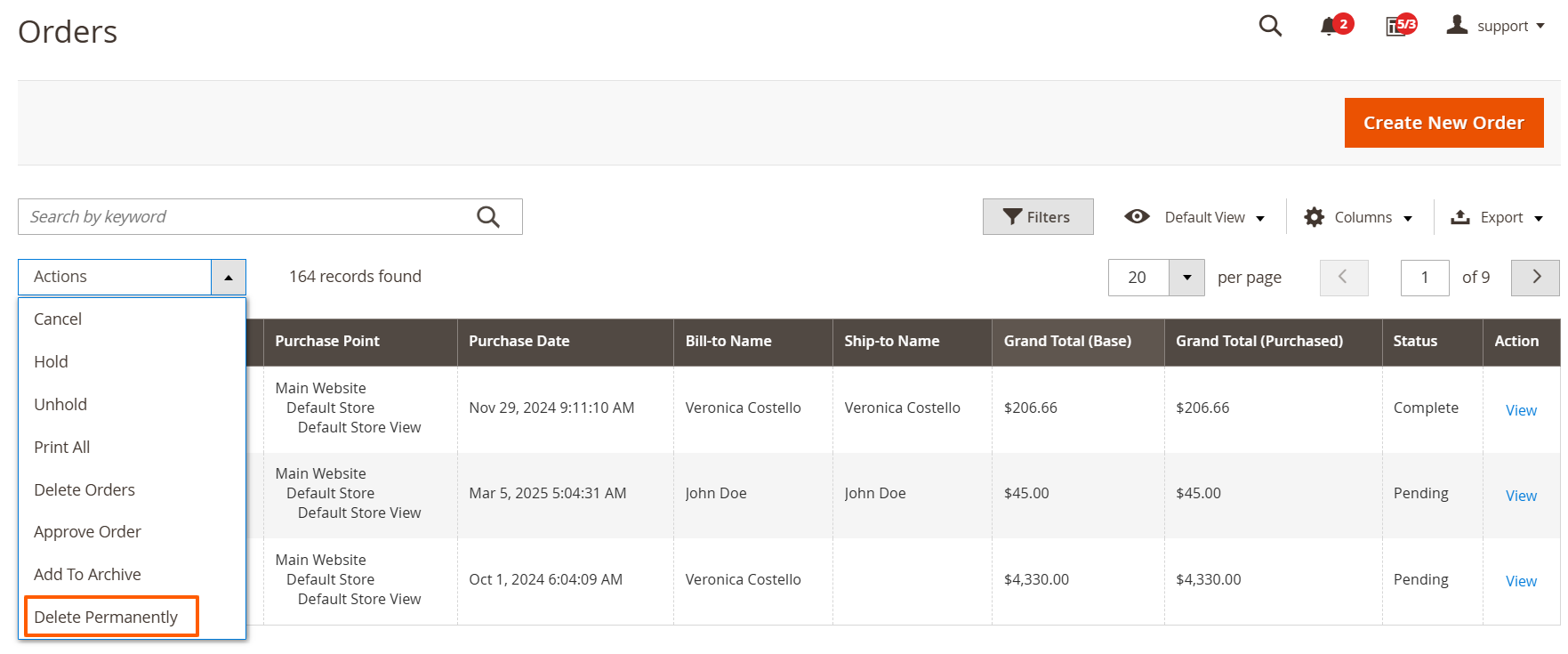
Select the orders you wish to delete from the Orders Grid, then apply the "Delete Permanently" action.
Managing Archived Orders
Archived all orders are shown on Sales > Order Archives > Orders.
In the Order Archive grid, you have two options: permanently delete orders, or restore them to the Orders grid.
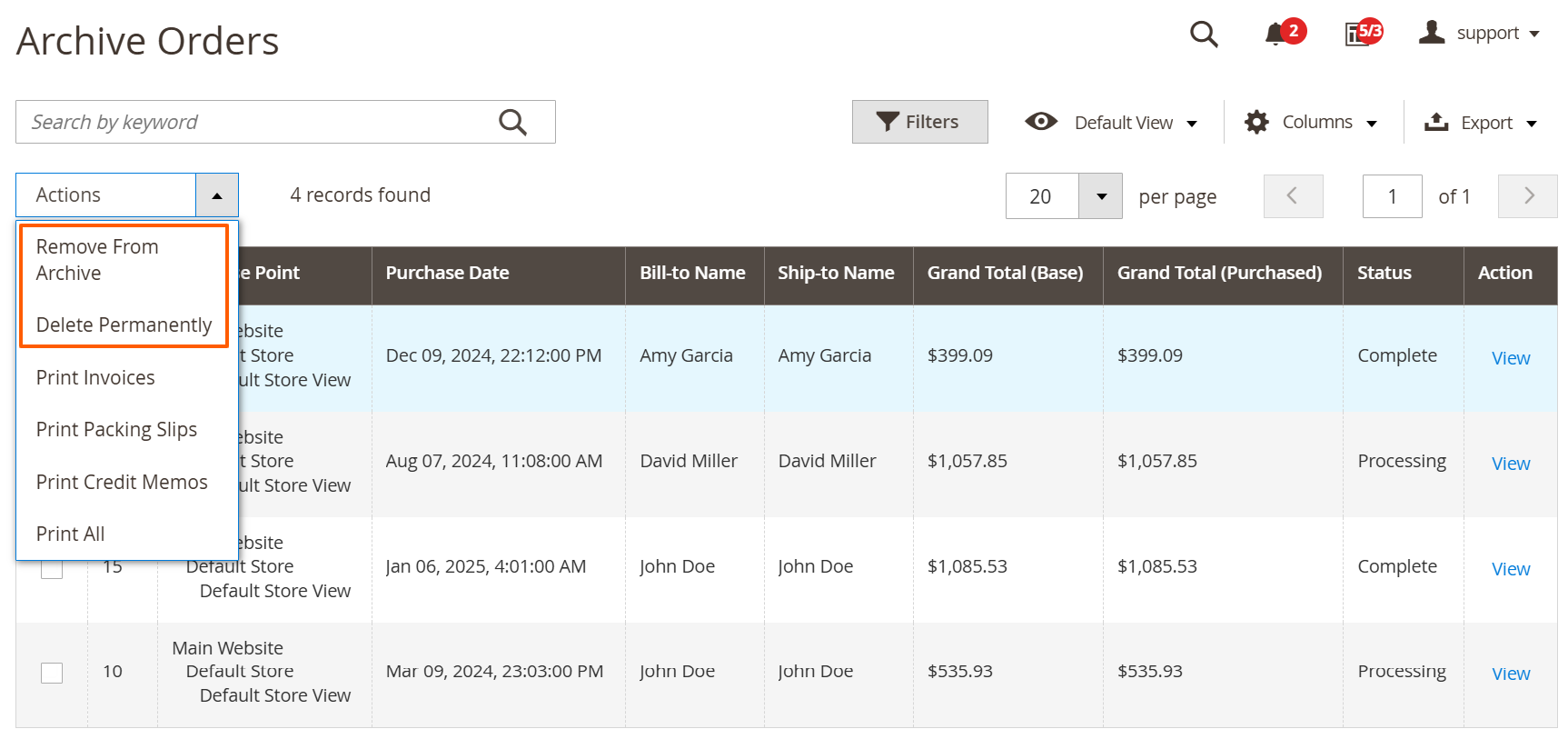
Remove from Archive: Restore archived orders to the main Orders Grid by applying this action.
Delete Permanently: Permanently delete selected archived orders with this action.
You can view the details of any archived order. Simply click the "View" link in the right-hand column of the grid.
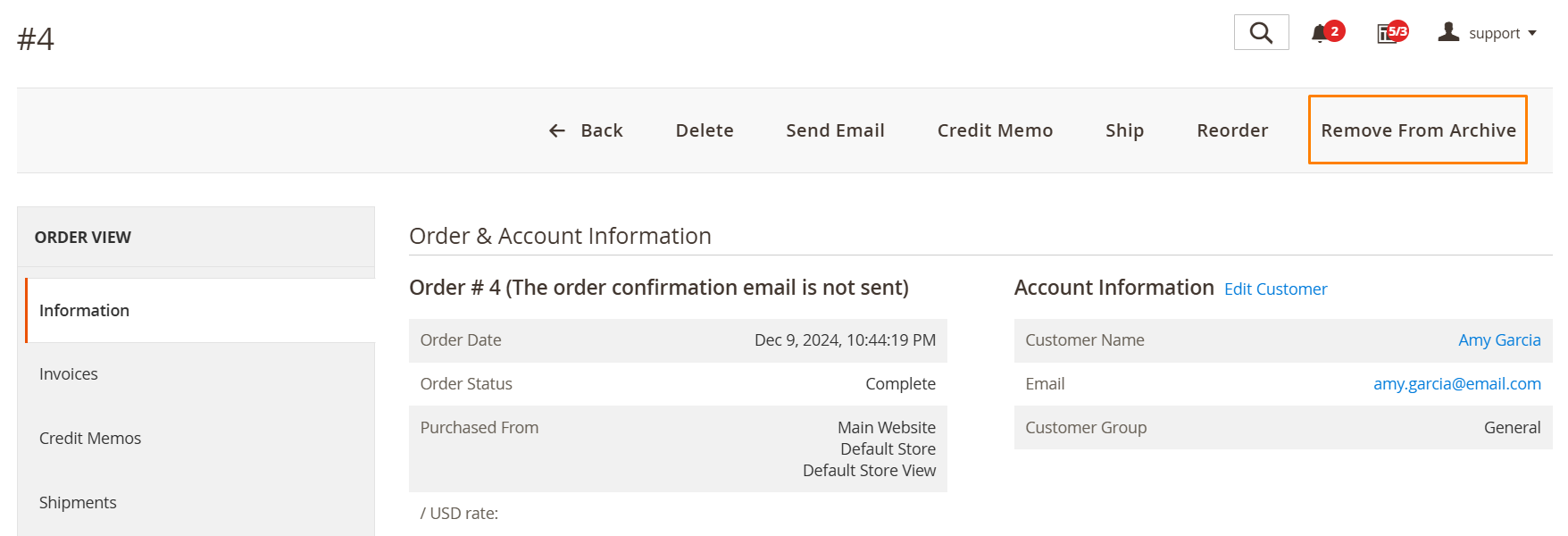
You can restore archived orders directly from the Order Info page.