Force Login
Extension Installation
For Magento Marketplace Customers
-
Find the Composer name and version of the extension in the extension's composer.json file.
-
Login to your SSH and run:
- composer require mavenbird/magento-2-force-login
- Wait for Composer to finish updating your project dependencies and make sure there aren't any errors.
-
To verify that the extension installed properly, run the command:
- php bin/magento module:status Mavenbird_ForceLogin
- By default, the extension is probably disabled.
- Enable the extension and clear static view files:
- php bin/magento module:enable Mavenbird_ForceLogin --clear-static-content
- php bin/magento setup:upgrade
- For Magento version 2.0.x to 2.1.x - php bin/magento setup:static-content:deploy
- For Magento version 2.2.x & above - php bin/magento setup:static-content:deploy --f
- php bin/magento cache:flush
For Mavenbird Customers
- Extract the zip folder and upload our extension to the root of your Magento 2 directory via FTP.
- Login to your SSH and run below commands step by step:
- php bin/magento setup:upgrade
- For Magento version 2.0.x to 2.1.x - php bin/magento setup:static-content:deploy
- For Magento version 2.2.x & above - php bin/magento setup:static-content:deploy --force
- php bin/magento cache:flush
Configuration
- To configure the Disable Compare extension:
- Log in to the Magento Backend.
- Go to Stores > Configuration.
- Under the General tab, select Force Login.
Force Login – Configuration
The Force Login module restricts access to the storefront and requires customers to log in before viewing site content.
Path:
Admin → Mavenbird Extensions → Force Login → General
Configuration Options
1. Enable
Field: Enable
Scope: Store View
Options:
Yes– Force login is active.No– Storefront is publicly accessible.
When enabled:
- Non-logged-in users are redirected to the login page.
- Store pages cannot be accessed without authentication.
2. Disable Registration
Field: Disable Registration
Scope: Store View
Options:
Yes– Customer registration is disabled.No– Customers can create accounts normally.
When set to Yes:
- Registration page is blocked.
- New account creation is prevented.
- Only existing customers can log in.

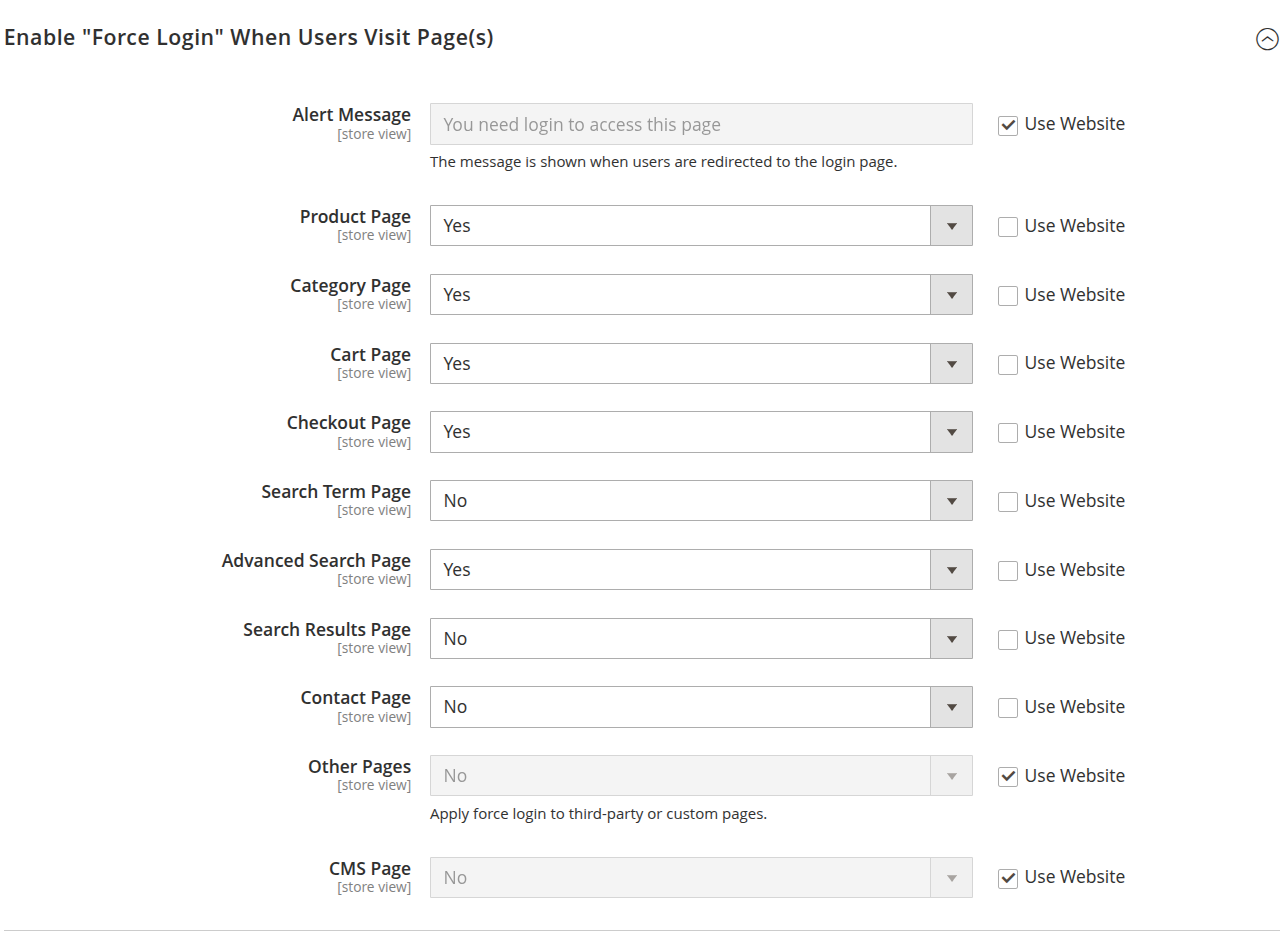
Enable "Force Login" When Users Visit Page(s)
This section allows you to control which storefront pages require customer login.
Path:
Admin → Mavenbird Extensions → Force Login → Page Restrictions
Configuration Options
Alert Message
Scope: Store View
Message displayed when a user is redirected to the login page.
Default:
- You need login to access this page
- This message appears after redirection.
Page-Level Restrictions
Each option allows you to enable or disable forced login for specific page types.
Product Page
Yes→ Product detail pages require login.No→ Public access allowed.
Category Page
Yes→ Category listings require login.No→ Public access allowed.
Cart Page
Yes→ Cart page requires login.No→ Public access allowed.
Checkout Page
Yes→ Checkout requires login.No→ Guest checkout allowed (if enabled).
Search Term Page
Yes→ Search term landing pages require login.No→ Public access allowed.
Advanced Search Page
Yes→ Advanced search requires login.No→ Public access allowed.
Search Results Page
Yes→ Search results require login.No→ Public access allowed.
Contact Page
Yes→ Contact page requires login.No→ Public access allowed.
Other Pages
Applies force login to:
- Third-party module pages
- Custom routes
CMS Page
Yes→ CMS pages require login.No→ CMS pages remain public.
Common Configuration Scenarios
1. Fully Private Store (B2B)
- Product Page: Yes
- Category Page: Yes
- Cart Page: Yes
- Checkout Page: Yes
- Search Pages: Yes
- CMS Page: Yes
- Other Pages: Yes
Result:
- Entire storefront restricted.
- Login required before browsing.
2. Catalog Public, Checkout Restricted
- Product Page: No
- Category Page: No
- Cart Page: Yes
- Checkout Page: Yes
Result:
- Visitors can browse products.
- Login required only to purchase.
- Settings apply per Store View.
- "Use Website" checkbox allows inheritance from website-level configuration.
- If main module Enable = No, these settings are ignored.
After Login – Redirect Configuration
This section defines where customers are redirected after successful login when Force Login is enabled.
Path:
Admin → Mavenbird Extensions → Force Login → After Login
Configuration Option
Redirect To
Scope: Store View
Controls the destination page after customer login.
Default Value:
Default
Behavior
Default
- Redirects customer to:
- The originally requested page (if redirected due to Force Login), or
- Magento’s default post-login destination (usually customer dashboard).
Use Cases
1. Redirect Back to Requested Page (Recommended)
Use Default when:
- Force Login redirects users from product/category pages.
- You want them returned to the exact page they attempted to access.
2. Redirect to Specific Page (If Available in Dropdown)
Depending on module configuration, additional options may include:
- Customer Dashboard
- Homepage
- Custom URL
Notes
- Setting applies per Store View.
- If "Use Website" is checked, it inherits website-level configuration.
- Works only when Force Login → Enable = Yes.

Force Login – Frontend Behavior
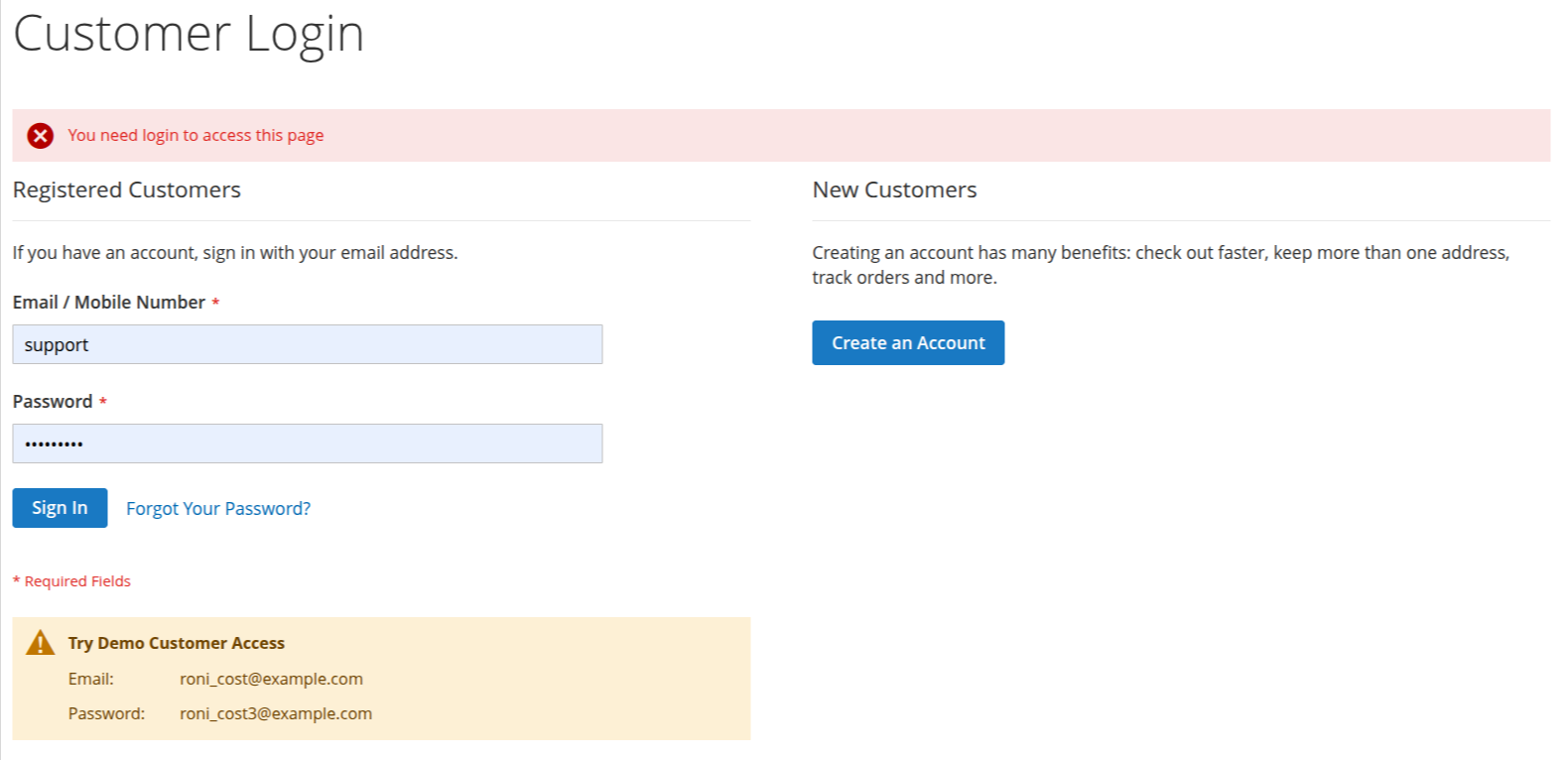
When Force Login is enabled and a non-logged-in user attempts to access a restricted page, they are redirected to the Customer Login page.
Redirect Message
An alert message is displayed at the top of the login page:
You need login to access this page
This message is configurable in:
Admin → Mavenbird Extensions → Force Login → Alert Message
Login Page Sections
Registered Customers
Existing customers can log in using:
- Email / Mobile Number
- Password
Buttons:
- Sign In
- Forgot Your Password?
After successful login:
- User is redirected based on the After Login → Redirect To setting.
- If set to
Default, user returns to the originally requested page.
New Customers
If registration is enabled:
- Users can create a new account via Create an Account.
- Account creation allows:
- Faster checkout
- Multiple address storage
- Order tracking
If Disable Registration = Yes, this section may be hidden or inaccessible.
Demo Credentials (If Available)
-
Some installations display demo credentials, for example:
-
Email: [email protected]
-
Password: [email protected]
-
These are typically for demonstration environments only.
Flow Summary
- Guest visits restricted page (e.g., Product or Category page).
- System redirects to Login page.
- Alert message is shown.
- User logs in.
- User is redirected to:
- Originally requested page (recommended), or
- Configured redirect destination.
Important Notes
- Behavior applies only when Force Login = Yes.
- Page restriction depends on individual page settings.
- Registration availability depends on Disable Registration configuration.