Refund Request by Customer
Extension Installation
For Magento Marketplace Customers
-
Find the Composer name and version of the extension in the extension's composer.json file.
-
Login to your SSH and run:
- composer require mavenbird/magento-2-refund-request-by-customer
- Wait for Composer to finish updating your project dependencies and make sure there aren't any errors.
-
To verify that the extension installed properly, run the command:
- php bin/magento module:status Mavenbird_RefundRequestByCustomer
- By default, the extension is probably disabled.
- Enable the extension and clear static view files:
- php bin/magento module:enable Mavenbird_RefundRequestByCustomer --clear-static-content
- php bin/magento setup:upgrade
- For Magento version 2.0.x to 2.1.x - php bin/magento setup:static-content:deploy
- For Magento version 2.2.x & above - php bin/magento setup:static-content:deploy --f
- php bin/magento cache:flush
For Mavenbird Customers
- Extract the zip folder and upload our extension to the root of your Magento 2 directory via FTP.
- Login to your SSH and run below commands step by step:
- php bin/magento setup:upgrade
- For Magento version 2.0.x to 2.1.x - php bin/magento setup:static-content:deploy
- For Magento version 2.2.x & above - php bin/magento setup:static-content:deploy --force
- php bin/magento cache:flush
Configuration
- To configure the Refund Request By Customer extension:
- Log in to the Magento Backend.
- Go to Stores > Configuration.
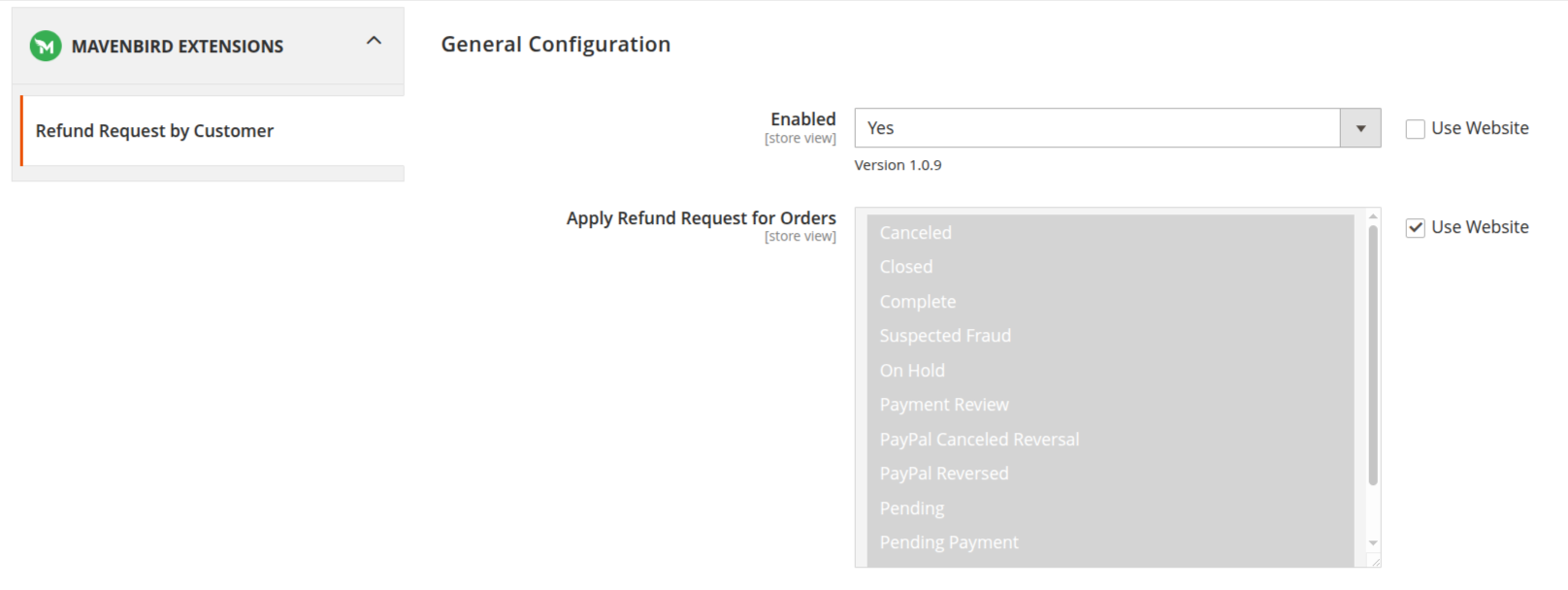
Refund Request By Customer General Configuration
- Under the General tab, select Refund Request By Customer.
- Here, you can configure the following settings:
- Enable Refund Request By Customer: Enable and Disable the Refund Request By Customer extension.
- Apply Refund Request By Customer for orders: Apply Refund Request By Customer for orders status.
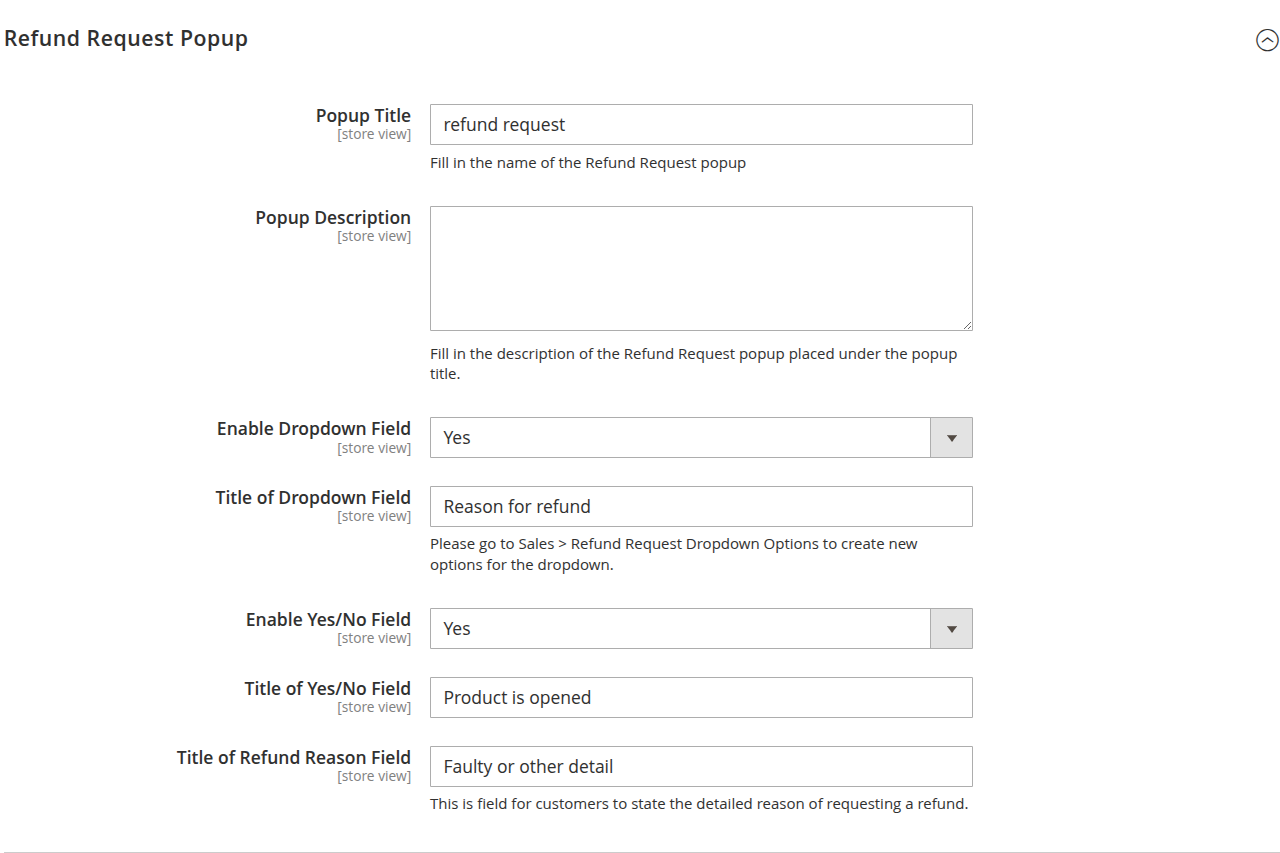
Refund Request By Customer popup Configuration
- Popup title: Refund Request By Customer popup title.
- Popup description: Refund Request By Customer popup description.
- Enable Dropdown field: Enable and Disable the Refund Request By Customer popup dropdown field.
- Title of Dropdown Field: Title of Dropdown Field.
- Enable yes/no options: Enable and Disable the Refund Request By Customer popup yes/no options.
- Title of Yes/No Field: Title of Yes/No Field.
- Title of Refund Reason Field: Title of Refund Reason Field.
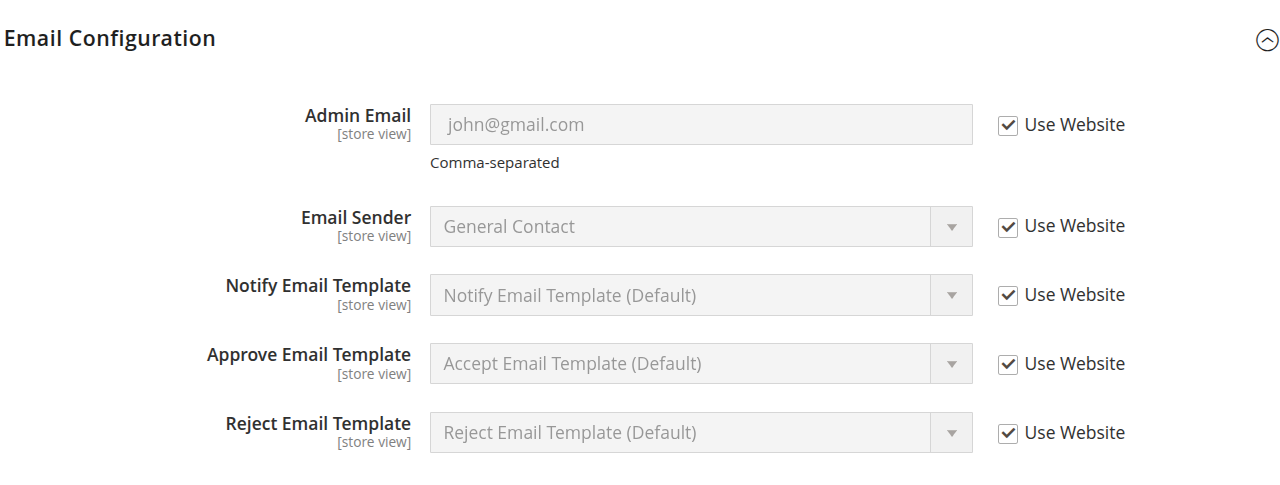
Refund Request By Customer email Configuration
- Admin Email: Admin Email to receive Refund Request By Customer emails.
- Email Sender: Email Sender to send Refund Request By Customer emails.
- Notify Email Template: Notify Email Template to send Refund Request By Customer emails.
- Approve Email Template: Approve Email Template to send Refund Request By Customer emails.
- Reject Email Template: Reject Email Template to send Refund Request By Customer emails.
Refund Request Dropdown Options
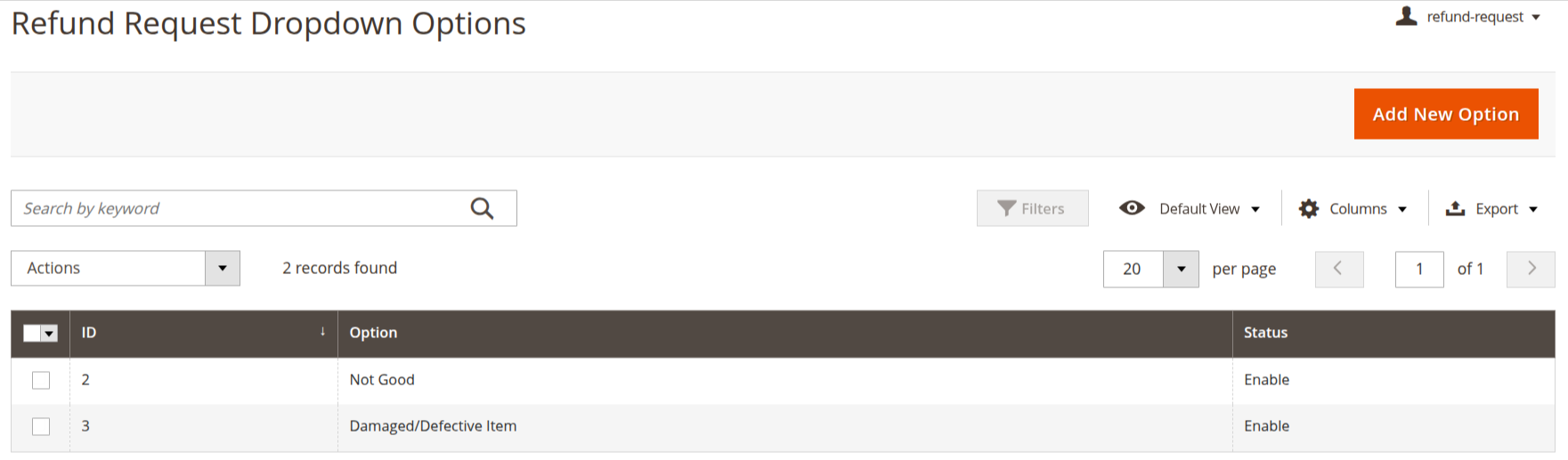
The Refund Request Dropdown Options section allows administrators to manage the list of reasons customers can select when submitting a refund request. This ensures standardized communication and improves refund processing efficiency.
Overview
This grid displays all available refund reasons configured in the system. Each option can be enabled or disabled as needed.
Admin Path:
Admin Panel → Sales → Refund Request Dropdown Options
Grid Columns
ID Unique identifier for the refund reason. Option The refund reason displayed to customers. Status Indicates whether the option is Enabled or Disabled.
Actions
Add New Option
To create a new refund reason:
- Click Add New Option.
- Enter the Option Name (e.g., "Wrong Item Delivered").
- Set the Status:
- Enable – Visible to customers.
- Disable – Hidden from customers.
- Click Save.
Edit an Option
- Click on the desired option from the grid.
- Update the Option Name or Status.
- Click Save.
Delete an Option
- Select the checkbox next to the option.
- Choose Delete from the Actions dropdown.
- Confirm the deletion.
- If refund records already use this option, consider disabling it instead of deleting to maintain data consistency.
Search and Filter Options
- Search by Keyword – Quickly find specific refund reasons.
- Filters – Narrow results based on specific criteria.
- Columns – Customize visible grid columns.
- Export – Download the list for reporting purposes.
Best Practices
- Keep refund reasons short and clearly defined.
- Avoid duplicate or overlapping options.
- Disable outdated reasons instead of deleting them.
- Review options periodically to ensure relevance.
Example Refund Reasons
- Not Good
- Damaged/Defective Item
- Wrong Item Delivered
- Item Not as Described
- Late Delivery
Refund Request by Customer
The Refund Request by Customer section allows administrators to view and manage refund requests submitted by customers. This grid provides detailed information about each request, including order reference, refund reason, and approval status.
Overview
This page displays all refund requests submitted by customers in a structured grid format. Administrators can review, approve, or reject requests based on the provided details.
Admin Path:
Admin Panel → Sales → Refund Request Customer Requests
Grid Columns
Detailed Reason Customer-provided explanation for the refund request. ID Unique identifier of the refund request. Customer Name Name of the customer who submitted the request. Customer Email Registered email address of the customer. Increment ID Order number associated with the refund request. Refund Date Date and time when the request was submitted. Type of Refund Selected refund reason from the predefined dropdown options. Status Current request status (e.g., Accept, Reject, Pending). Product is Opened Indicates whether the customer marked the product as opened (Yes/No).
Available Actions
View Request Details
- Click on the respective row.
- Review customer comments, order details, and selected refund reason.
Approve a Refund Request
- Open the request.
- Change the Status to Accept.
- Save the changes.
- Proceed with the refund process as per store policy.
Reject a Refund Request
- Open the request.
- Change the Status to Reject.
- Save the changes.
Search and Filter Options
- Search by Keyword – Search by customer name, email, or order number.
- Filters – Apply filters to narrow results.
- Columns – Customize grid column visibility.
- Export – Download the request list for reporting.
Status Definitions
- Pending – Awaiting admin review.
- Accept – Refund request approved.
- Reject – Refund request declined.
Best Practices
- Verify order details before approving refunds.
- Check product return eligibility based on store policy.
- Review customer history if necessary.
- Keep status updated to maintain accurate reporting.
My Orders – Refund Request Option
The My Orders section in the customer account allows users to view their order history and submit refund requests directly from eligible orders.
Overview
Customers can access their order list and initiate a refund request based on order eligibility and store configuration.
Frontend Path:
My Account → My Orders
Order Grid Columns
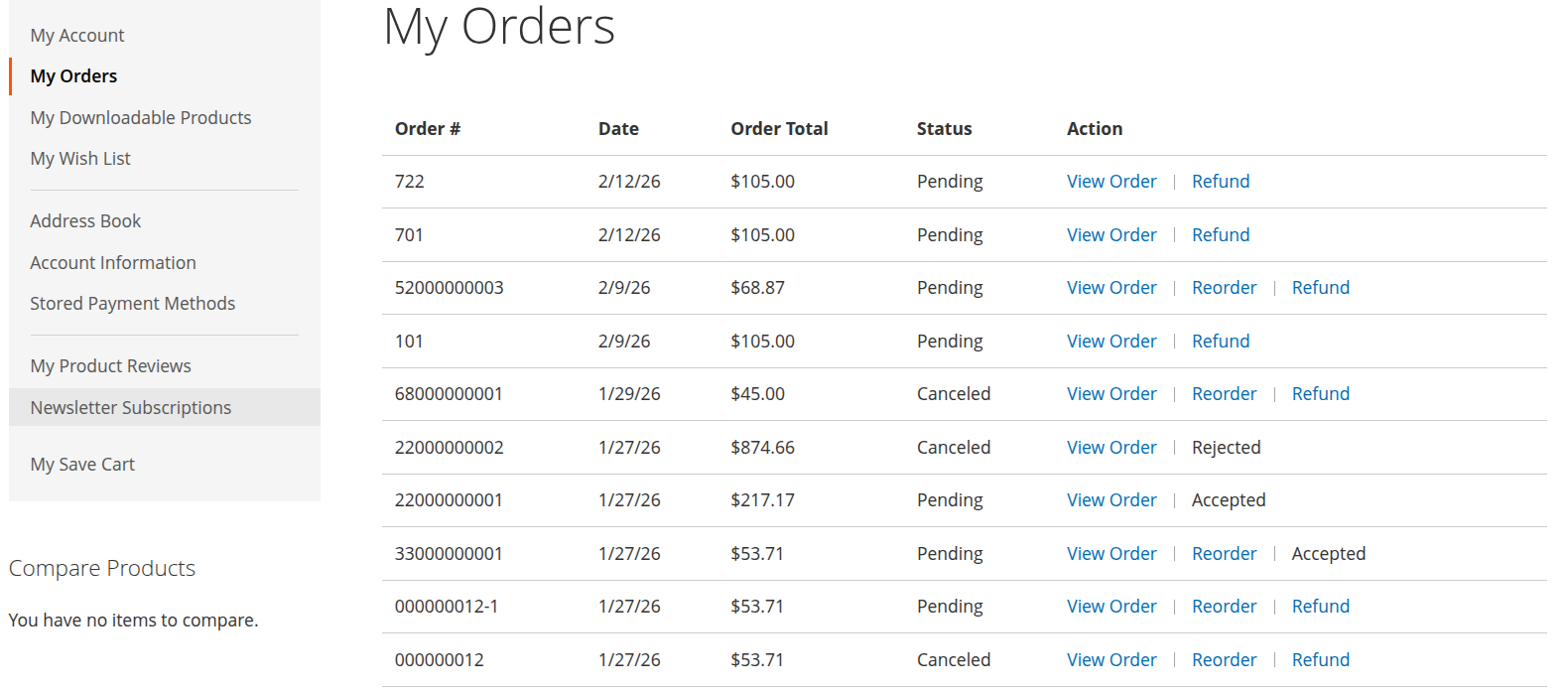
Order # Unique order number. Date Date the order was placed. Order Total Total amount of the order. Status Current order status (Pending, Canceled, etc.). Action Available actions such as View Order, Reorder, or Refund.
Refund Button Behavior
The Refund link appears in the Action column when:
- The order meets refund eligibility criteria.
- The order status allows refund submission.
- Refund requests are enabled in admin configuration.
If a refund has already been processed or reviewed, the action label may display:
- Accepted – Refund request approved.
- Rejected – Refund request declined.
- Refund – Available to submit a new request.
How Customers Submit a Refund Request
- Navigate to My Account → My Orders.
- Locate the eligible order.
- Click Refund.
- Select a Refund Reason from the dropdown.
- Provide a detailed explanation (if required).
- Indicate whether the product is opened (if applicable).
- Submit the request.
Refund Status Indicators
After submission, the refund status will be reflected in the order action area:
- Pending – Awaiting admin review.
- Accepted – Refund approved.
- Rejected – Refund denied.
Admin Processing Flow
- Customer submits refund request.
- Admin reviews request under:
Admin Panel → Refund Request → Customer Requests - Admin updates status (Accept/Reject).
- Status update is reflected in the customer account.
- Refund eligibility depends on store policy and order status.
- Orders marked as Canceled may still show historical refund status.
- Customers cannot modify a refund request once submitted unless allowed by configuration.
Refund Request Popup (Customer Frontend)
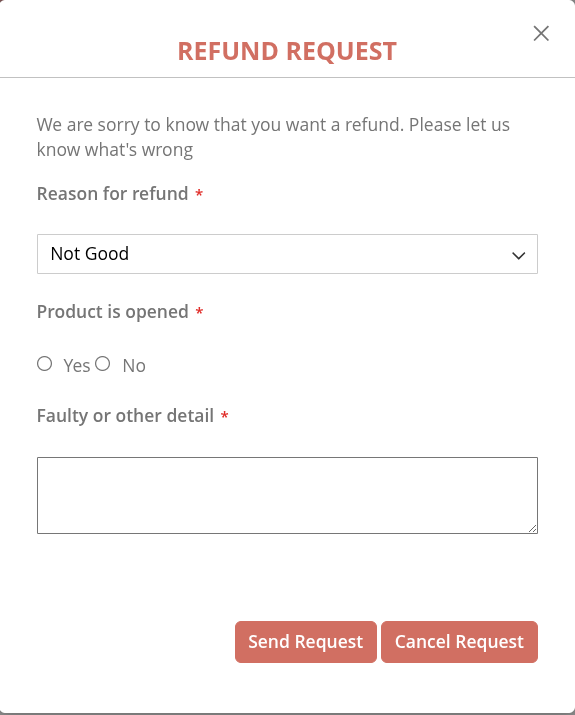
The Refund Request popup allows customers to submit a refund request for an eligible order directly from their account.
This modal appears when the customer clicks the Refund button under My Account → My Orders.
Overview
The refund request form collects essential information required for the admin to review and process the request.
The popup includes:
- Refund reason selection
- Product opened confirmation
- Detailed explanation field
- Submit and cancel actions
Form Fields
1. Reason for Refund *
A required dropdown field that allows the customer to select a predefined refund reason.
Source:
Configured in the admin under:
Admin Panel → Refund Request → Dropdown Options
Example Options:
- Not Good
- Damaged/Defective Item
- Wrong Item Delivered
2. Product is Opened *
A required radio button field.
Options:
- Yes
- No
This helps the admin determine product return eligibility based on store policy.
3. Faulty or Other Detail *
A required textarea field where the customer provides additional information about the issue.
Customers should clearly describe:
- Product defects
- Missing parts
- Incorrect item details
- Any relevant concerns
Buttons
Send Request
Submits the refund request for admin review.
After submission:
- The request status becomes Pending.
- The admin can review it in:
Admin Panel → Refund Request → Customer Requests
Cancel Request
Closes the popup without submitting the request.
Validation Rules
- All marked (*) fields are mandatory.
- The form cannot be submitted if required fields are empty.
- Refund reasons must be selected from the predefined dropdown.
Refund Workflow
- Customer submits the refund request.
- Request status is set to Pending.
- Admin reviews and updates status:
- Accepted
- Rejected
- Updated status is reflected in the customer's My Orders section.