Google Shopping Feed
Extension Installation
For Magento Marketplace Customers
-
Find the Composer name and version of the extension in the extension's composer.json file.
-
Login to your SSH and run:
- composer require mavenbird/magento2-google-shopping-feed
- Wait for Composer to finish updating your project dependencies and make sure there aren't any errors.
-
To verify that the extension installed properly, run the command:
- php bin/magento module:status Mavenbird_GoogleShoppingFeed
- By default, the extension is probably disabled.
- Enable the extension and clear static view files:
- php bin/magento module:enable Mavenbird_GoogleShoppingFeed --clear-static-content
- php bin/magento setup:upgrade
- For Magento version 2.0.x to 2.1.x - php bin/magento setup:static-content:deploy
- For Magento version 2.2.x & above - php bin/magento setup:static-content:deploy --f
- php bin/magento cache:flush
For Mavenbird Customers
- Extract the zip folder and upload our extension to the root of your Magento 2 directory via FTP.
- Login to your SSH and run below commands step by step:
- php bin/magento setup:upgrade
- For Magento version 2.0.x to 2.1.x - php bin/magento setup:static-content:deploy
- For Magento version 2.2.x & above - php bin/magento setup:static-content:deploy --force
- php bin/magento cache:flush
Boost your online store’s visibility by easily integrating with Google Shopping. Our Magento 2 Google Shopping Feed Extension enables merchants to seamlessly generate and manage Google Shopping feeds, ensuring your products are showcased to a broader audience and driving traffic directly from Google’s vast shopping network.
- Automatically generate product feeds in formats compatible with Google Shopping, reducing manual effort.
- Easily map Magento product attributes to Google requirements for seamless data submission.
- Keep your product information current with automatic scheduling of feed updates.
- Generate and manage multiple feeds tailored for different target audiences or regions.
- Ensure all required details such as title, description, price, availability, and more are accurately included.
Feed Information
First of all click on **Catalog > Google Shopping Feed > Feeds.**Press the button Add Feedbutton.
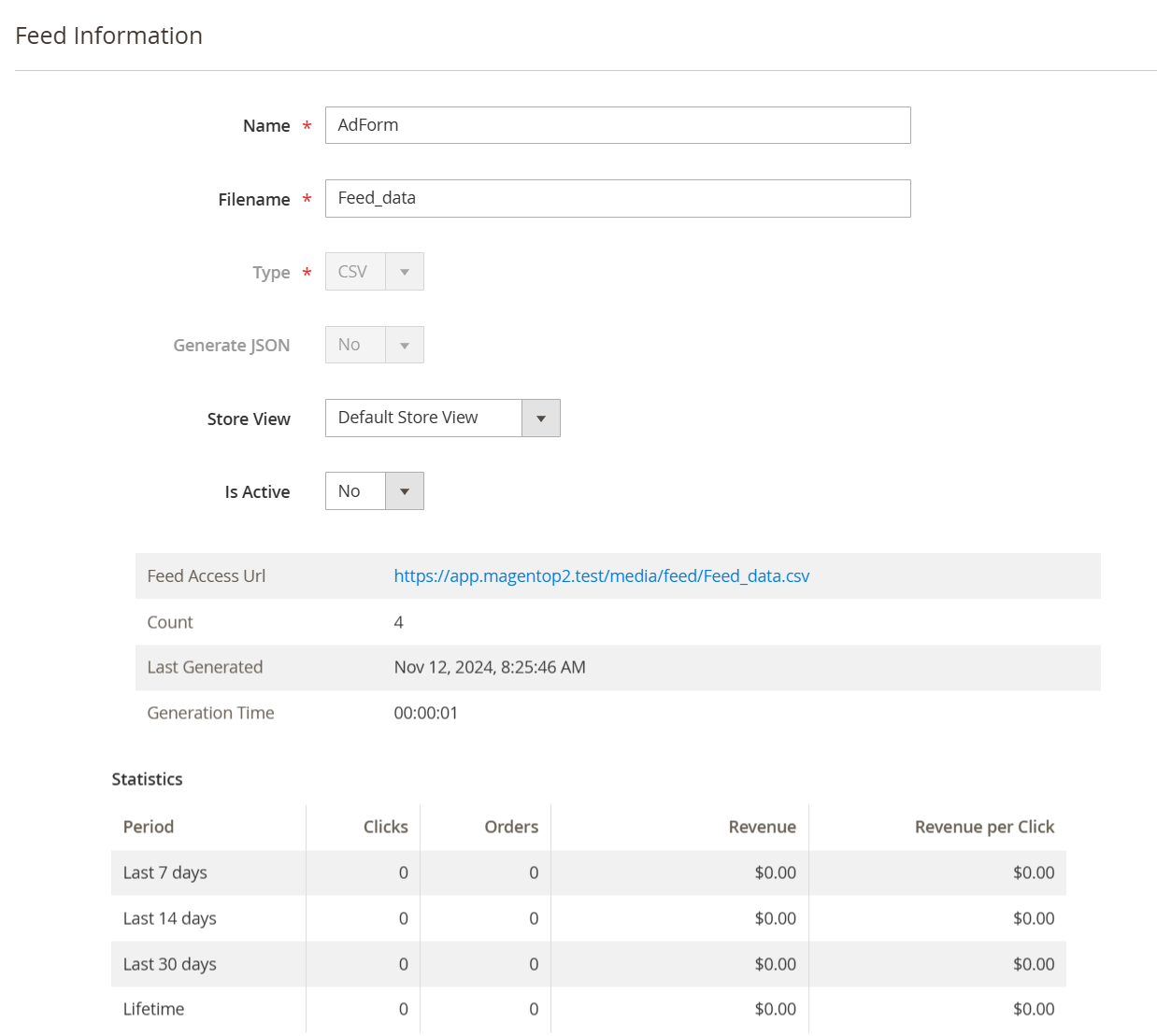
- Select one of the existing templates to create a feed. To create an empty feed, select Empty Template.
- Press button Save & Continue.
- Fill in the following requirement fields:
Fill in the following requirement fields:
- Feed Name: "AdForm" identifies this specific feed configuration.
- Filename: Set to "Feed_data" for the output CSV file name.
- Feed Type: Selected type is "CSV," indicating the format for the output feed.
- Generate JSON: Set to "No," indicating no JSON feed will be generated along with CSV.
- Store View: Default view is selected, which denotes the specific store configuration for this feed.
- Is Active: Marked as "No," indicating the feed is currently not active or enabled.
- Count: Shows the number of products included in the feed, which is "4."
- Last Generated: Indicates the last generation timestamp: Nov 12, 2024, 8:25:46 AM.
- Generation Time: Time taken to generate the feed, noted as 00:00:01.
- Statistics Overview: Clicks, Orders, Revenue: All set to 0 for various periods (Last 7 days, 14 days, 30 days, and Lifetime), suggesting no interactions with the feed thus far.
Content Settings
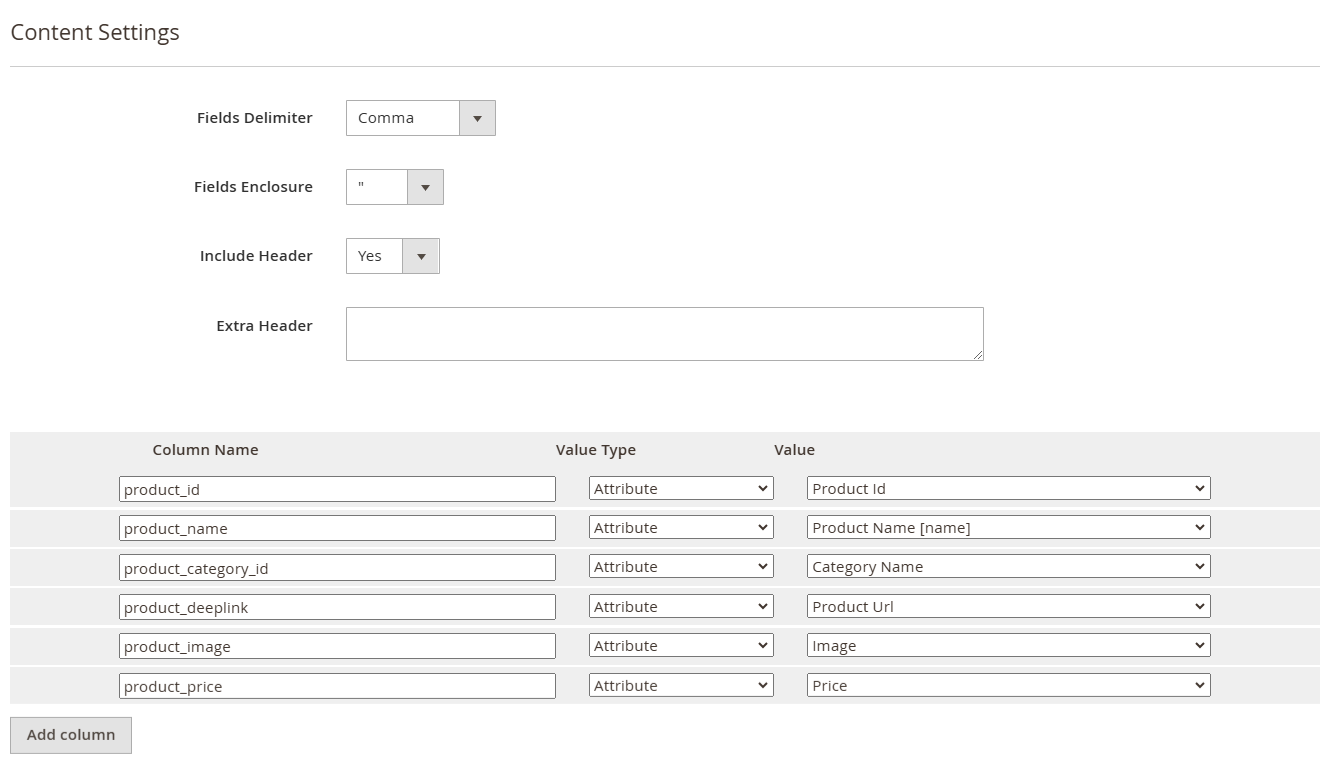
Fields Delimiter: Set to "Comma" for separating values in the CSV.
Fields Enclosure: Set to double quotes (") to encapsulate fields, ensuring proper formatting within CSV.
Include Header: Option set to "Yes," indicating that column headers will be included in the feed output.
Extra Header: Field left empty; no additional headers are specified.
Column Definitions:
- product_id: Maps to "Product Id" attribute.
- product_name: Maps to "Product Name" attribute.
- product_category_id: Maps to "Category Name" attribute.
- product_deeplink: Maps to "Product Url" attribute.
- product_image: Maps to "Image" attribute.
- product_price: Maps to "Price" attribute.
Google Analytics
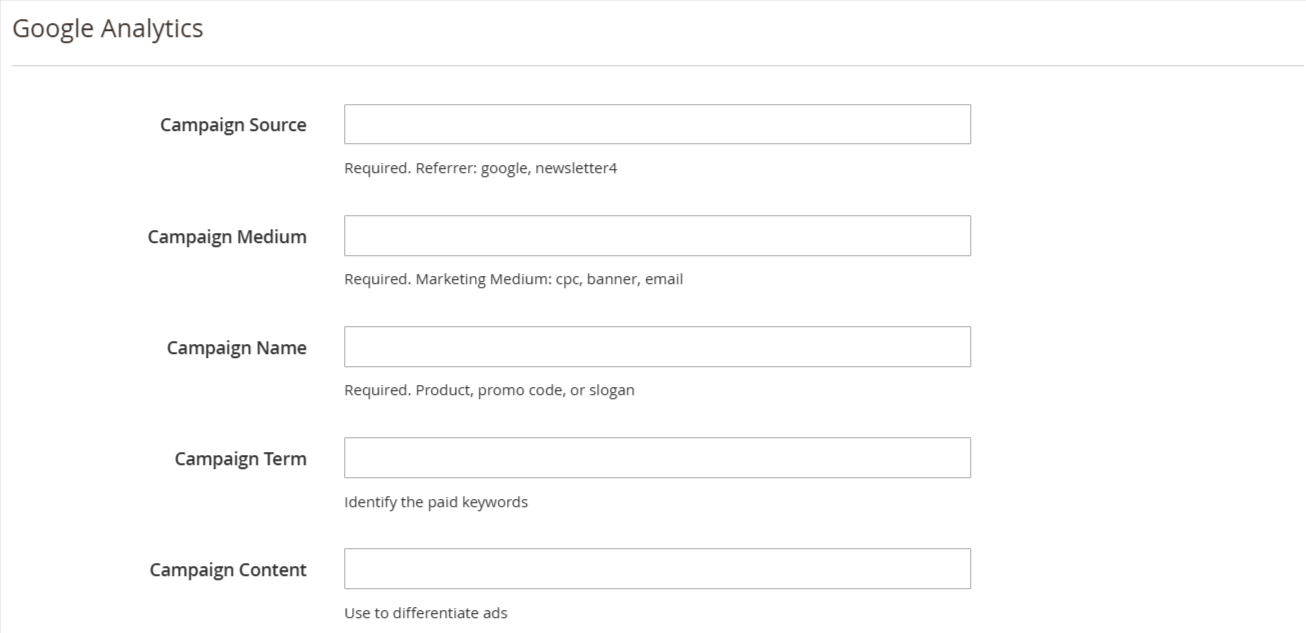
Campaign Source: Field for entering the source of the campaign (e.g., Google or newsletter), marked as required.
Campaign Medium: Specifies required marketing medium types such as "cpc," "banner," or "email."
Campaign Name: Field for identifying the campaign name, which is a required input (e.g., product, promo code).
Campaign Term: Optional field for identifying paid keywords related to the campaign.
Campaign Content: Field used to differentiate between ads, which can provide more context for the campaign.
Scheduled Task
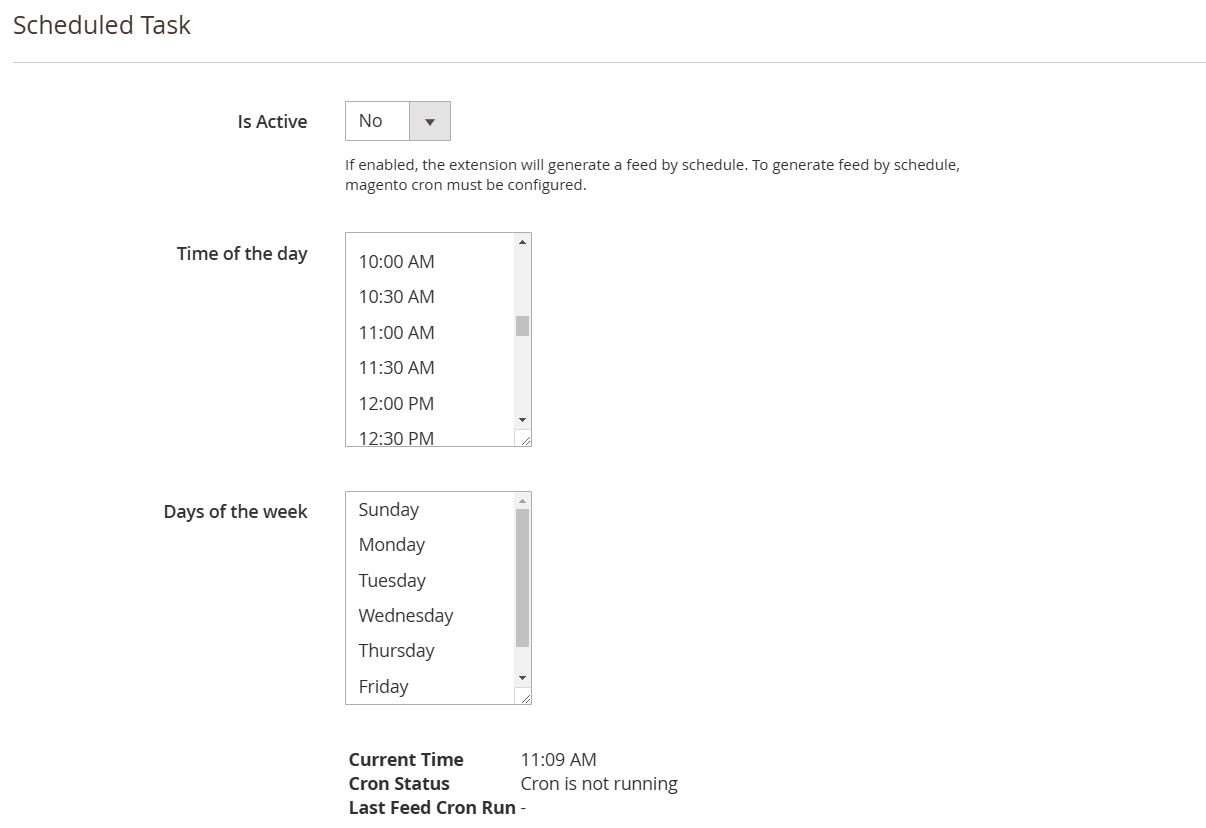
Is Active: Currently set to "No," indicating the scheduled task for generating the feed is not enabled.
Time of the Day: Users can select from several time slots for scheduling the feed generation.
Days of the Week: Users can choose specific days for the feed generation to occur.
Current Time: Displayed as 11:09 AM; indicates the current system time.
Cron Status: Currently shows "Cron is not running," suggesting no scheduled tasks are active.
Last Feed Cron Run: No specific data displayed regarding the last run of the feed cron.
FTP Settings
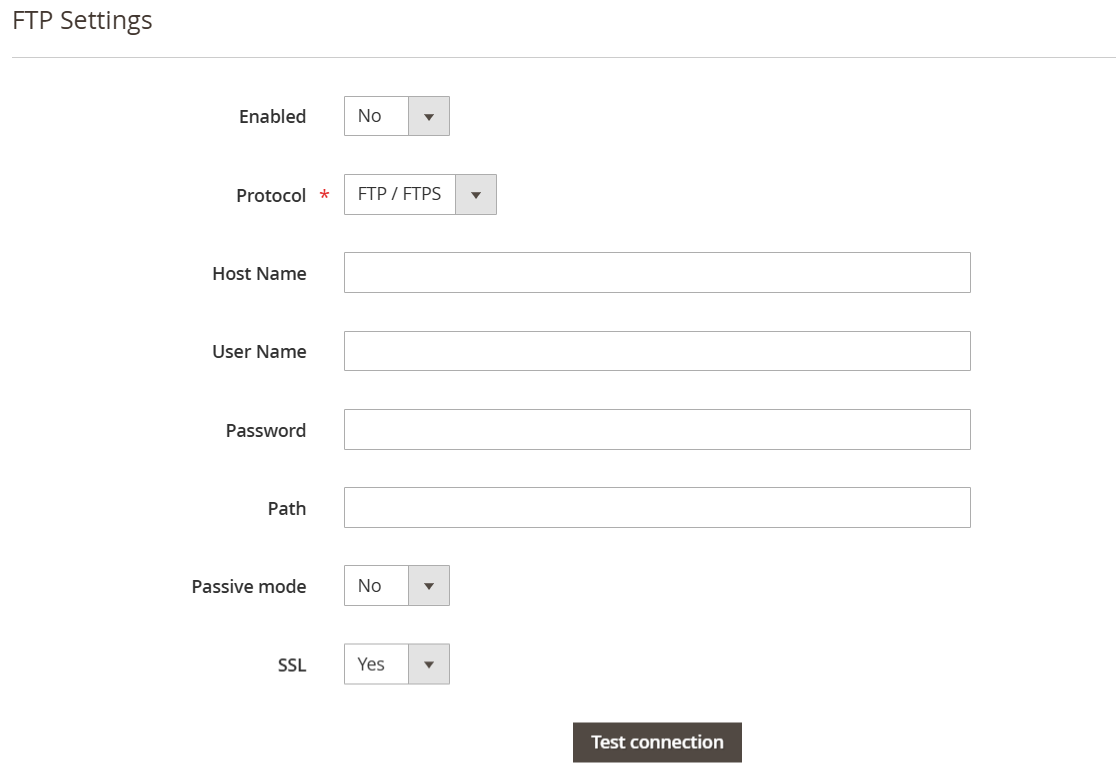
Enabled: Currently set to "No," indicating that FTP functionality is not activated.
Protocol: Options available are FTP or FTPS, allowing users to select the type of file transfer protocol.
Host Name: An empty field for entering the FTP server's host address.
User Name: Field for inputting the username required for FTP access.
Password: Field for entering the password associated with the FTP username.
Path: Space provided for specifying the directory path on the FTP server.
Passive Mode: Set to "No," indicating passive mode is not enabled for the FTP connection.
SSL: Set to "Yes," which means secure socket layer (SSL) is enabled for the FTP connection.
Test Connection: A button labeled "Test connection" to verify the FTP settings and connection.
Email Notifications
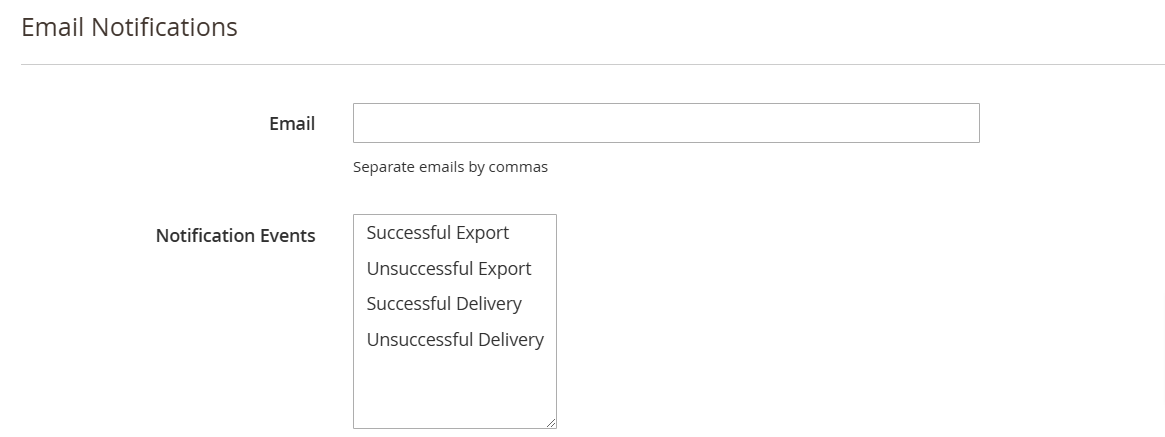
Email: Field for entering email addresses to receive notifications, with the instruction to separate multiple addresses by commas.
Notification Events: Options available for selection include:
- Successful Export: Notifications for when exports are successful.
- Unsuccessful Export: Alerts for failed export attempts.
- Successful Delivery: Notifications confirming successful delivery of the feed.
- Unsuccessful Delivery: Alerts for failed delivery attempts.
History
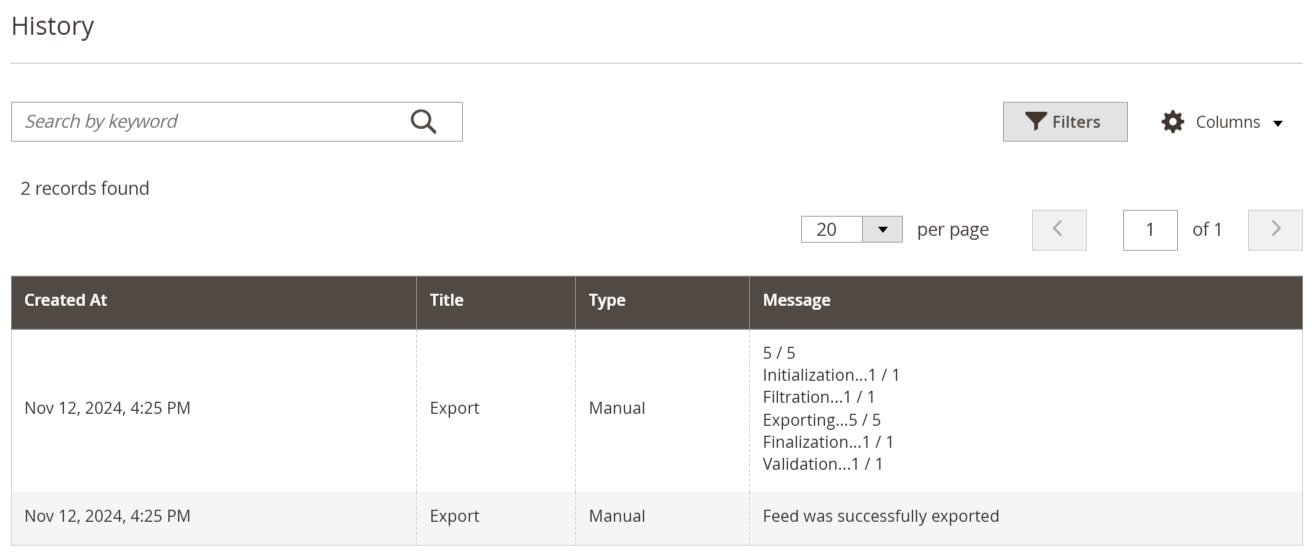
Search Bar: A search function present to filter history records by keyword.
Records Found: Displays the total number of export records found, noted as "2 records found."
Details of Export Records:
- Created At: Timestamp indicating when the record was created (e.g., Nov 12, 2024, 4:25 PM).
- Title: Describes the record type as "Export."
- Type: Indicates the type of action, which is "Manual."
- Message: Includes detailed status reports: "5 / 5" indicating successful completions of various processes. Specific actions like Initialization, Filtration, Exporting, Finalization, and Validation, each showing successful counts.
Google Shopping Feed Grid
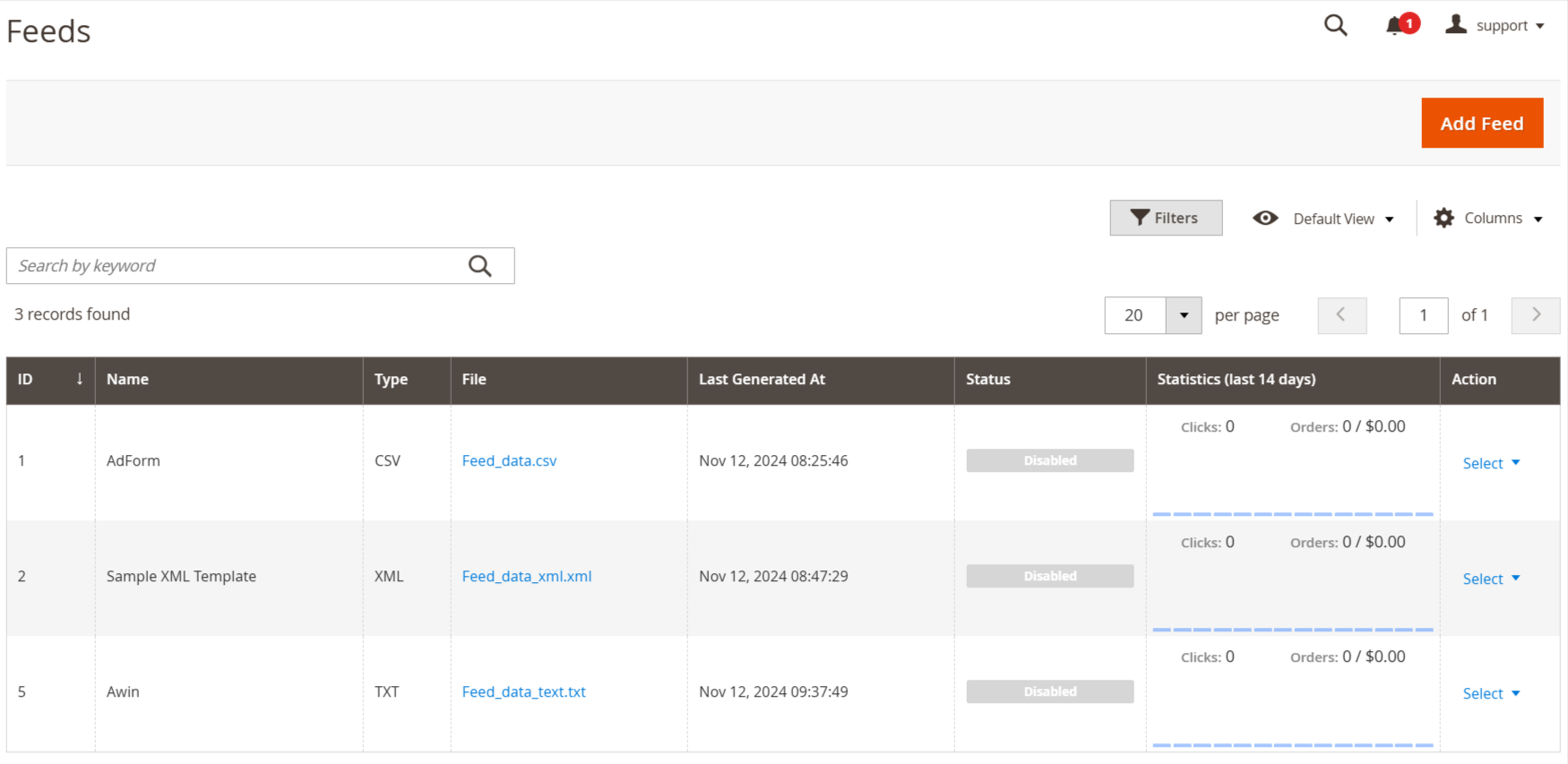
- This structure allows users to manage their Google Shopping feeds efficiently, providing necessary details and actions readily.