

You are not alone. Many merchants find it challenging to handle, track, and manage phone, email, or in-person sales, especially when the volume is high. This is why Shopify introduced the draft order feature.
While traditional online checkout processes are straightforward, many orders may still come through channels other than your website. This is where Shopify's draft orders come to the rescue. They provide a creative yet simple solution to streamline order management, enhance customer experience, and ultimately boost sales.
What You’ll Learn
In this blog post, we will explain the exact process of creating a draft order, the benefits of using it, and more. Let's begin!
What is a Draft Order in Shopify?
Understanding Shopify Draft Orders
The Shopify draft order feature allows merchants to manually create and customize orders for those that are not yet completed.
The primary purpose of draft orders is to provide merchants with the flexibility to handle various sales scenarios that the standard online checkout process may not accommodate. This includes:
- Orders made through phone, email, or other channels
- Customized products
- International orders
How is a Shopify Draft Order Different From a Regular Order?
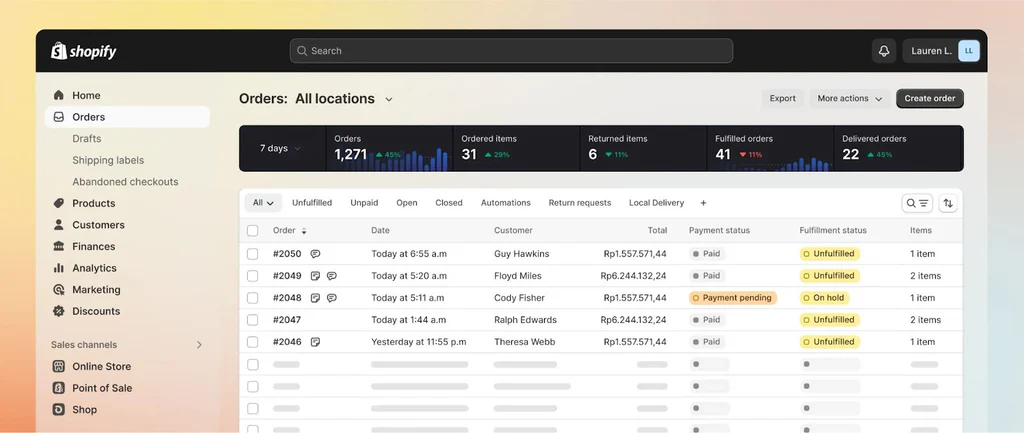
As you know, regular orders are automatically generated when a customer completes the online checkout process in your store. During this process, customers can apply discounts and offers and choose their preferred shipping and payment methods.
On the other hand, draft orders are manually created by the merchant, allowing for custom pricing, unique discounts, and the inclusion of products or services that may not be available in the online catalog.
When Can You Use Shopify Draft Orders?
Shopify draft orders are ideal for various scenarios, and we've discussed some of them above. Here are more situations where you can effectively use them:
- Offline Sales: Create orders for customers during in-person sales events or pop-up shops.
- Wholesale Orders: Offer custom pricing for bulk purchases to your wholesale customers.
- Deposits or Partial Payments: Accept deposits or partial payments for high-value items or services, allowing customers to pay in installments.
- Custom Bundles or Packages: Create unique product bundles or packages tailored to specific customer needs.
- Subscription-Based Orders: Manage recurring billing and custom pricing for subscription services.
- Pre-Orders: Allow customers to place orders for products that are not yet available.
Benefits of Using a Shopify Draft Order
Here are some of the benefits of using draft orders in Shopify:
-
Create Orders for Phone, Email, or In-Person Sales:
Draft orders enable merchants to capture sales that occur outside of the online store, making it easy to manage orders and raise invoices for orders placed via phone, email, or in person. -
Send Invoices to Customers for Secure Online Payment:
Once a draft order is created, an invoice can be sent to the customer for secure online payment, simplifying the process for phone or email orders. -
Offer Custom Pricing and Discounts:
Draft orders allow for special pricing and discounts not available in the regular store, making them ideal for wholesale customers, special promotions, or negotiated prices. -
Create Pre-Orders for Upcoming Products:
If you're planning to run a pre-order sale, draft orders can facilitate seamless order placement, capturing customer interest and securing sales before product launches. -
Save Partially Completed Orders to Finish Later:
Draft orders can be saved and completed later, which is useful for gathering additional customer information or finalizing complex orders.
What is Shopify Draft Orders API?
The Shopify Draft Orders API is a tool that allows developers to create, update, and manage draft orders within a Shopify store. Furthermore, the API enables the automation of order creation from custom apps, facilitating the creation of orders that are not yet finalized and allowing for a flexible approach to managing sales.
Developers can programmatically generate draft orders, set custom prices, apply discounts, and calculate taxes as needed. This is particularly useful for creating orders with special rates, such as discounts or wholesale prices.
The API supports sending invoices directly to customers, including a secure payment link. It also allows developers to manage draft orders by updating existing orders, deleting unnecessary drafts, and retrieving details of specific draft orders.
How to Create a Draft Order In Shopify Under 5 Minutes
Creating a Shopify draft order is a quick and efficient process that can be completed in just a few minutes. Here are the six quick and easy steps you need to follow:
-
Step 1:
Start by logging into your Shopify admin account. -
Step 2:
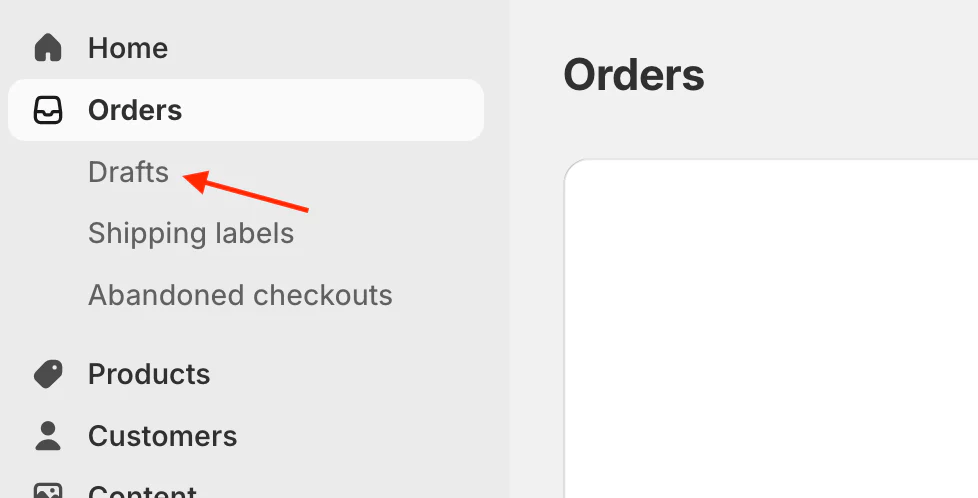
Go to "Orders" and then select "Drafts."
-
Step 3:
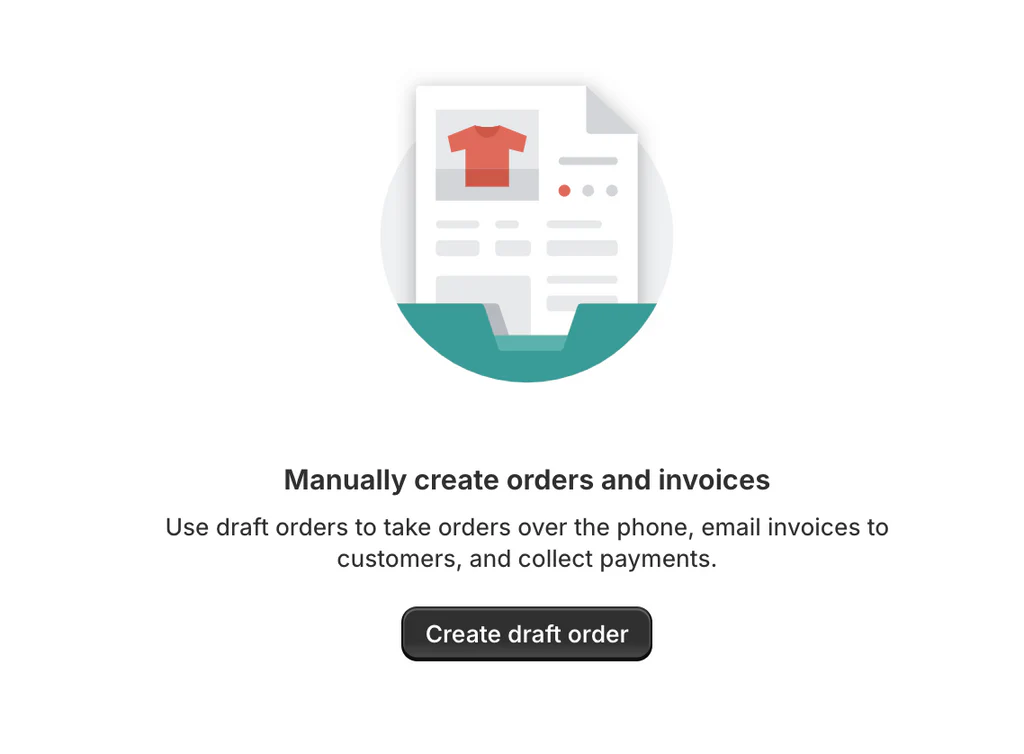
Click on "Create draft order" to start a new draft order. This opens a blank order form where you will manually input the details.
-
Step 4:
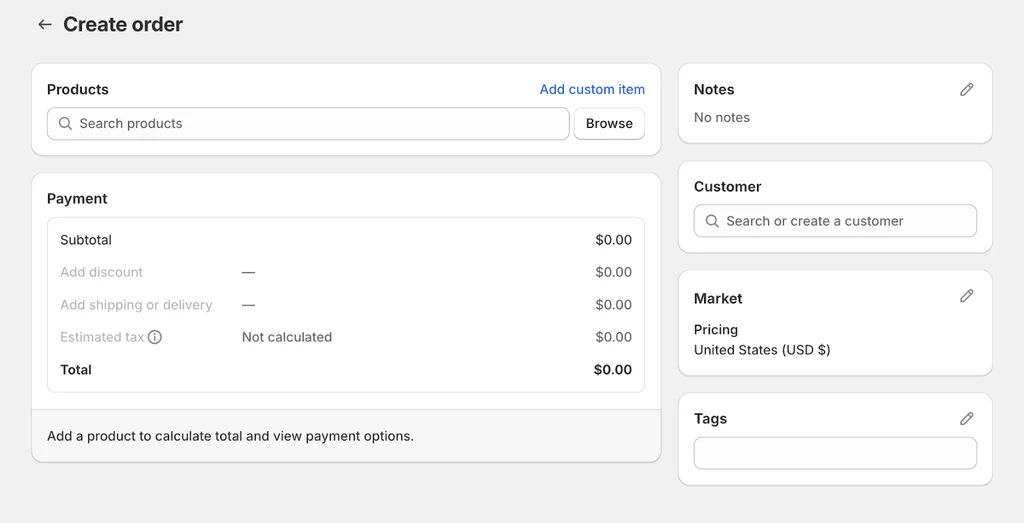
Search for and add one or more products to the order. You can also add custom products if needed.
-
Step 5:
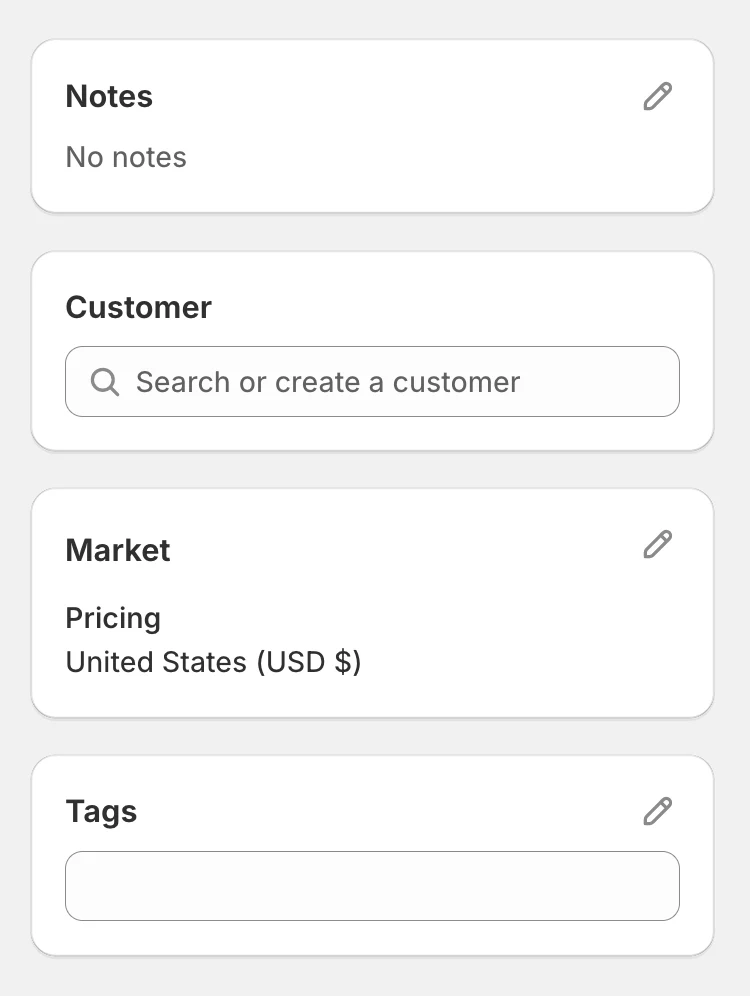
Customizing the draft order:
-
Add a Customer:
Enter the customer's details or select an existing customer profile. -
Apply Discounts:
Add any applicable discounts to the order. -
Turn Taxes On or Off:
Adjust tax settings based on the order's requirements. -
Add Tags or Notes:
Include any relevant tags or notes for internal tracking. -
Change the Market:
Select a different market if you need to display the order in a different local currency.
We will discuss some of the above features in detail in the upcoming sections.
Step 6: Choose one of the following actions to complete the draft order:
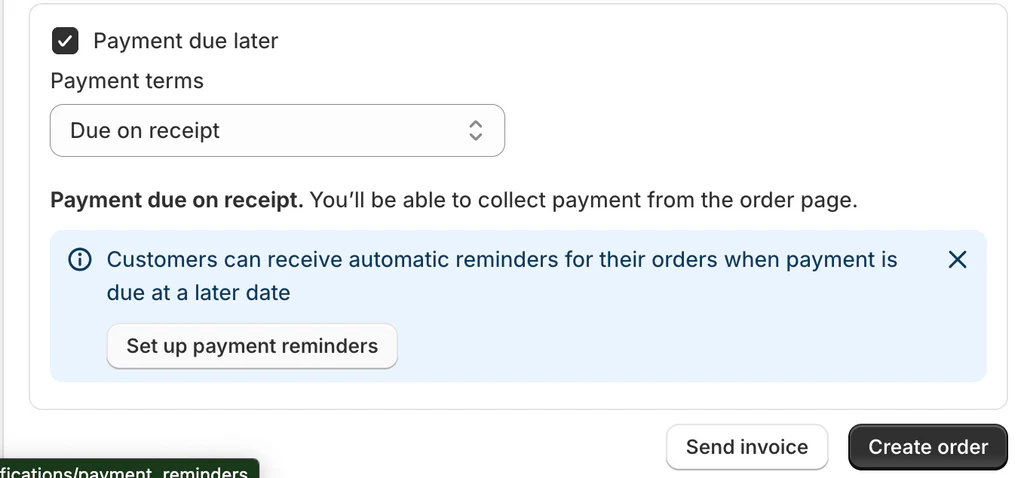
Choose one of the following actions to complete the draft order:
-
Send an Invoice:
Click "Send invoice" to email the customer an invoice containing a checkout link where they can securely pay for the order. -
Collect Payment:
If the customer is ready to pay, you can collect payment using credit card information or mark it as paid directly. -
Set Payment Terms:
Define any specific payment terms if applicable. -
Save the Draft:
If the order is not yet complete, save it as a draft to be updated later.
And there you have it! A completed draft order in under five minutes.
Can You Add Discounts to Shopify Draft Orders?
Yes, Shopify does allow you to add various types of discounts to draft orders. This makes it easier for you to offer custom pricing, bundle prices, and promotions to your customers.
Here are the different discount options available for draft orders:
-
Percentage Discounts:
Percentage discounts are applied to the total price of the order or specific items. This type of discount is useful when you want to reduce the price by a certain percentage, such as offering a 10% discount on the entire order or specific products.
To apply a percentage discount, here are the steps you need to follow:
-
Step 1:
From your Shopify admin, go to Orders > Drafts. -
Step 2:
Click on an existing draft order or create a new one. -
Step 3:
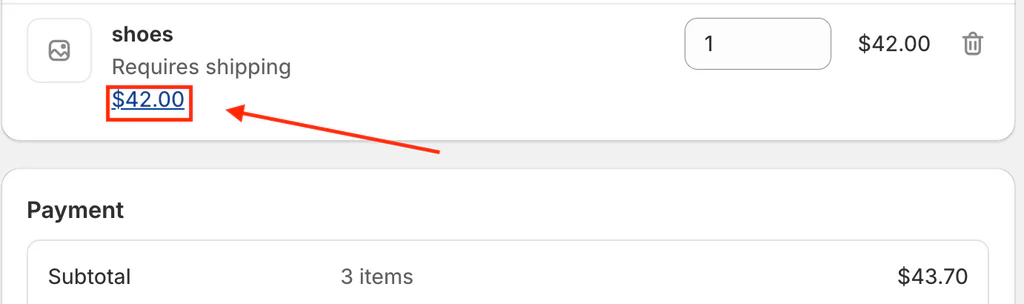
In the Payment section, click the amount to display the discount option. Check out the image below for a better idea.
-
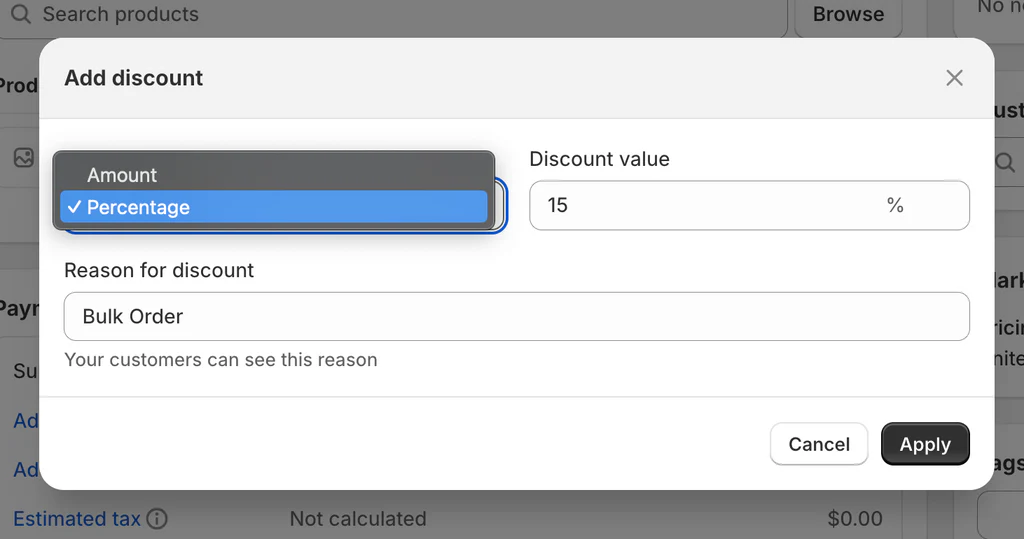
Step 4:
Choose to apply a percentage discount and enter the desired percentage.
-
Step 5:
Click "Apply" to finalize the discount.
Fixed Amount Discounts
Fixed amount discounts can be used if you wish to deduct a specific dollar amount from the total order price.
To apply a fixed amount discount, here is what you need to do:
-
Step 1:
From your Shopify admin, go to Orders > Drafts. -
Step 2:
Click on an existing draft order or create a new one. -
Step 3:
Like previously, click the amount against the product/order to display the discount option. Check out the image below for a better idea.
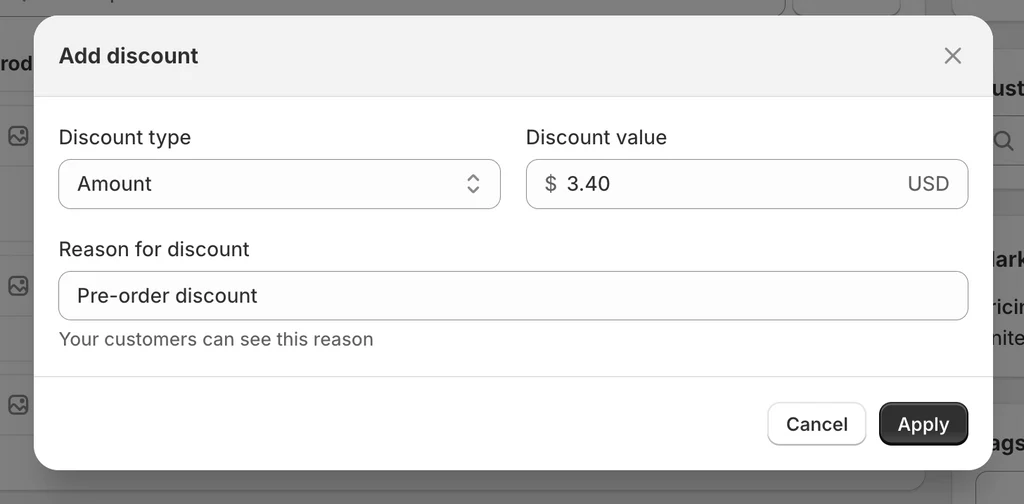
To apply a fixed amount discount, here are the additional steps you need to follow:
-
Step 4:
Choose to apply a fixed amount discount and enter the dollar amount. -
Step 5:
Click "Apply" to finalize the discount.
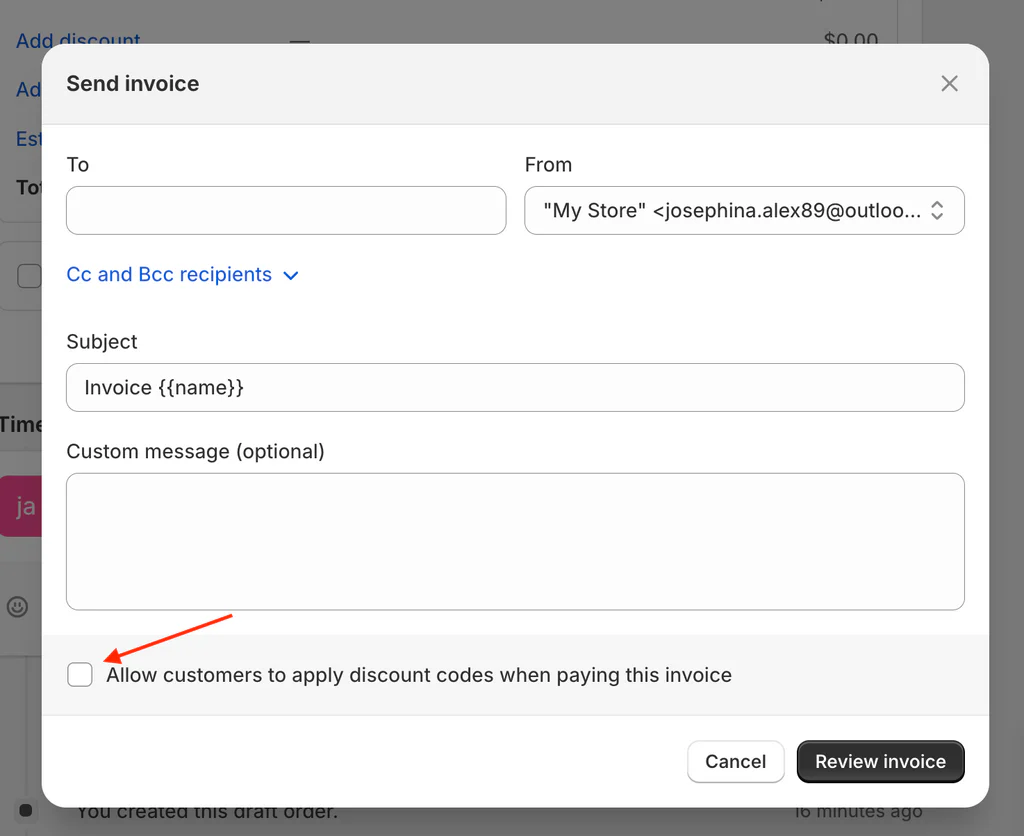
While sending an invoice, you also get the option to allow customers to apply a discount code that is available within the store. You can click on the checkbox to enable this option.
Applying Discounts to Specific Products or the Entire Order
Applying Discounts to Specific Products or the Entire Order
You can apply discounts to individual products within the draft order as well as the entire order.
You can apply discounts directly to line items by adjusting the product price or adding a specific discount, or use the custom order discount feature to apply a discount to the total order value.
Shopify Draft Order Limitations
While the draft order lets you apply various discount types, it comes with a few limitations:
- Shopify allows only a maximum of 5 discount codes per order.
- Discount codes and automatic discounts cannot be applied through your Shopify POS and must be added via the Shopify admin. You can do this on a desktop or a mobile browser.
- Shipping discount codes and Buy X Get Y discount codes are not supported for draft orders.
- For orders in a different currency, it's recommended to use percentage discounts to avoid foreign exchange fees.
How to Send Invoices for Your Draft Orders
Sending invoices for draft orders in Shopify is straightforward and ensures a seamless transaction process for your customers.
Here's how you can do it:
Automatically Generated Invoice
When you create a draft order, Shopify automatically generates an invoice with all the order details. This includes the products, quantities, prices, discounts, taxes, and shipping rates.
Customizing the Invoice
You can customize the invoice by adding additional information, such as payment terms and notes:
- Payment Terms: This is where you can mention specific payment terms like "Due on receipt," "Due on fulfillment," "Net term" (e.g., within 30 days), or a "Fixed term" (specific due date). This flexibility helps you manage when payments are due.
- Additional Notes: Feel free to add any relevant notes or instructions for the customer to ensure they have all the necessary information.
Sending the Invoice via Email
To send the invoice, follow these steps:
-
Step 1:
From your Shopify admin, go to Orders > Drafts. -
Step 2:
Click on the draft order for which you wish to send an invoice.

-
Step 3:
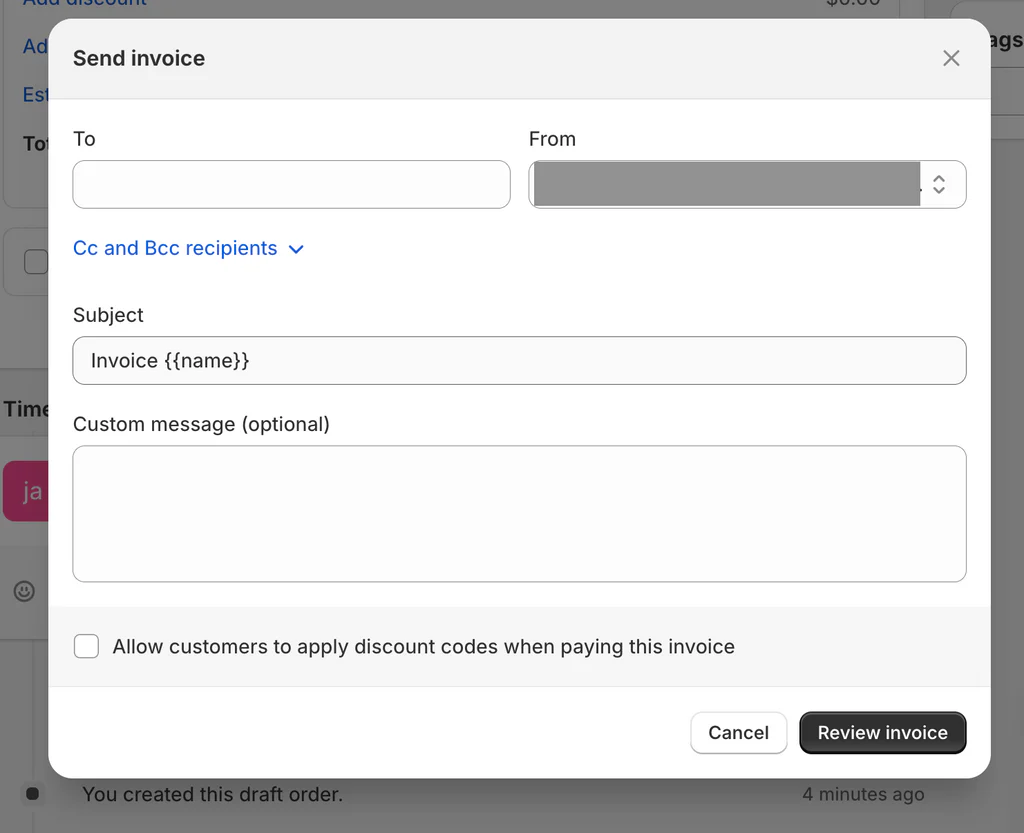
Review the invoice and click "Send invoice" to email it to the customer. Fill in the details, such as the customer’s email address, subject line, and message.
The invoice will include a secure checkout link to a secure checkout page where the customer can complete their payment.
Payment Options for Draft Orders
Customers can pay for draft orders through various methods, including:
- Credit Cards and Debit Cards: These are the most commonly accepted payment methods.
- Alternative Payment Methods: Depending on your store's settings, you can also offer payment options like PayPal, Apple Pay, or other local payment methods.
Once the customer pays via the invoice, Shopify automatically converts the draft order to a regular order, making it easier for you and the customer to track and fulfill.
Key Points to Remember While Sending Invoices
To ensure the invoice is paid on time and to avoid any confusion between you and the customer, follow these best practices:
- Setting Payment Terms: Define when the payment is due, whether immediately, upon fulfillment, within a set number of days, or on a specific date in all invoices.
- Currency Considerations: If the order is in a different currency than your store's default, and you wish to offer a discount, enter discounts as a percentage to avoid foreign exchange issues.
- Custom Shipping Rates: For draft orders, you can set custom shipping rates to provide discounts or special rates not available through standard shipping settings.
Key Takeaway
Shopify draft orders offer a versatile solution for managing a wide range of sales scenarios. They enable you to handle complex orders, provide personalized pricing, and offer flexible payment options—all while streamlining your sales processes.
With draft orders, you not only drive more sales but also improve customer satisfaction and operational efficiency. So, take advantage of the efficiency and flexibility they bring to your business. Start using draft orders today and watch your sales grow!