

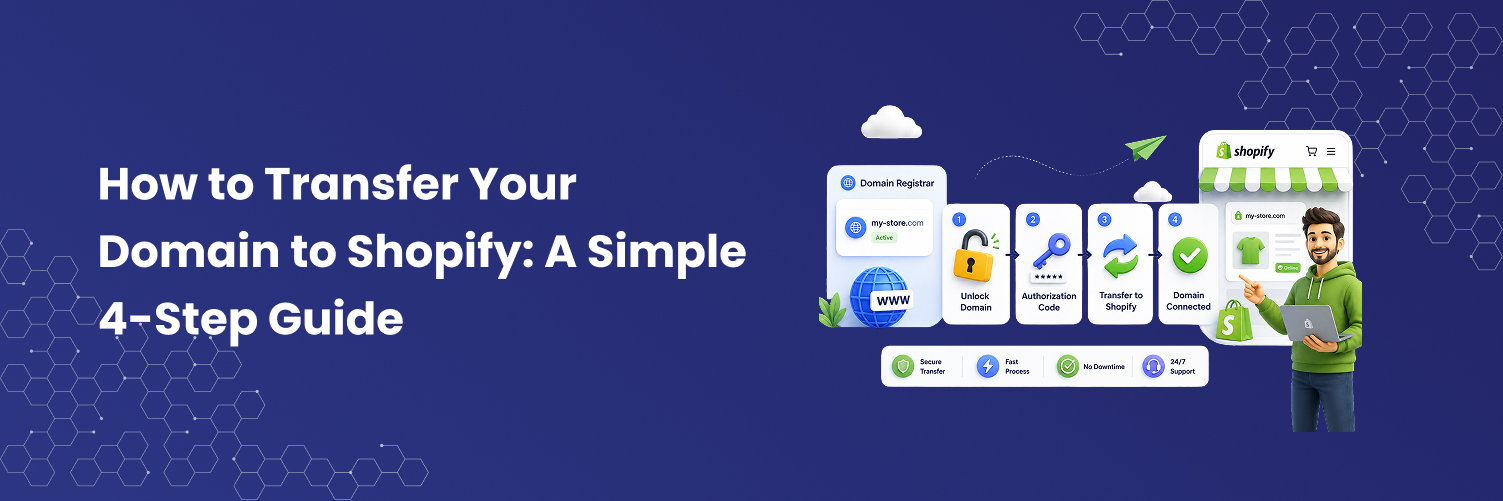
What’s Required to Point Domain to Shopify
Before transferring your existing domain to Shopify, there are several important factors to consider. According to the rules set by the Internet Corporation for Assigned Names and Numbers (ICANN), domains purchased within the last 60 days cannot be transferred. If your domain was recently purchased, you will need to wait until the full 60-day period has passed before you can begin the transfer process. This rule applies to all domain registrars.
Additionally, you will need to be prepared to pay for domain registration on Shopify for the next 12 months before initiating the transfer.
To successfully transfer your domain, you must have access to your domain provider account, as well as the email address associated with it. Be sure to review your domain provider’s transfer policy to confirm that transferring the domain is allowed.
Before You Get Started
Before initiating the domain transfer, it's important to ensure that your domain is eligible for transfer to Shopify. Certain domain types, such as .co.uk and .ca domains, are not eligible for transfer to Shopify.
If your domain is ineligible for transfer, you can still use it by connecting the third-party domain to Shopify. However, you won't be able to manage the domain directly from the Shopify dashboard.
Additionally, Shopify does not provide email hosting. Therefore, you will need to arrange for a third-party email service in order to use email with your custom domain. Keep in mind that the domain transfer process may take up to 20 days to complete.
Step One: Connect Shopify
To prevent interruptions if you're already using your domain for an existing website, it's important to first connect your domain to Shopify. Skipping this step may result in connection errors for website visitors during the transfer process.
Keep in mind that any changes you make to your domain can take up to 48 hours to fully propagate. Therefore, it's essential to wait until the connection process is complete before starting the domain transfer.
When you connect your domain, it will point to your Shopify store URL. This ensures that when visitors type in your domain, they are redirected to your Shopify store.
Even after connecting your domain, you will continue to manage all domain settings through your third-party domain provider. This includes paying for your domain and renewing your domain ownership.
How Do I Add My Domain to Shopify?
1. Log in to your Shopify account.
2. Go to Settings > Domains.
3. Click on Connect Existing Domain. If this option isn't visible, click on Actions first, and then select Connect Existing Domain.
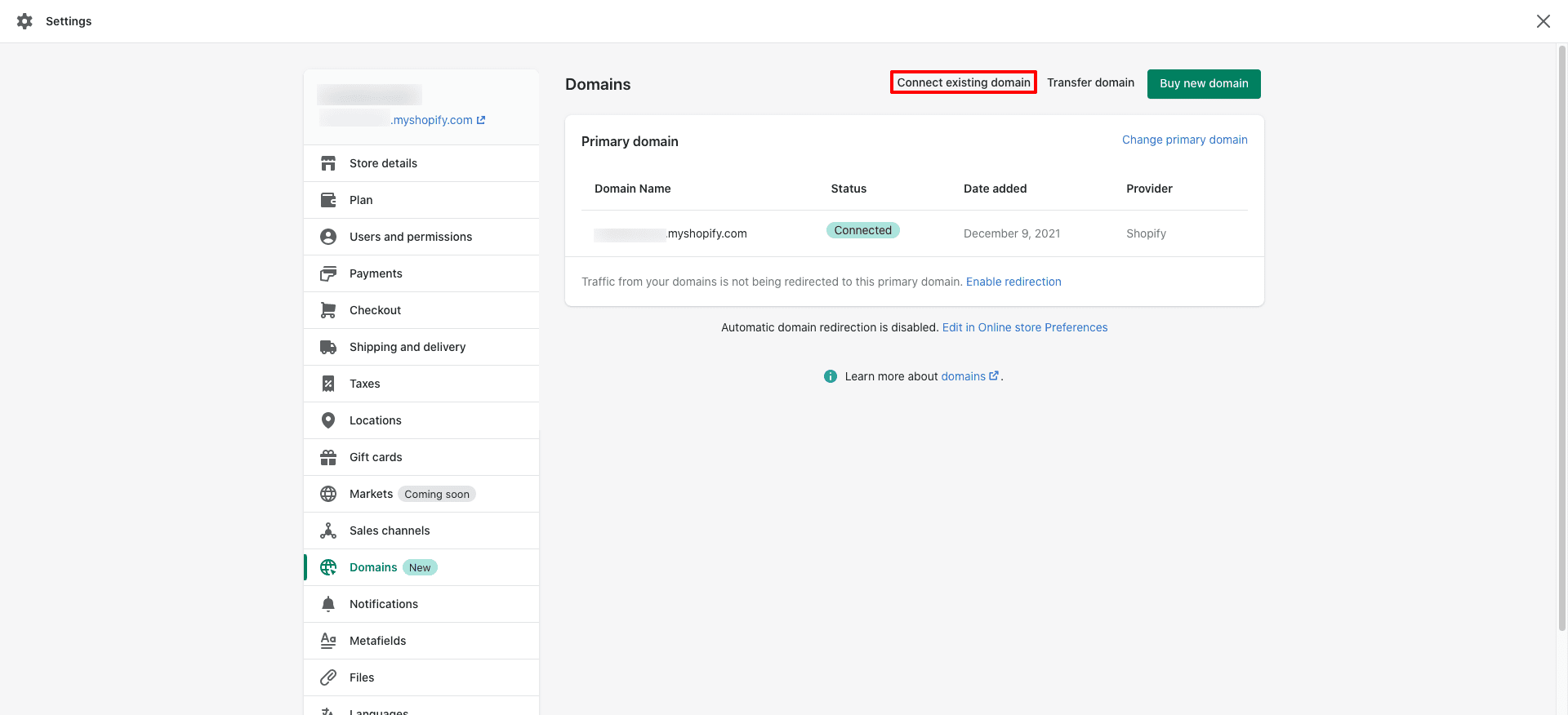
Enter the domain you wish to connect.
4. Click on View Instructions. This will display Shopify's help materials to guide you through the process.
The specific steps may vary depending on your domain provider. Some providers may ask you to update the CNAME record to Shopify's IP address, while others may require you to modify the A record to point the domain to Shopify.
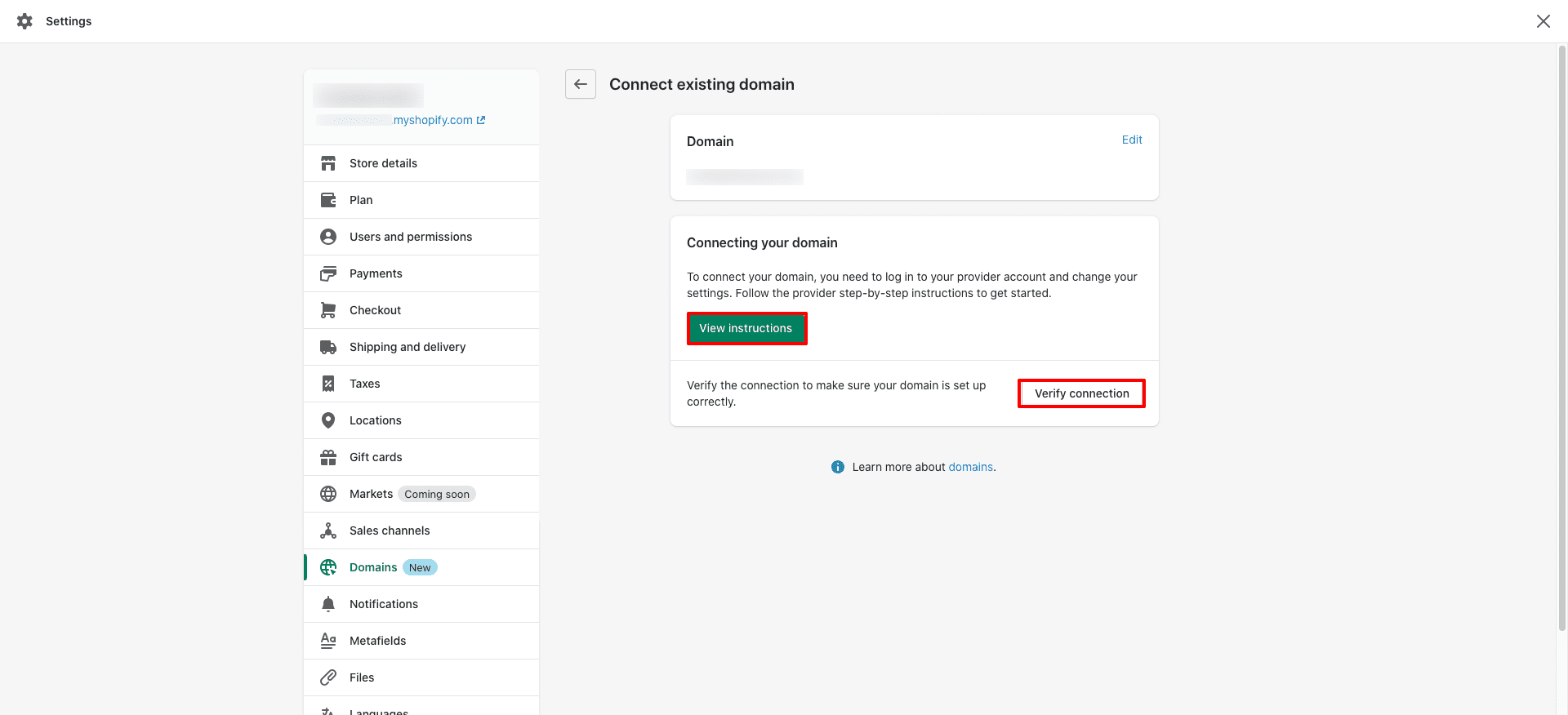
Once you've completed the steps with your domain registrar, return to Shopify and click the Verify Connection button to confirm that the process was successful.
If the connection doesn't work after 48 hours, repeat the steps and double-check your domain settings for any errors. If you continue to experience issues, contact your domain provider for further assistance.
Step Two: Prepare the Domain for Transfer
Log in to your domain account. Ensure that the email address associated with the account is up-to-date, functional, and not linked to the domain you intend to transfer.
Unlock the domain you want to transfer. The process for unlocking may differ slightly depending on your domain registrar, but generally, it can be done by navigating to the domain settings and selecting the "Unlock" option.
If you can't find the option to unlock your domain, it's possible that the domain isn't eligible for transfer.
Once the domain is unlocked and ready for transfer, you will receive a transfer key, often referred to as an EPP code or transfer authorization code.
Step Three: Transfer the Domain
After unlocking the domain, log in to your Shopify account and go to Settings > Domains.
Click on Transfer Domain. If this option is not immediately visible, click Actions first, then select Transfer Domain from the dropdown menu.
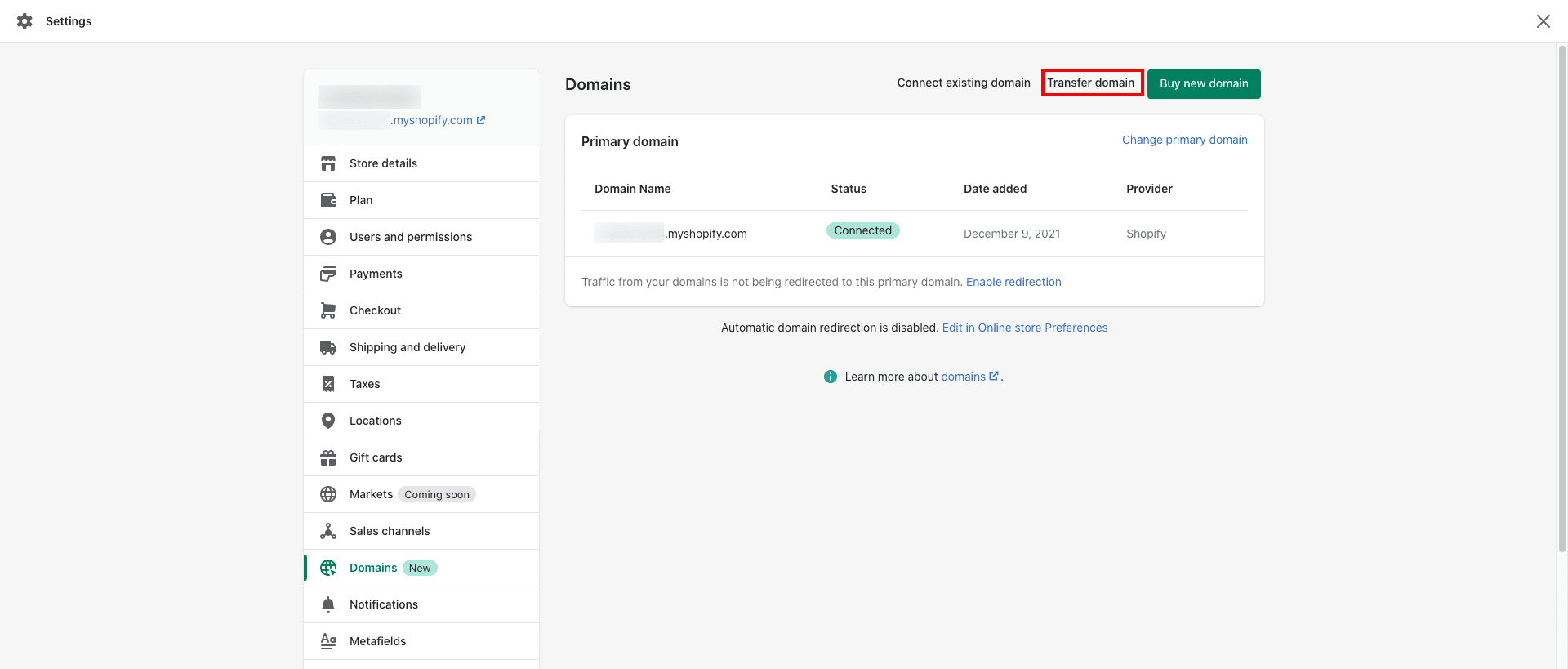
Enter the domain you want to transfer.
You'll need to pay the renewal fee for an additional year of registration to complete the transfer. However, any remaining time on your current registration will be carried over. The current fee is $14, and several payment options are available.
When you're ready, click the Verify Domain button. Shopify will check the connection and inform you whether the domain is locked or unlocked.
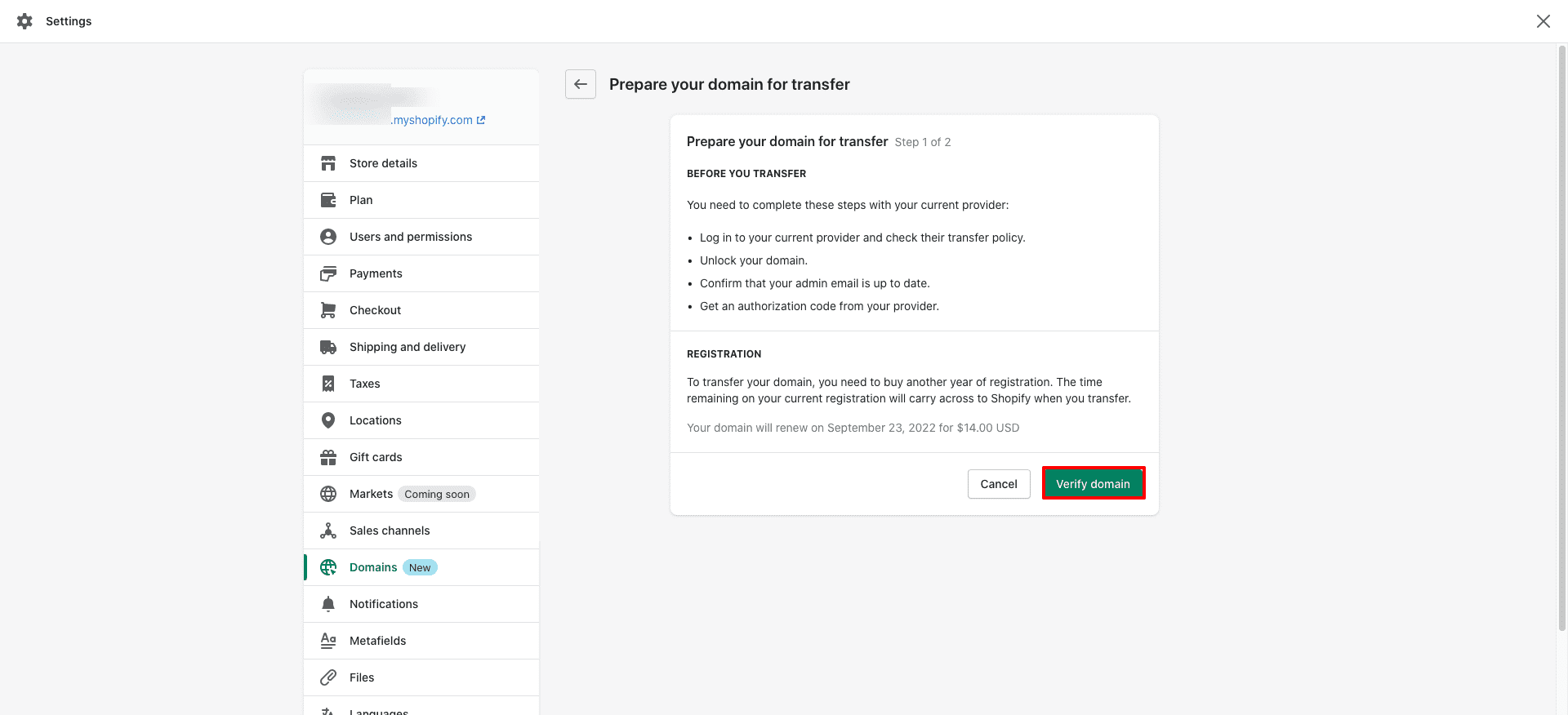
Once your domain status is unlocked (it may take some time for DNS records to update and refresh the status), you can click Next to proceed. If the status shows "Domain locked," you’ll need to return to your third-party provider and follow the steps to unlock the domain before you can continue.
Enter the EPP or domain authorization code you received from your domain host. Then, click Next to proceed.
Click Buy and Transfer.
Keep an eye on the email account linked to your domain. Depending on your previous domain provider, you may need to approve or authorize the transfer before it can be processed. You will receive an email with a link to Confirm Transfer or Approve Transfer.
The domain transfer process can take up to 20 days, but it’s often completed much faster. Once the transfer is complete, Shopify will send you an email confirmation. At that point, you'll be able to manage your domain settings from the Domains page in your Shopify dashboard.
If the transfer is unsuccessful, the 1-year renewal fee will be refunded. If you experience any issues, feel free to contact Shopify support for assistance.
Step Four: Data Use Consent Preferences
Once the domain transfer is complete, you’ll receive an email from Shopify with the subject line: "Control how your data is shared." In that email, you’ll find a link to the Data Use Consent Settings from Tucows, Inc., the parent company of OpenSRS, which Shopify uses to resell domains. Consent is optional and can be withdrawn at any time.
After transferring your domain to Shopify, you’ll be able to set up your store, configure third-party email hosting, set up forwarding email addresses, add subdomains, set up international domains, and enable automatic renewal for your domain.
Final Thoughts
Whether you're starting a new online store or migrating to Shopify from another ecommerce platform, it may make sense to transfer your domain to Shopify. If you recently purchased a domain or don’t mind managing it separately, you can connect your existing domain to your online store instead of transferring it.
By connecting your domain, you can still direct visitors to your Shopify store. However, you won't be able to manage your domain's DNS settings directly from your Shopify admin dashboard.
When you transfer your domain to Shopify, you can continue running your store as usual, as long as you first connect it to your account.