


Two simple methods to remove the default Shopify footer text and give your store a more professional look.
Why Remove “Powered by Shopify”?
Shopify automatically adds "Powered by Shopify" to all store footers. While this is fine for new users, removing it can make your store look cleaner and more professional.
By removing the text, you can:
- Present your brand as unique and professional
- Highlight your own brand name
- Add trust badges or custom footer elements
Two Methods to Remove “Powered by Shopify”
- Method 1: Using the Edit Language option (no coding required)
- Method 2: Using the Edit Code option (for those comfortable with coding)
Method 1: Edit Language Option
Follow these steps to remove the "Powered by Shopify" text without touching code:
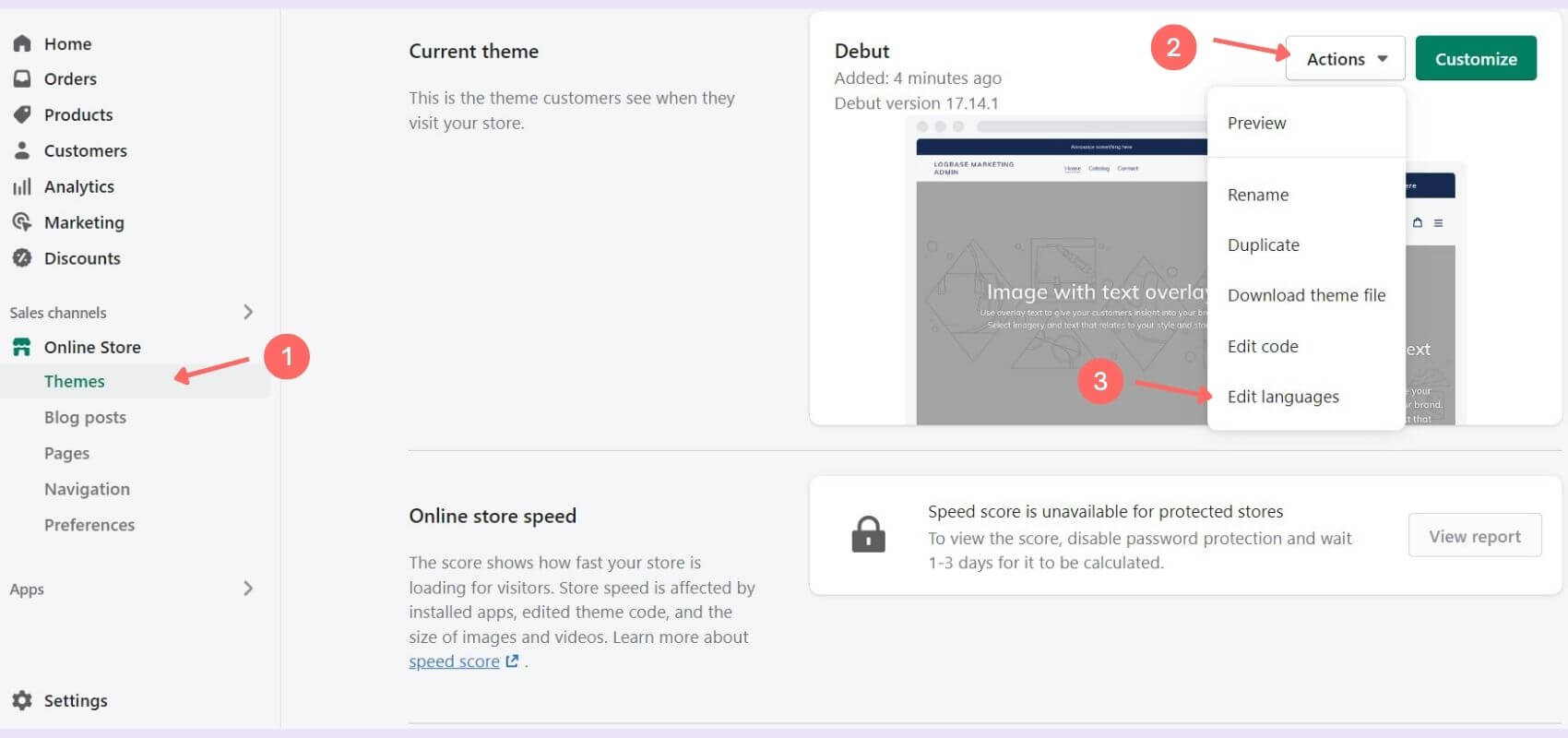
- Step 1: In Shopify Dashboard, go to Online Store > Themes.
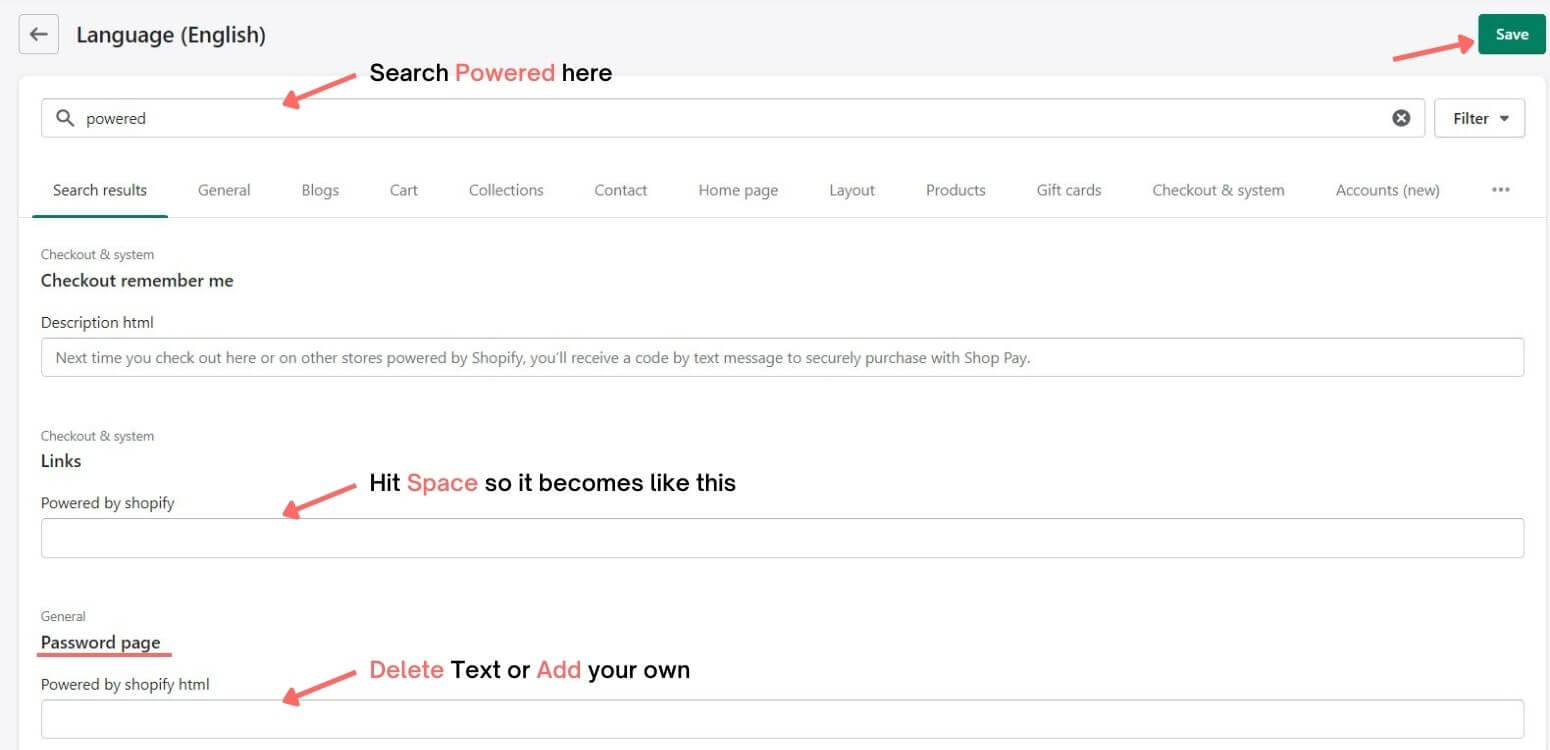
- Step 2: In the Current Theme section, click Actions > Edit Languages.
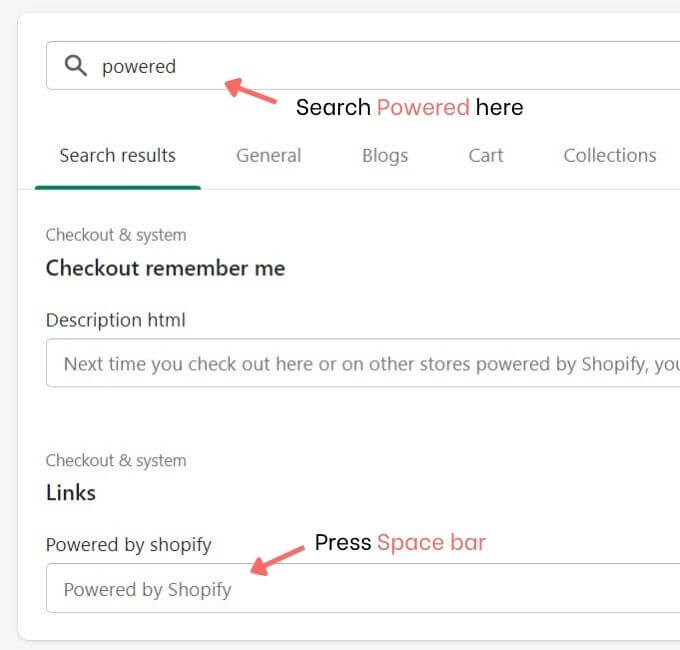
- Step 3: Search for "Powered" in the filter. Navigate to "Powered by Shopify", press the spacebar, and the faded text disappears.
- Step 4: Click Save. The text will be removed from your store footer.
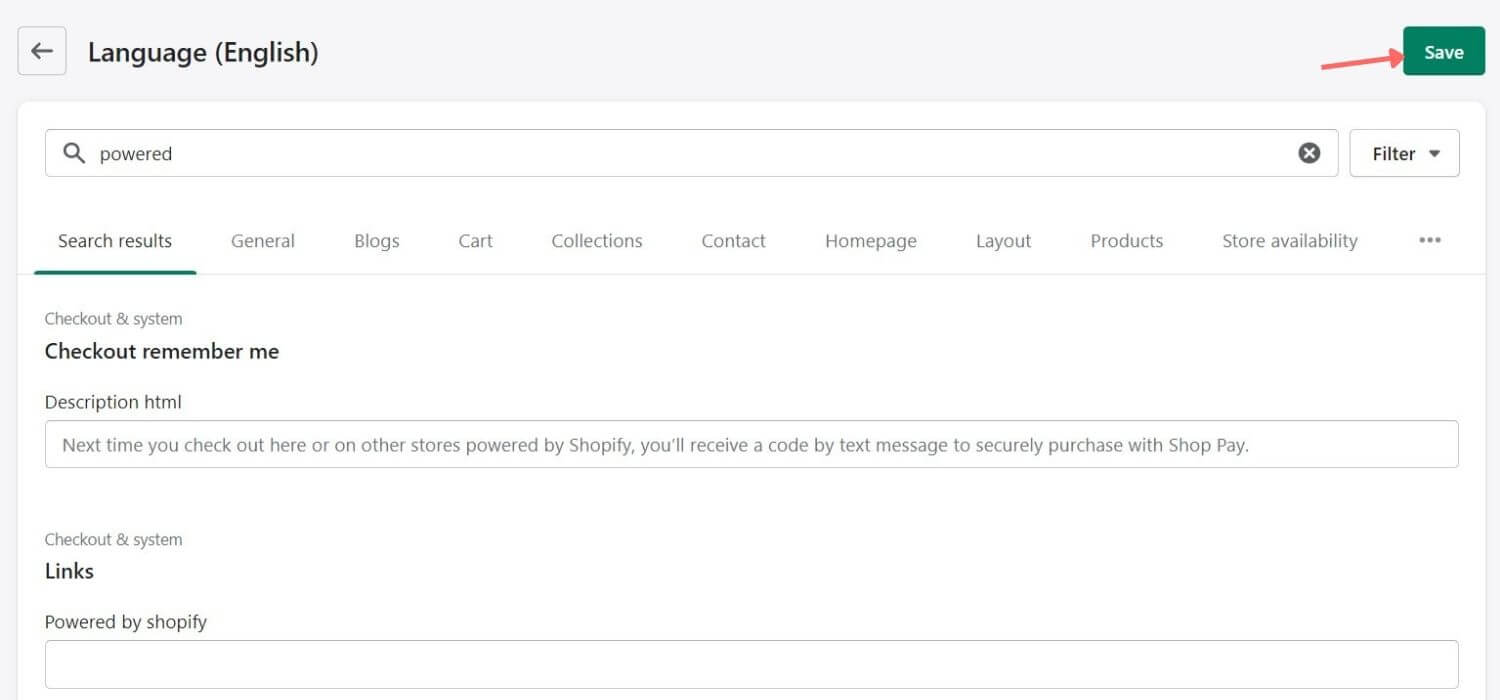
Note: For password-protected pages, delete the text under “Powered by Shopify HTML” and click Save.
Method 2: Edit Code Option
For those comfortable with coding, follow these steps:
- Step 1: Go to Online Store > Themes > Actions > Edit Code.
- Step 2: Open Sections > footer.liquid file.
- Step 3: Search for
{{powered_by_link}}and delete all instances. - Step 4: Click Save.
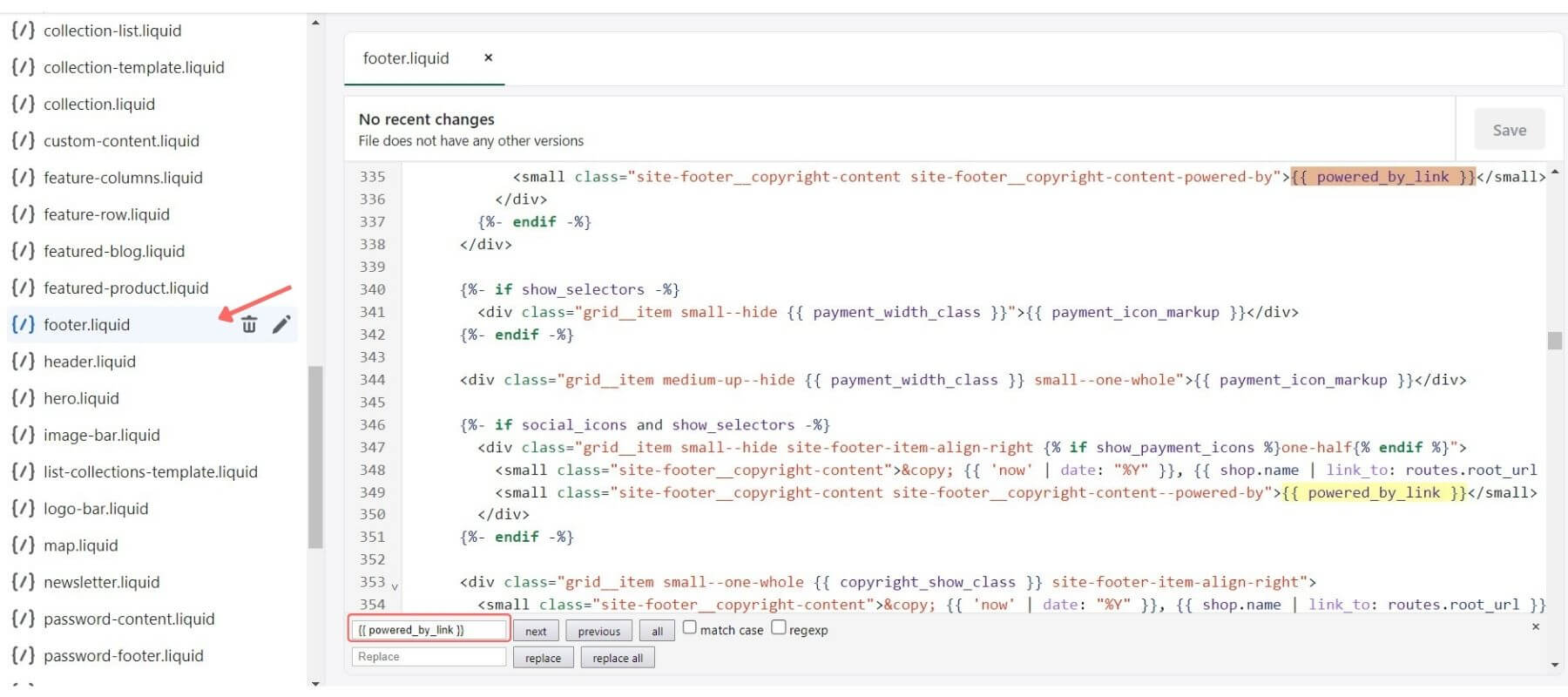
For password page removal, open Sections > password-footer.liquid, search for {{powered_by_link}}, delete all occurrences, and save.
Theme-Specific Instructions
Brooklyn & Dawn Themes
- Online Store > Themes > Actions > Edit Languages.
- Search "Powered by Shopify", press spacebar, and click Save.
- For password page, delete text in “Powered by Shopify HTML” and save.
Motion Theme
- Online Store > Themes > Actions > Edit Code.
- Navigate to Snippets > footer-logo-social.liquid.
- Search
{{powered_by_link}}, remove entire line, and click Save.
Extra Tip: Remove Shopify Search Icon
- Online Store > Themes > Actions > Edit Code.
- Open Snippets > icon-search.liquid and delete its contents.
- Click Save. The search box will be removed from your store.