

Imagine yourself using an e-commerce website that takes too much time to load and respond. Would you continue using that e-commerce website for your purchases? Not likely. The same thing happens with your customers when your Shopify website feels too slow. Website speed is the most important aspect for the survival of any digital business.
A slow-loading website increases your bounce rate, reduces your rate of conversion, lowers engagement rates, causes a significant drop in revenues and sales, and, most importantly, decreases your SEO rankings. E-commerce giant Amazon estimates that a one-second delay in webpage loading can cost them a whopping $1.6 billion in losses every year.
A study conducted by MOZ on site speed shows the following data points:
- If your website loads in under 5 seconds, then it is approximately faster than 25% of the web.
- If your website loads in under 2.9 seconds, then it is approximately faster than 50% of the web.
- If your website loads in under 1.7 seconds, then it is approximately faster than 75% of the websites.
- If your website loads in under 0.8 seconds, then it is approximately faster than 94% of the websites.
This is why you must boost your Shopify store performance, but you might be thinking about how to increase Shopify website speed? So don't worry about it; we have done our legwork and come up with this comprehensive guide.
Ways to Enhance the Speed of Your Shopify Website
Shopify offers various built-in speed optimization features that are automatically activated when you create your store. Improving the speed of your Shopify store involves many aspects, so I’ve structured this guide into distinct steps for your convenience.
1. Shopify Store Speed Optimization
Follow the given suggestions to do Shopify store speed optimization and boost up your sales.
a. Analyze Performance with PageSpeed Insights
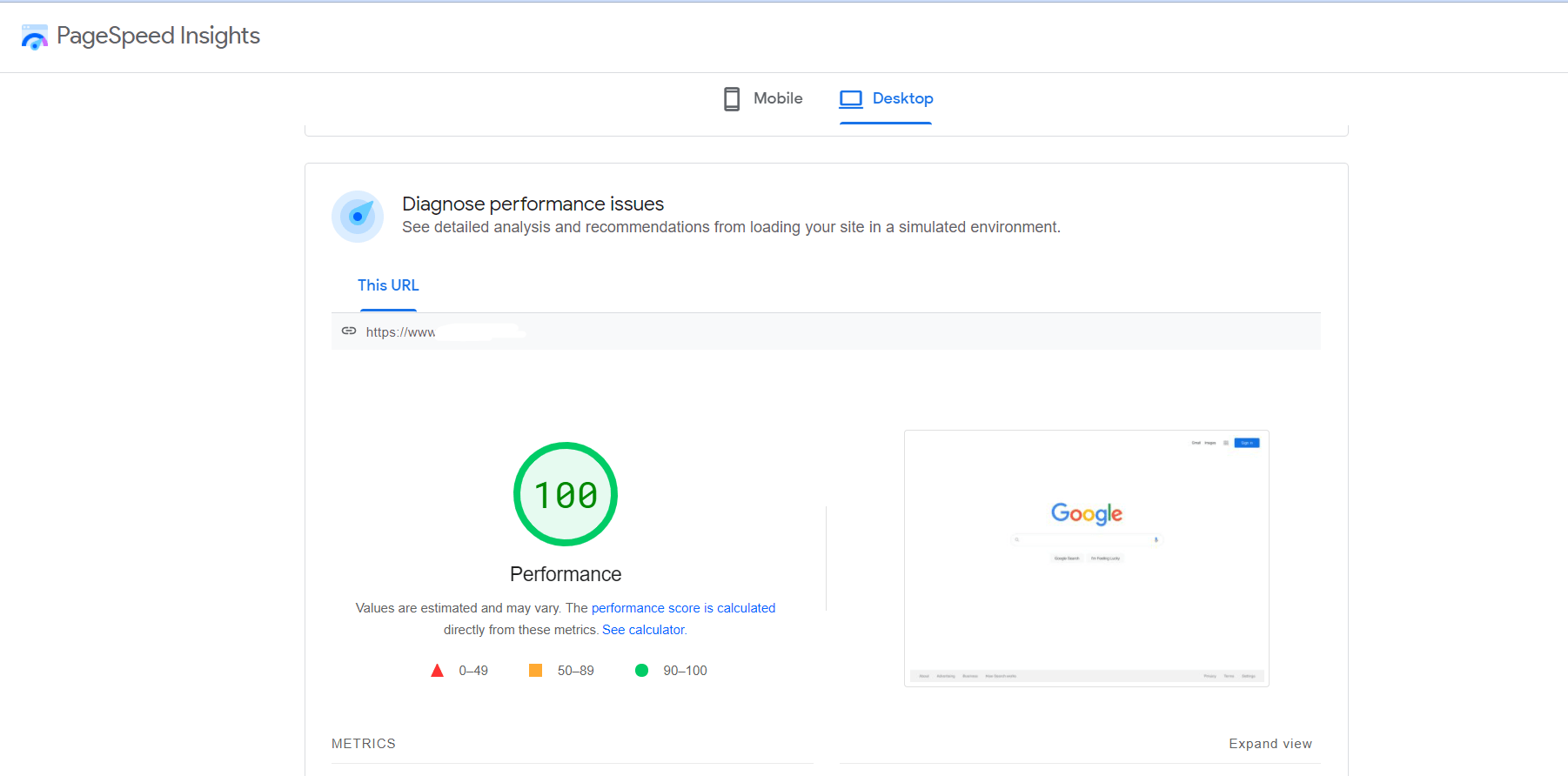
PageSpeed Insights is a speed testing tool created by Google that evaluates the performance of a webpage on both mobile and desktop devices. It offers essential recommendations for improving page speed. You can analyze your website's performance by entering your site link to receive a comprehensive analysis report. Once you've addressed all identified issues, you can re-analyze your website speed to ensure optimal performance.
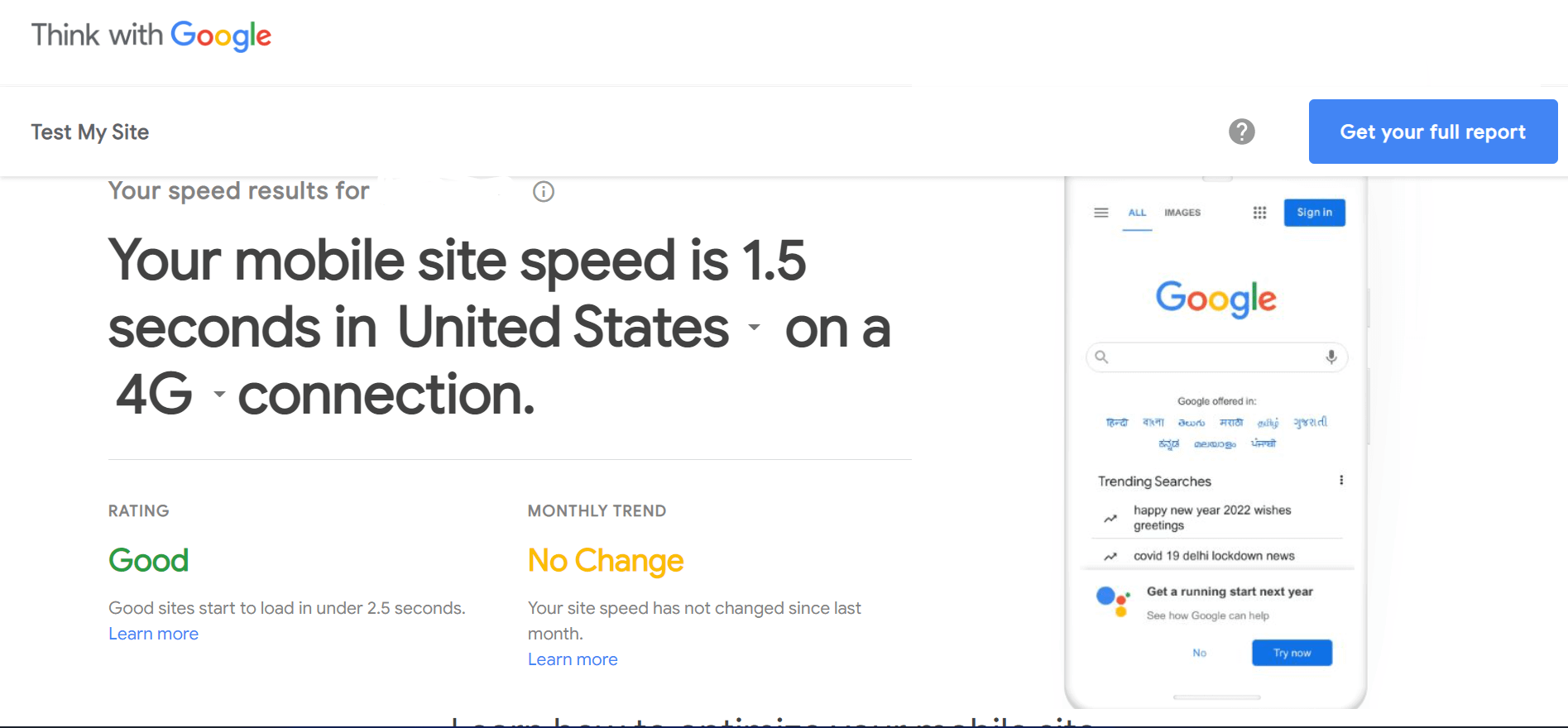
Additionally, you should utilize Google's Test My Site for testing the speed of your Shopify store. This free tool allows you to assess your website's speed on mobile devices and provides suggestions for enhancing the mobile user experience. A study conducted by Shopify on 100,000 e-commerce sites indicates that over 50.3% of traffic originates from mobile devices. Simply input your website URL, and you'll receive an in-depth performance report.
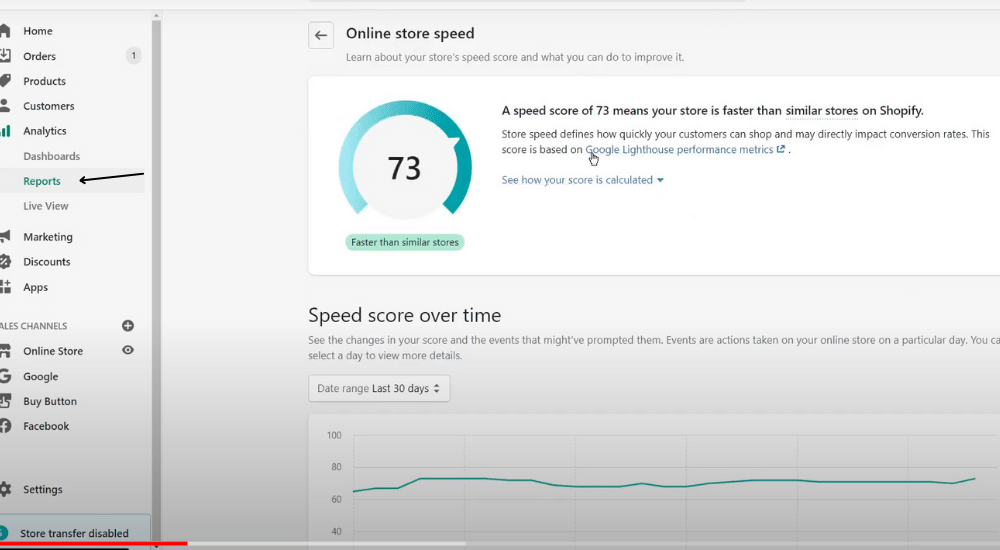
A few months ago, Shopify introduced a new feature that allows you to monitor your online store's speed directly from your admin panel. To check your store's speed, simply navigate to Admin > Reports > and select online store speed. The Shopify speed score report is based on Google Lighthouse metrics, and the score is presented out of 100. You also receive a detailed report of your score along with suggestions for improvement.
Furthermore, you can track how your speed score fluctuates over time. Read this to learn more about the Shopify store speed report.
You should also utilize Google's Test My Site to perform the speed test for your Shopify store. This free tool allows you to assess the speed of your website on mobile devices and provides recommendations to improve your mobile site experience. According to a study conducted by Shopify on 100,000 e-commerce sites, over 50.3% of traffic originates from mobile devices. Simply enter your website URL to receive a detailed performance report.
b. Choose a Lightweight and Responsive Shopify Theme
One effective method for optimizing the speed of your Shopify store is to select a fast-loading theme. Opting for a lightweight and responsive theme can enhance both your site speed and SEO rankings. Some themes may contain unnecessary elements that can hinder your website's performance. Therefore, before installing any theme, it’s advisable to check the following:
- Ensure it is fast, responsive, and lightweight.
- Verify that the theme is up-to-date and preview it. Conduct a Shopify theme speed test using Google PageSpeed Insights and note the suggestions for improving its speed.
Once you’ve identified the fastest Shopify theme and installed it, be sure to disable any features that you do not utilize. Discover which Shopify themes are best for SEO in 2022 to significantly boost your sales.
c. Optimize Images for Shopify
To create an attractive website, it’s essential to use high-quality images; however, high quality doesn’t have to mean large file sizes. If you don’t optimize your images, their large sizes will slow down your website, ultimately impacting your sales.
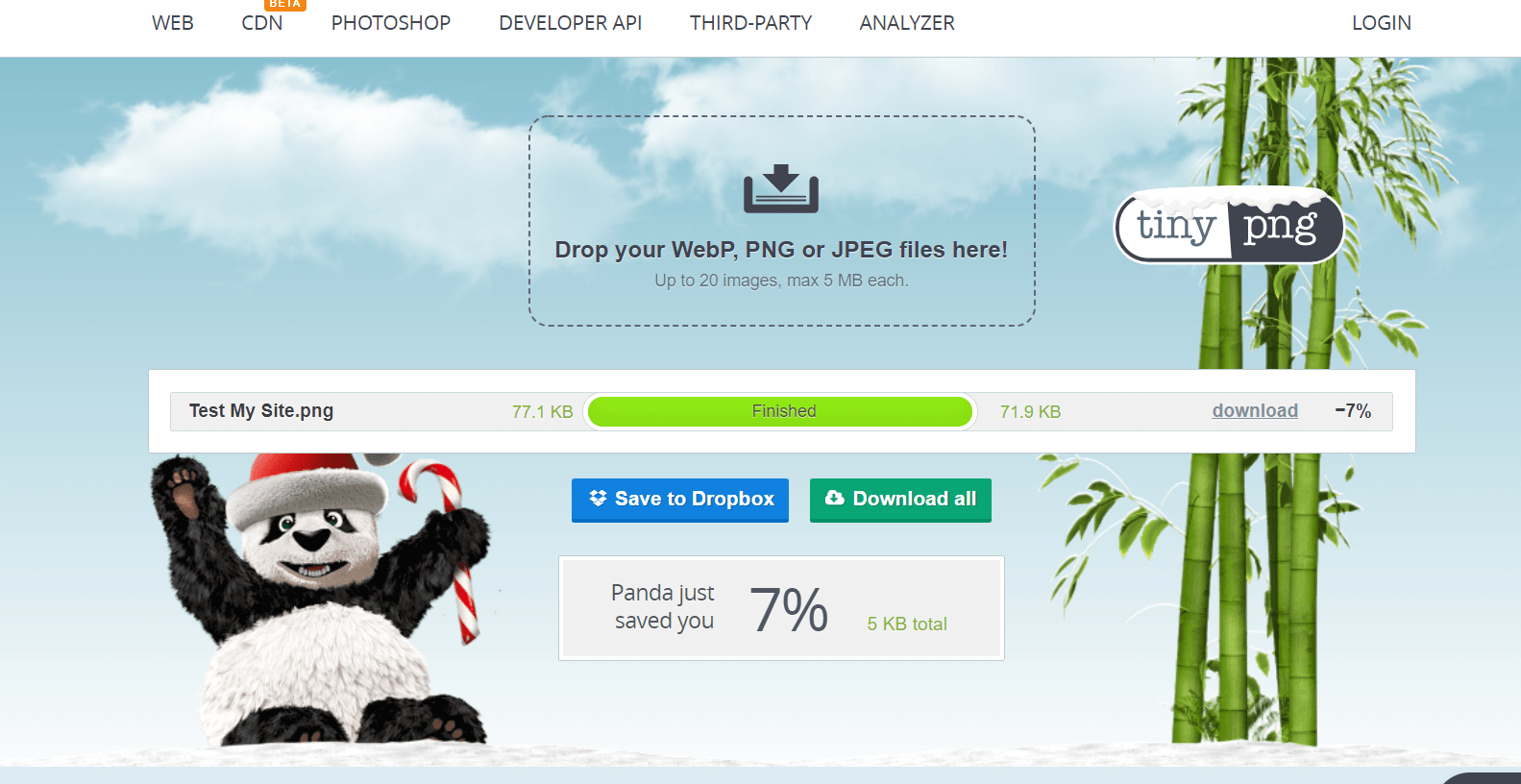
You can utilize image compression tools like Tinypng to compress images for Shopify. These tools maintain the overall quality of your images while reducing their file sizes, allowing your website to load more quickly.
If you have any existing images on your Shopify store, you can use Crush Pics or Image Optimizer to reduce the image size without affecting the quality.
d. Limit the Use of GIFs and Image Sliders
GIFs are widely used in marketing because they can enhance engagement rates. The Graphics Interchange Format (GIF) offers an interactive user experience and helps to establish brand identity. However, their large file sizes can significantly slow down your website, negatively affecting your sales and revenue.
Typically, a single GIF file can exceed 2 MB in size, and having multiple GIFs is a red flag for your business. It’s advisable to replace GIFs with static images, which are much smaller in file size and can improve your website's loading speed.
Similarly, image sliders, which often feature 5-6 high-quality images, can cost you potential customers. They increase your webpage load time and disrupt the overall user experience. Research indicates that only about 1% of visitors interact with sliders.
Moreover, sliders and carousels are detrimental to SEO, usability, and tend to provide a subpar experience for mobile users. Instead, consider using a single high-quality hero image paired with a clear call-to-action for better results.
e. Enhance Page Performance with AMP
As most visitors to Shopify e-commerce stores come from mobile devices, a slow site will likely drive them away. Accelerated Mobile Pages (AMP) is an open-source framework designed to improve loading speeds on mobile devices. It can give you a competitive edge, leading to increased sales and profits.
Shopify simplifies the creation of AMP pages for your store with apps like AMP by Ampify Me or Fire AMP. These tools provide an efficient way to generate AMP pages while allowing you to customize their appearance. After setting everything up, you just need to wait a few days for Google to index your AMP pages.
f. Implement Lazy Loading for Images to Decrease Loading Time
Lazy loading is another effective SEO strategy to enhance the speed of your Shopify store. This method improves your site’s performance by preventing all images from loading simultaneously; instead, they load only as the user scrolls down the page. By using lazy loading, you can save on image data, resulting in faster load times. However, excessive use may hinder site performance.
If you’re keen on implementing lazy loading, consider checking out the Shopify Lazy Loading blog for a comprehensive step-by-step guide.
2. Reduce the Number of Installed Apps
Installing multiple apps on your Shopify store is an easy and effective way of adding functionality to any programming language. Who doesn't want to get some extra functions that can skyrocket your sales, and that too without spending hundreds of coding hours? But if you're not using the functions/apps, what is the fun of having them tied to your backs?
The majority of the apps installed via Shopify add some JavaScript/CSS files to your site. These additional third-party scripts always run in your background, making your store load slower, thus costing you money. So, this is exactly why you should delete any unnecessary or unused apps.
To make it easy for you to recognize which app you need to delete, ask yourself the following:
- How often do you use the app?
- Does the app help you reach your targets?
- Is this a “must-have” or “nice to have” app?
- Is there any lightweight replacement for it?
- How would it impact your store if you removed it?
Think twice, but if the app is not essential for your business, just uninstall or consider replacing it. Consider consulting a developer if you're not sure about anything to avoid any disaster.
3. Minimize Shopify Redirects and Avoid Broken Links
Assume you visited a coffee e-commerce store and clicked on any link; it suddenly redirected you to a gardening webpage, or worse, it showed you that the link is broken. How would you feel? The same thing happens to customers if your store has too many redirects or broken links, making your store load slower and affecting your SEO.
The easiest and most effective way to increase your Shopify website speed is by throwing away unnecessary redirects and broken links.
Step 1: For Redirects
Having useless redirects hampers your website performance and creates speed issues. It's time to identify them and minimize Shopify redirects.
- From your Shopify Admin, go to Online Store > Navigation.
- Under Navigation, select URL Redirects to display all your active redirects.
- You can filter specific redirects.
Step 2: For Broken Links
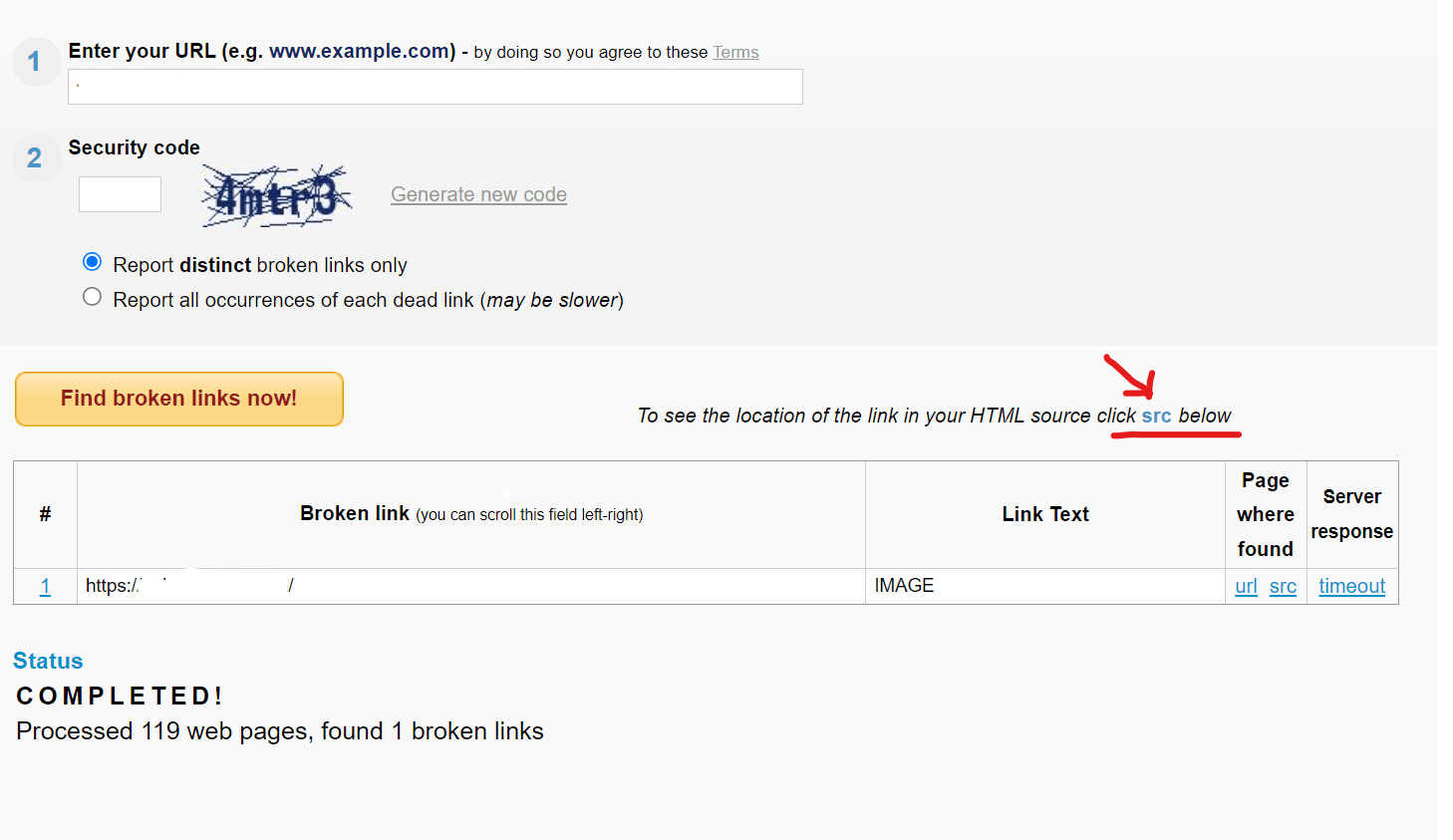
A broken link that shows 404 errors reduces the user experience. Use Broken Link Checker to find any broken links and fix them. To reduce your workload, you can use an in-built “src” that lets you know where the broken link is in the page's code. Shopify SEO apps are also a great way to effortlessly identify and fix broken links.
4. Minimize Assets to Enhance Your Shopify Store Speed
CSS (the stylesheet that dictates your website's appearance), JavaScript (the scripts that govern its functionality), and Liquid Files (the core of Shopify themes) are essential for operating your online store. However, large file sizes can hinder your site's performance and slow down loading times.
Minification involves compressing these files to accelerate loading. You can utilize PageSpeed Insights to assess your store's performance. If you receive minification warnings, fear not! Simply select the Page Speed Optimizer to minify your assets with just one click—no coding required.
5. Use Google Tag Manager to Streamline Tracking Codes
Typically, you would add individual codes for site analytics, AdWords, remarketing, and more. Google Tag Manager allows you to manage all your website tags from a single interface, making it easier to track activities across your sites and apps accurately and reliably.
Consider migrating third-party codes and tracking pixels, such as Facebook Pixel and Google Analytics. Google Tag Manager integrates seamlessly with your Shopify store, simplifying your tracking setup.
6. Conduct a Speed Test for Your Shopify Store with GTMetrix
If you're looking to perform a thorough speed test on your Shopify store, GTMetrix is an excellent choice. This free tool analyzes your website, providing insights into what may be slowing it down, along with detailed recommendations to enhance your loading speed.
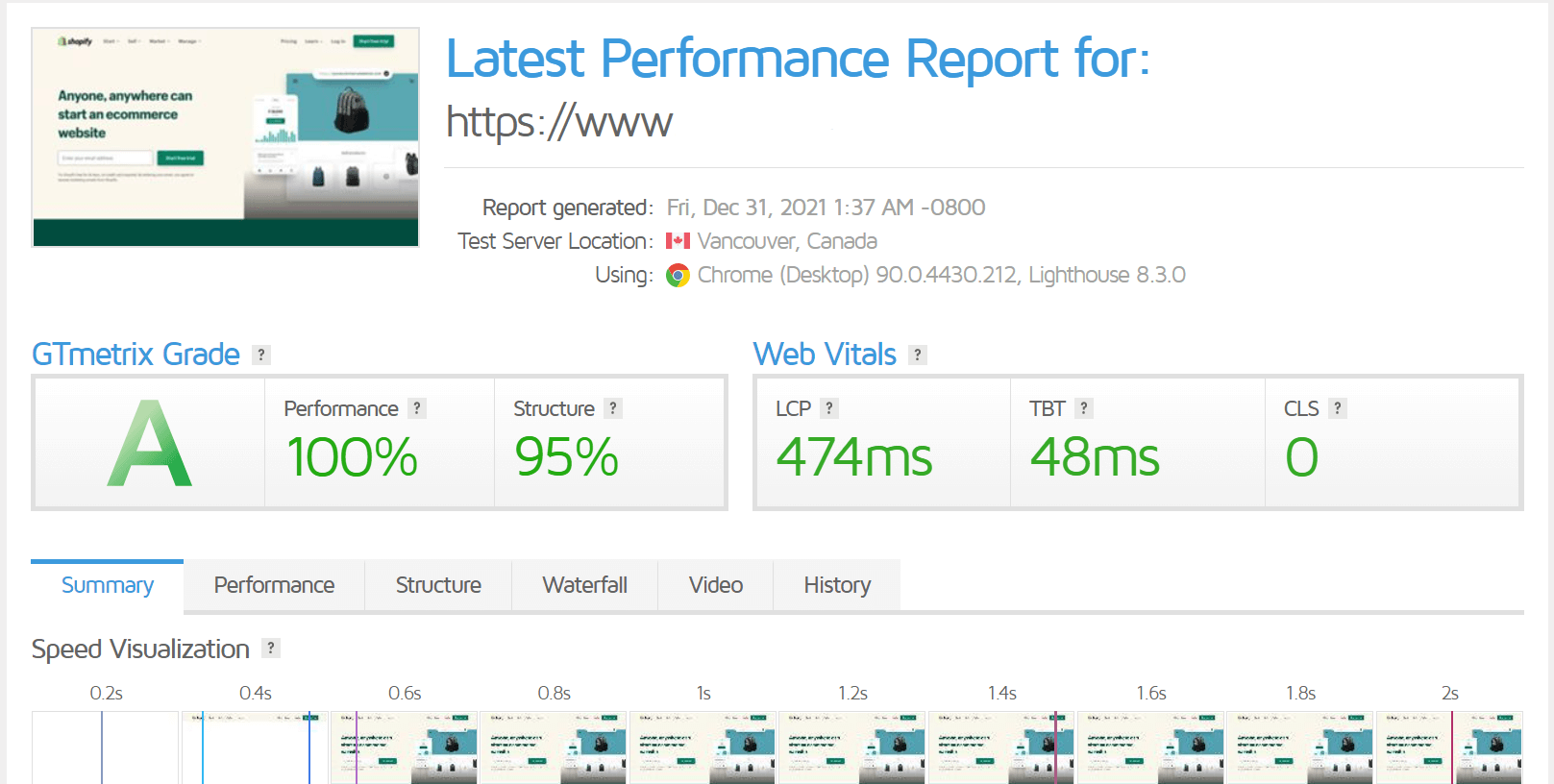
The tool provides various insights, complete with grades and web vitals. Multiple score categories offer a comprehensive analysis of your website's performance.
The Performance score reflects how effectively your webpage operates from a user's perspective.
The Structure score indicates how well your webpage is constructed for optimal performance.
Web vitals comprise a small set of essential metrics that assess whether your website offers a swift user experience.
The waterfall chart illustrates the exact duration of each request, allowing you to pinpoint which page elements require the most loading time.
For an in-depth analysis of your GTMetrix score, refer to the GTMetrix report.