

Social media is a popular marketing channel, and effectively utilizing this tool for your store can provide several benefits:
- It enhances brand awareness, leading to increased traffic to your store.
- Social media is on an upward growth trajectory; platforms like Instagram can potentially reach 1.8 million people through ads, providing your store with better exposure.
- It helps keep customers consistently engaged with your brand by running social media contests and campaigns.
- It fosters a loyal online community that can offer valuable insights into your products.
How to Add Social Media to Shopify?
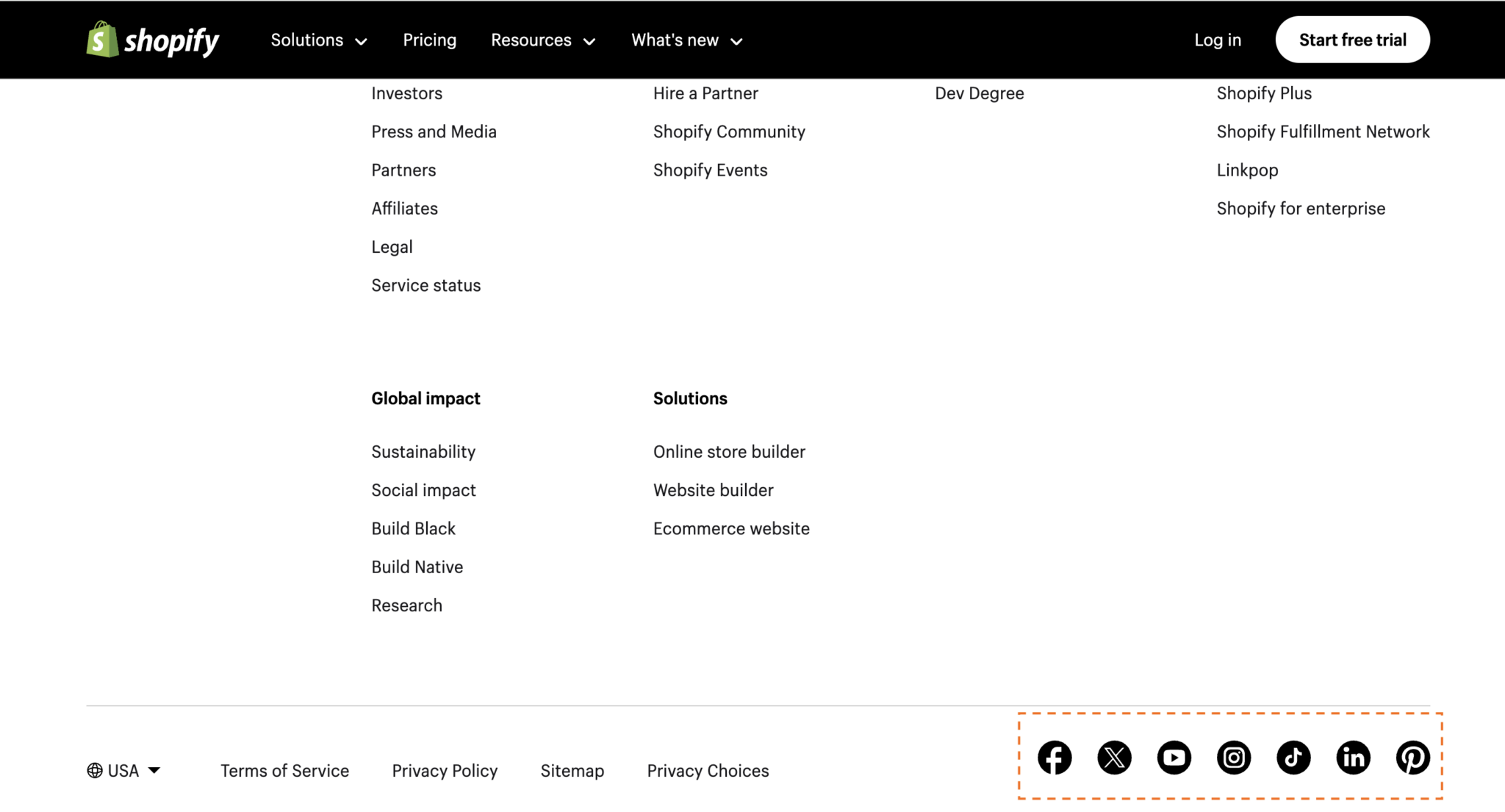
By following the method outlined below, you'll be able to easily display social media icons in your store, as illustrated in the screenshot.
There are three ways to add social media links to Shopify:
- Adding Through Theme
- Adding Through Code
- Using Third-party Apps
Let’s Understand Each Method.
1. Adding Through Theme
This method is the simplest if the theme you are using allows you to add social media links to Shopify in this way.
If it doesn’t, don’t worry; we have two more methods to integrate.
Steps to Add Social Media Links Through Theme
- Log in to your Shopify store using your admin credentials.
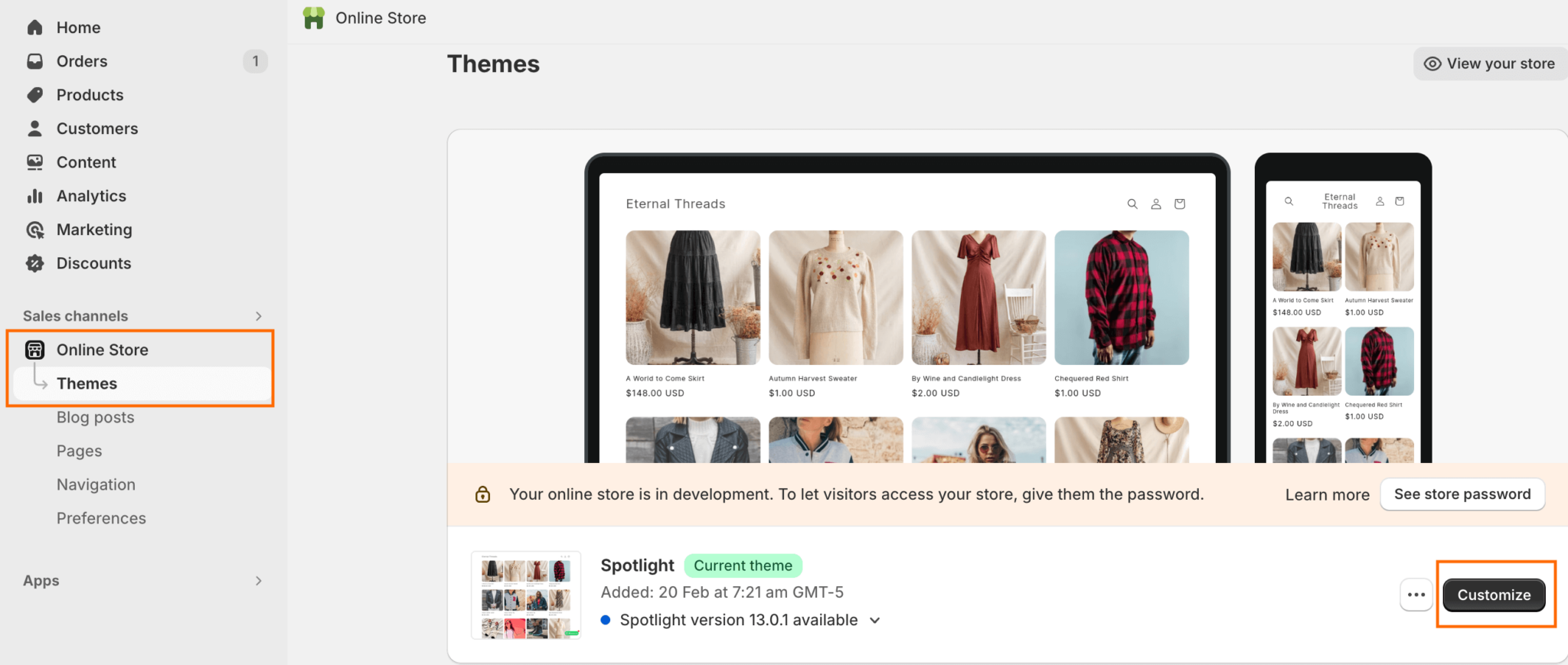
- From the left-hand side menu, scroll down to Online Store > Themes. Once you reach the Themes dashboard, click on the Customize button.
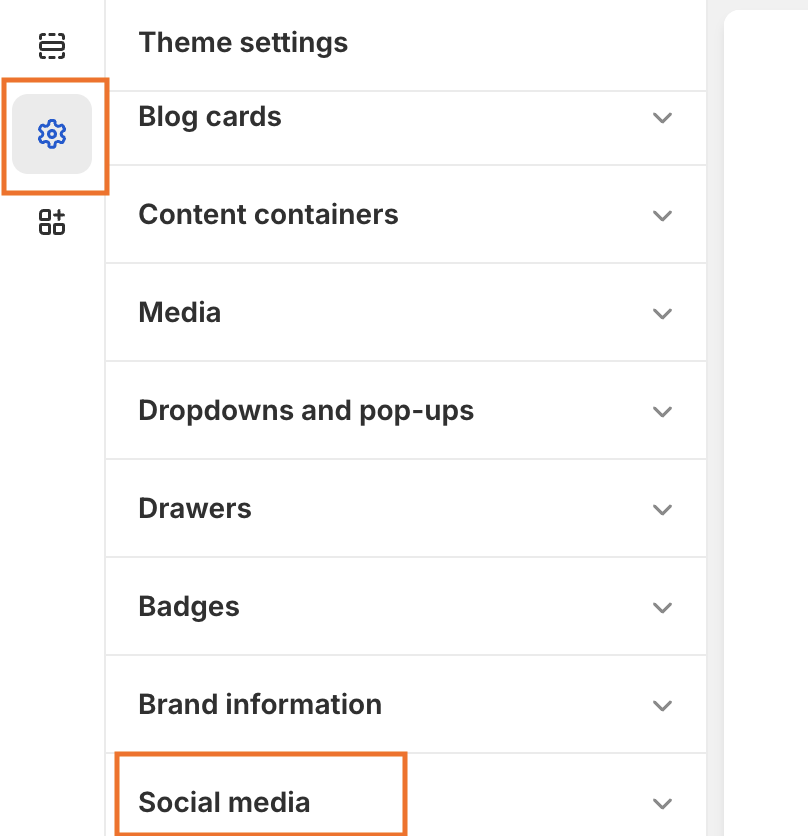
- In the Theme Editor, navigate to Theme Settings > Social Media.
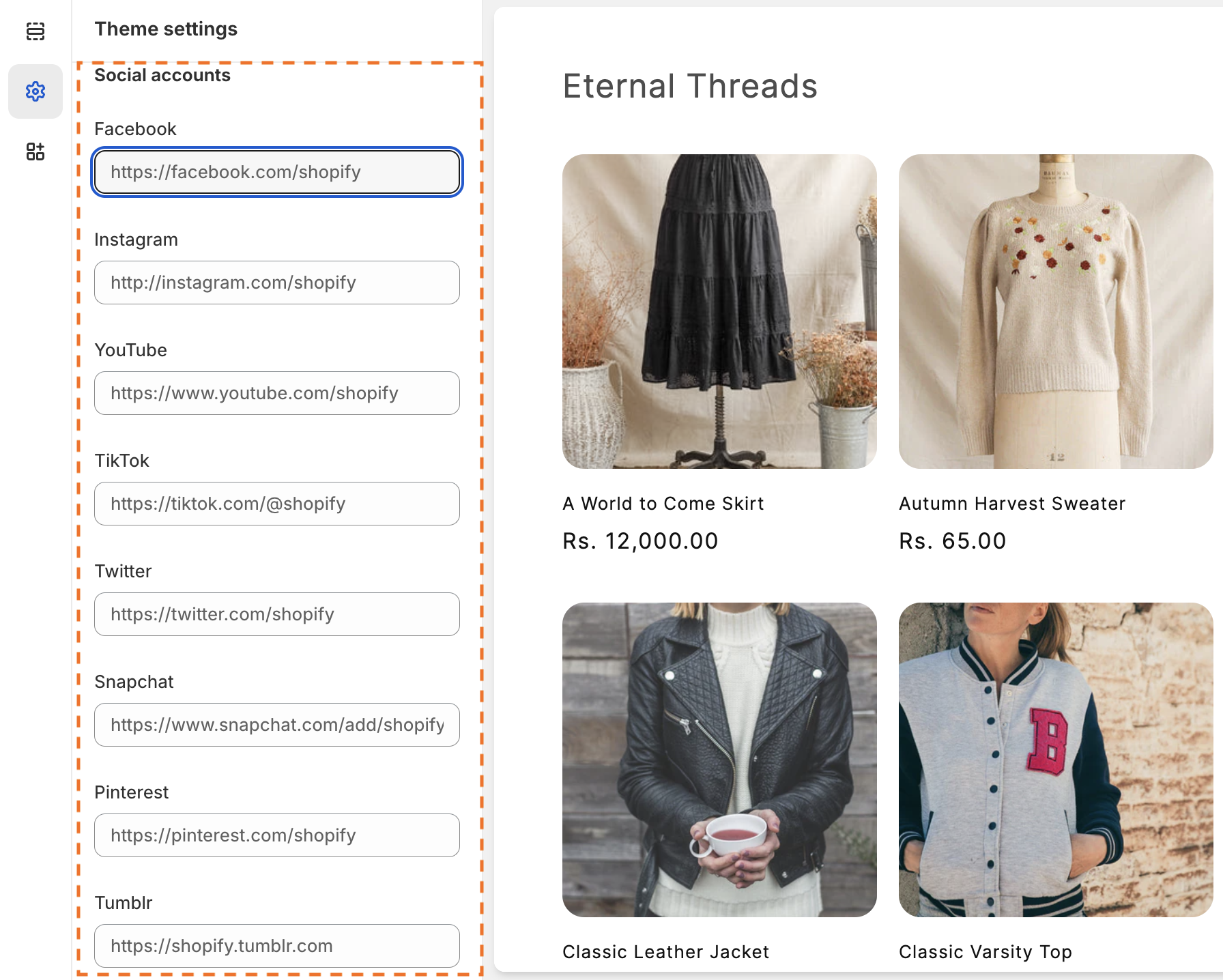
- Click on the dropdown, and you will see social media platforms with a blank field; add the social links to Shopify accordingly here.
- After everything looks good, click on Save from the top-right-hand side.
Now, to check if the URLs are working properly, head to your Shopify store URL and scroll down to the footer where these icons will be available.
Simply click on the icons to see if they are directed to the correct social media page.
2. Adding Through Code
If your theme doesn’t provide the functionalities mentioned in the previous method, you can still add social media links to your Shopify site using code.
Let’s See How to Do It
These steps may appear a bit technical, but if you follow along, it will be much easier.
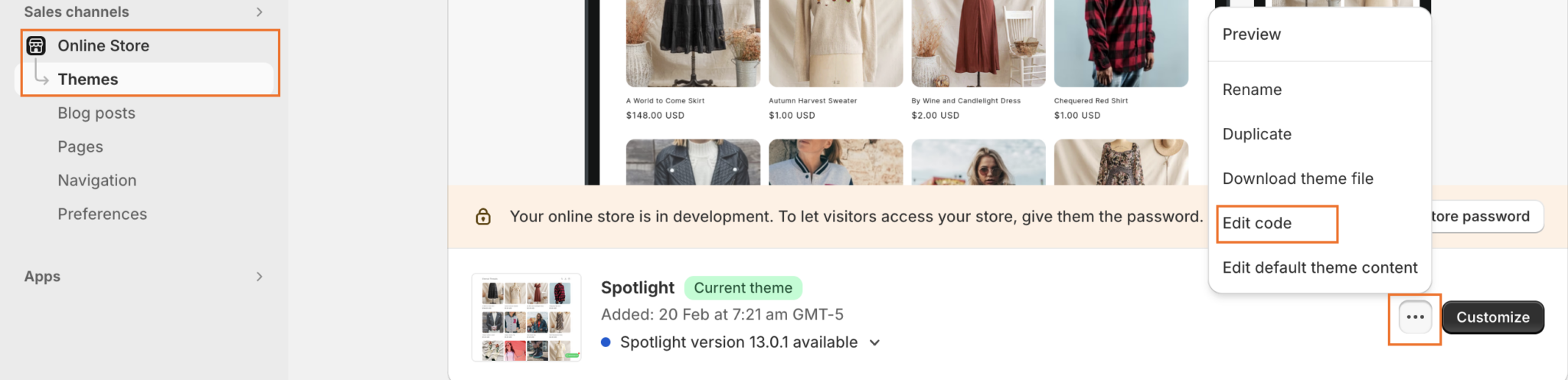
- Log into your Shopify admin and navigate to Sales Channels > Online Store > Themes.
- Click the three dots next to the Customize button, and select Edit code from the dropdown menu.
- Now, from the left-hand side menu, navigate to Assets > Add a new asset.
After clicking on add a new asset, upload the social media icon in any one mentioned format (IMGs, CSS, JS or more).
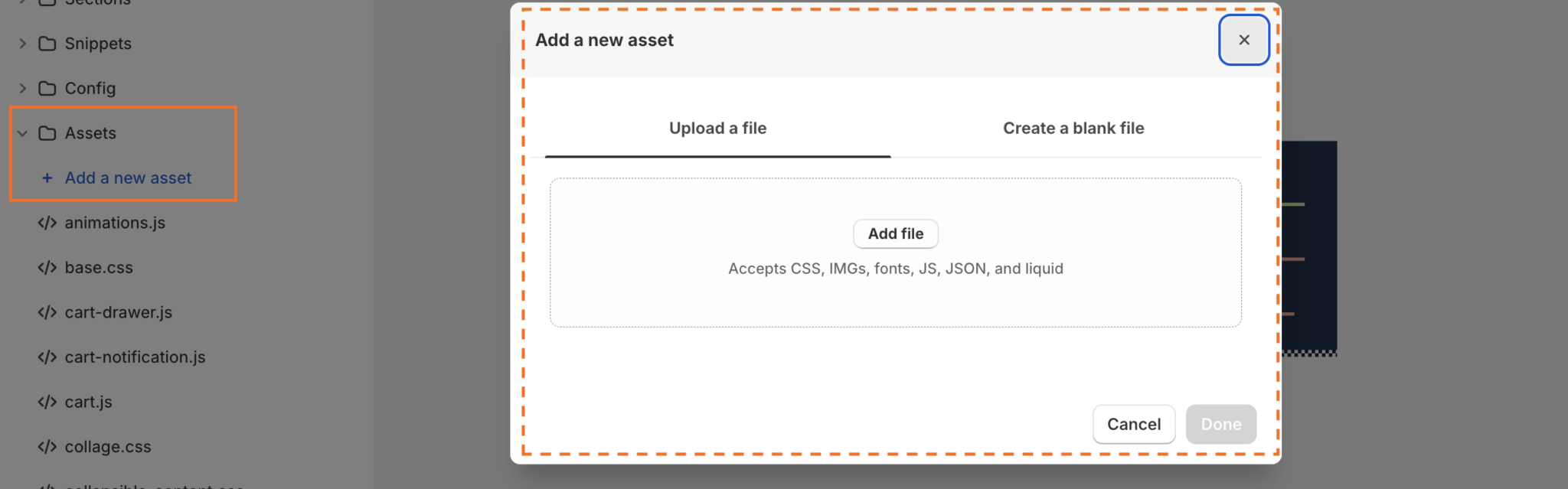
After uploading, click on Done.
This process allows us to add a social media button to your Shopify store; now, let’s make the button actionable.
- Next, return to the dashboard and navigate to Online Store > Themes > Edit code.
- From the sidebar menu, go to the footer.liquid section and add the following code:
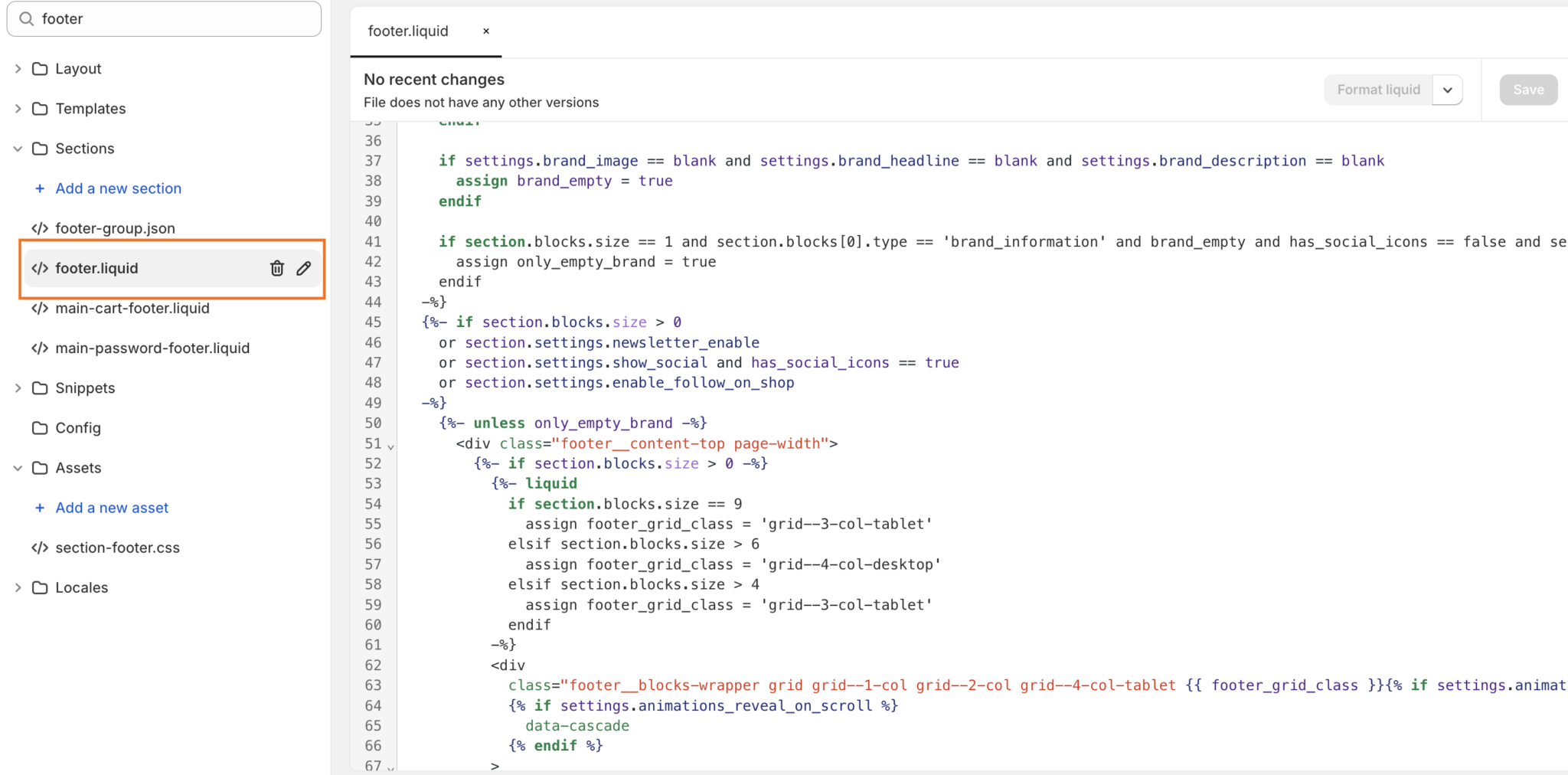
Note: Be sure to change the link to your social media account when copy-pasting this code into your store.
- Click on Save, and you’re done!
Before moving on, return to your store URL and check if the social media icon is functioning as expected.
You can repeat the same steps if you want to add LinkedIn, Pinterest, or any other social media platforms.
3. Using Third-party Apps
The third option available is to use third-party apps. You can choose apps like GemPages.

GemPages offers easy drag-and-drop features that allow you to add social media icons without any coding.
Moreover, with this tool, you can place social icons not only in the Shopify footer but also in the header and on various product pages. The app is readily available in the Shopify App Store as well.