

How to Put Your Shopify Store on Vacation Mode
Managing a Shopify store can be an exciting journey, but there might come a time when you need to pause operations or temporarily shut down your store. In such cases, you have the option to activate vacation mode for your Shopify store.
This tutorial will guide you through the process of enabling vacation mode, outline when it’s appropriate to use this feature, discuss the implications of vacation mode on your Shopify store, and provide helpful tips to maintain customer trust while your store is in vacation mode.
What is Vacation Mode in Shopify?
Vacation mode in Shopify is a feature that enables store owners to temporarily shut down their online store or make it inactive for a designated period for various reasons, such as holidays, inventory updates, or personal matters.
When vacation mode is activated, your store will show a custom message to visitors, informing them that the store is temporarily closed and providing relevant information, such as when the store will reopen or alternative ways to contact the owner.
Why Use Shopify Vacation Mode?
Putting your Shopify store on vacation mode is useful in different scenarios, allowing you to temporarily close your online store or limit its functionality:
- Taking a Break: Temporarily close your store to relax without the pressure of fulfilling orders and inquiries.
- Inventory Updates: Prevent new orders while updating products, stock counts, or listings.
- Supplier Delays: Pause orders until supplier or shipping issues are resolved.
- Store Maintenance: Avoid errors during design or technical updates.
- Rebranding or Relaunch: Hide your old store version until the new one is ready.
- Emergency Situations: Temporarily suspend operations during crises or unforeseen events.
Advantages & Disadvantages of Using Shopify Vacation Mode
Advantages
- Professional Appearance: Avoids broken experiences by displaying a clear closure message.
- Clear Communication: Share reasons for closure, return dates, and contact details.
- Order Management: Continue handling existing orders via Shopify admin.
- No New Sales: Prevent unfulfilled orders and customer dissatisfaction.
- SEO Considerations: Shopify applies a temporary “503 Service Unavailable” status for rankings.
Disadvantages
- Lost Sales: No new revenue during vacation mode.
- Limited Functionality: Customers cannot make purchases, which may frustrate them.
- Competitive Disadvantage: Competitors remain active while your store is offline.
- SEO Impact: Possible temporary drop in rankings post-vacation.
- Customer Frustration: Shoppers may be disappointed by the closure.
- Preparation Time: Requires setup (fulfilling orders, creating vacation message).
Steps to Put Your Shopify Store on Vacation Mode
Shopify doesn’t have a built-in “vacation mode,” but you can restrict access using Password Protection. Here’s how:
- Log in: Access your Shopify admin panel using your credentials.
- Go to Online Store: In the left sidebar, click Online Store.
- Click Preferences: Open the Preferences tab under Online Store.
- Scroll down: Find the Password protection section.
- Enable protection: Tick the box Restrict access to visitors with the password.
- Set a password: Choose a strong and unique password to share with authorized visitors.
- Customize message: Add a note explaining why your store is closed, reopening date, or contact info.
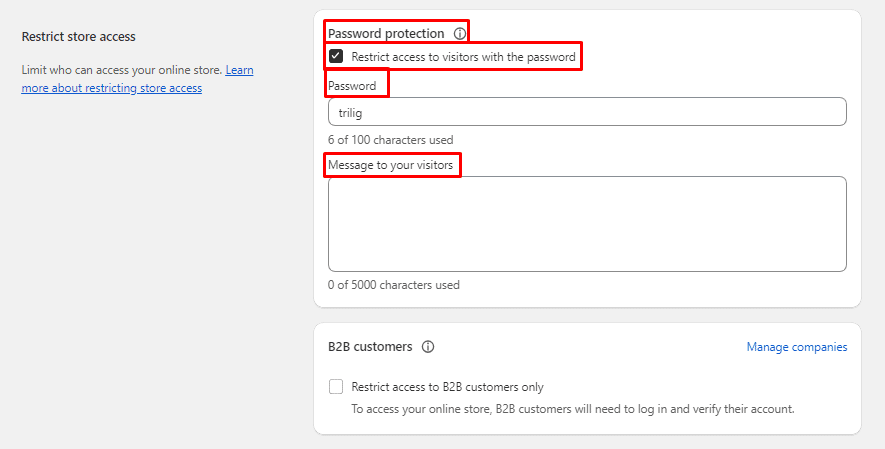
- Save changes: Click the Save button to apply the new settings.
Tips to Maintain Customer Trust During Vacation Mode
- Provide Advanced Notice: Inform customers ahead of time via email, banners, or social media.
- Set Realistic Expectations: Share reopening dates and response times clearly.
- Offer Contact Information: Provide backup contact options for urgent queries.
- Consider Discounts: Reward customers with special offers pre- or post-vacation.
- Stay Active on Social Media: Schedule posts to maintain visibility and engagement.
- Thank Your Customers: Show appreciation to build loyalty despite the downtime.